
Bookmark a space
Pin spaces to your Bookmarked section for quick access without scrolling through your organization list.
Bookmark a space
- Find the space card in your organization or Recently Visited.
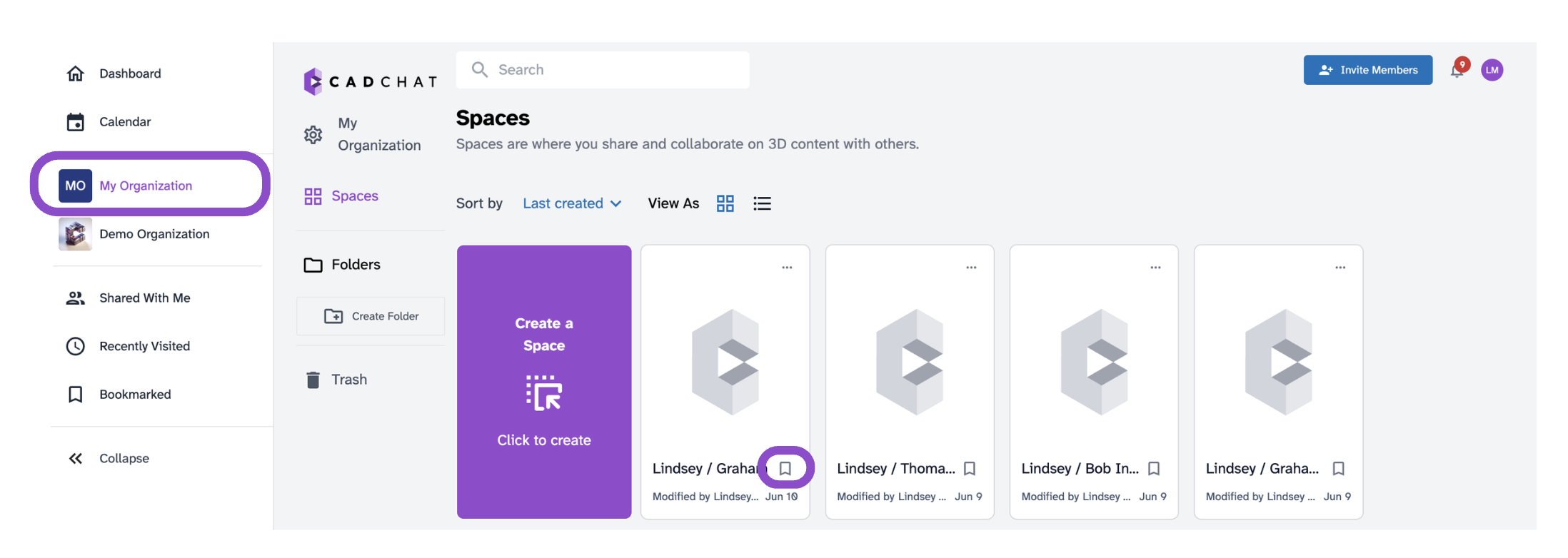
2. Click the bookmark icon on the card to pin it.
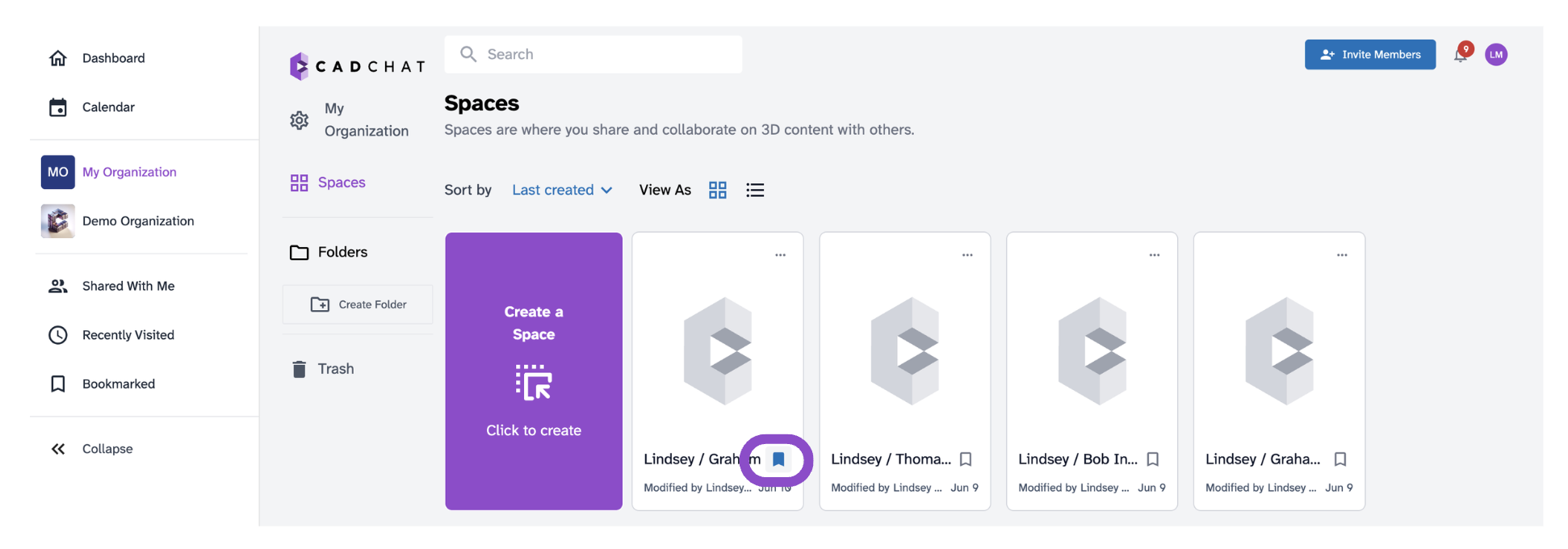
3. The space appears under Bookmarked in the sidebar. See Find your way around for more on the sidebar.
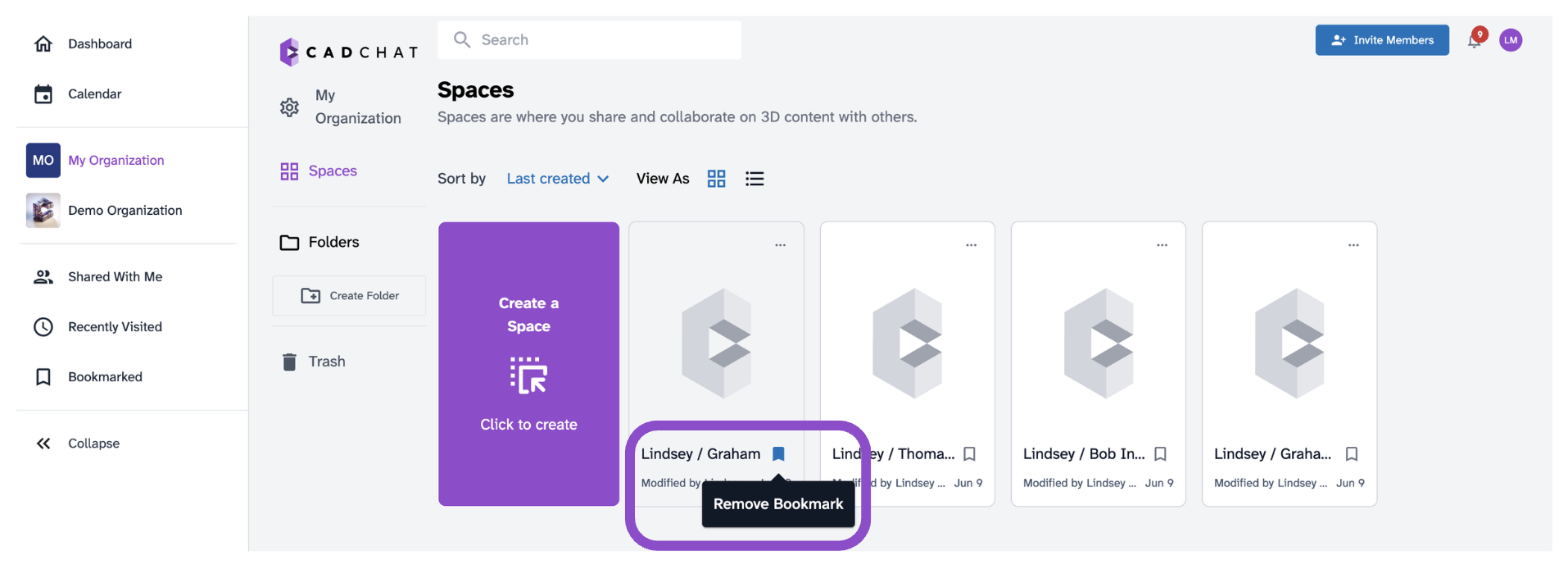
To remove a bookmark, click the bookmark icon again.
Tips and edge cases
- Bookmarks are personal. They only apply to your account.
- If a bookmarked space shows an error when you open it, you may have been removed from the space. Ask the owner to re-invite you.