
Threads overview
Use threads to anchor feedback and discussion to specific locations on a 3D model, document, or whiteboard.
Threads vs chat
Threads are anchored to a specific point on a model, document, or whiteboard. Chat is for general conversation. Use threads when feedback needs to be tied to a location. See Chat in a space.
Place a pin and start a thread
- In the left toolbar, click the Add Pin icon (thumbtack icon) then click to place, or simply double-click directly on the model, document, or whiteboard.
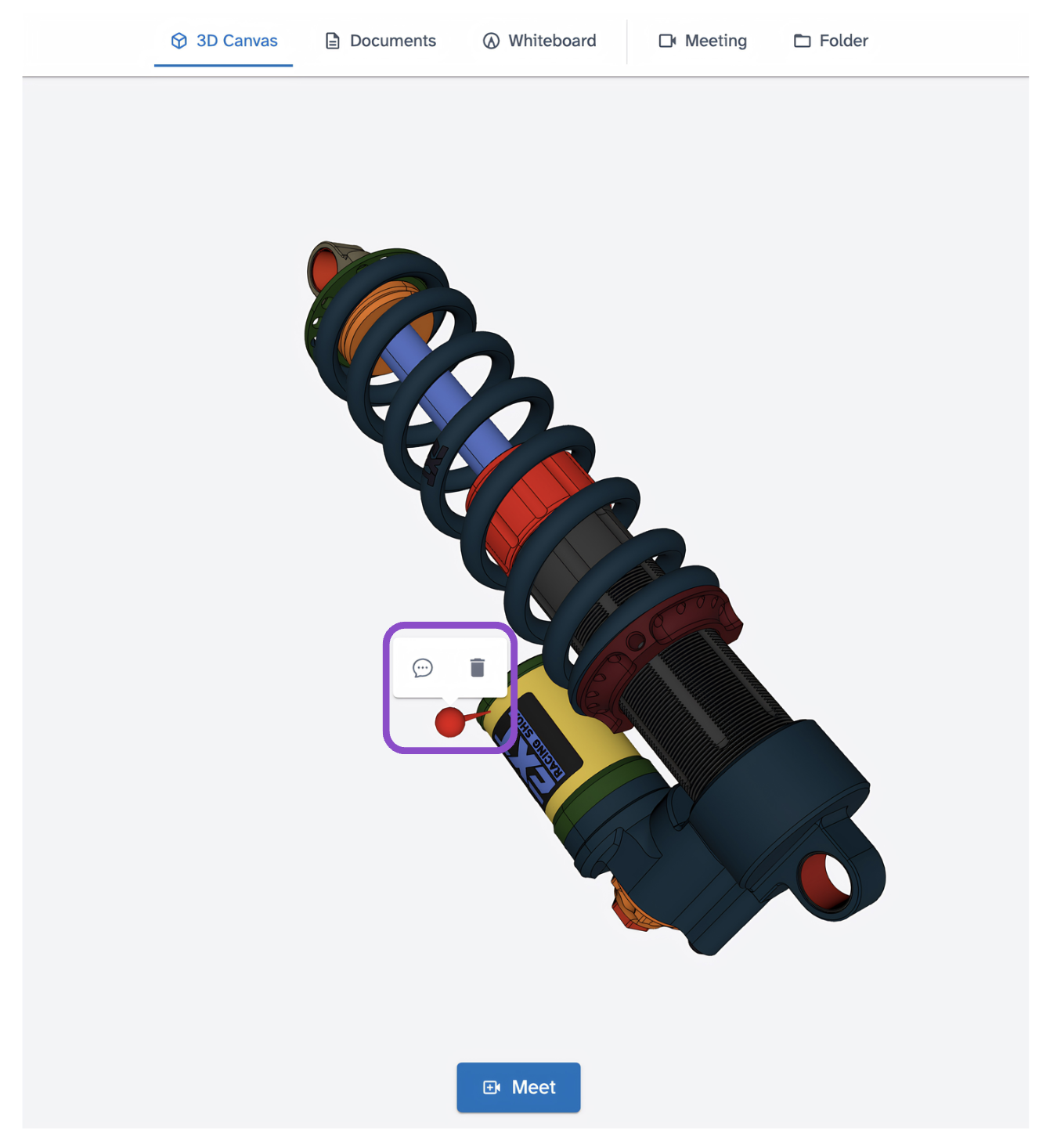
- Optionally choose a pin color from the fly out.
- Click on the model, document, or whiteboard where you want to anchor the thread. A thread popup appears at that location.
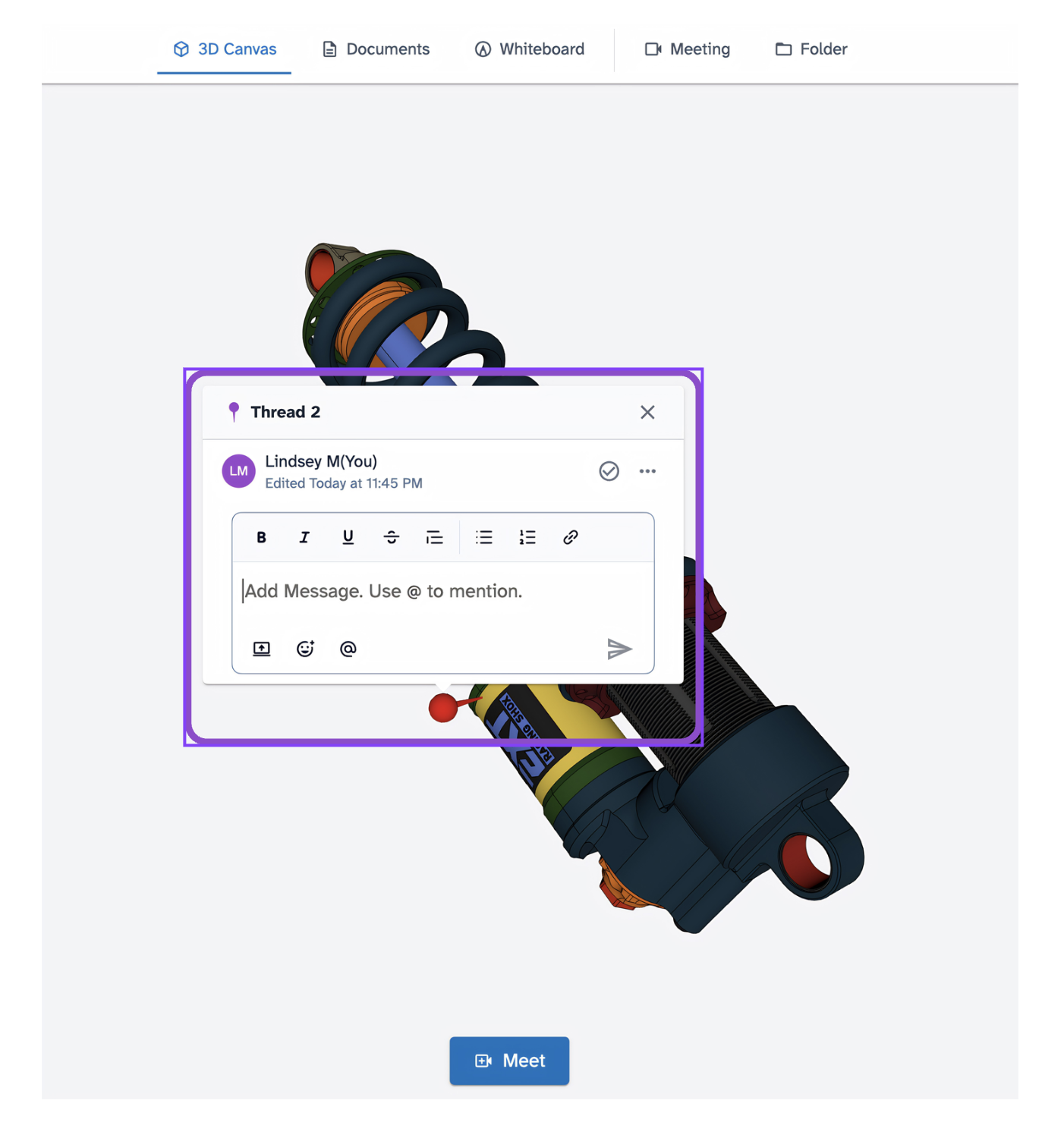
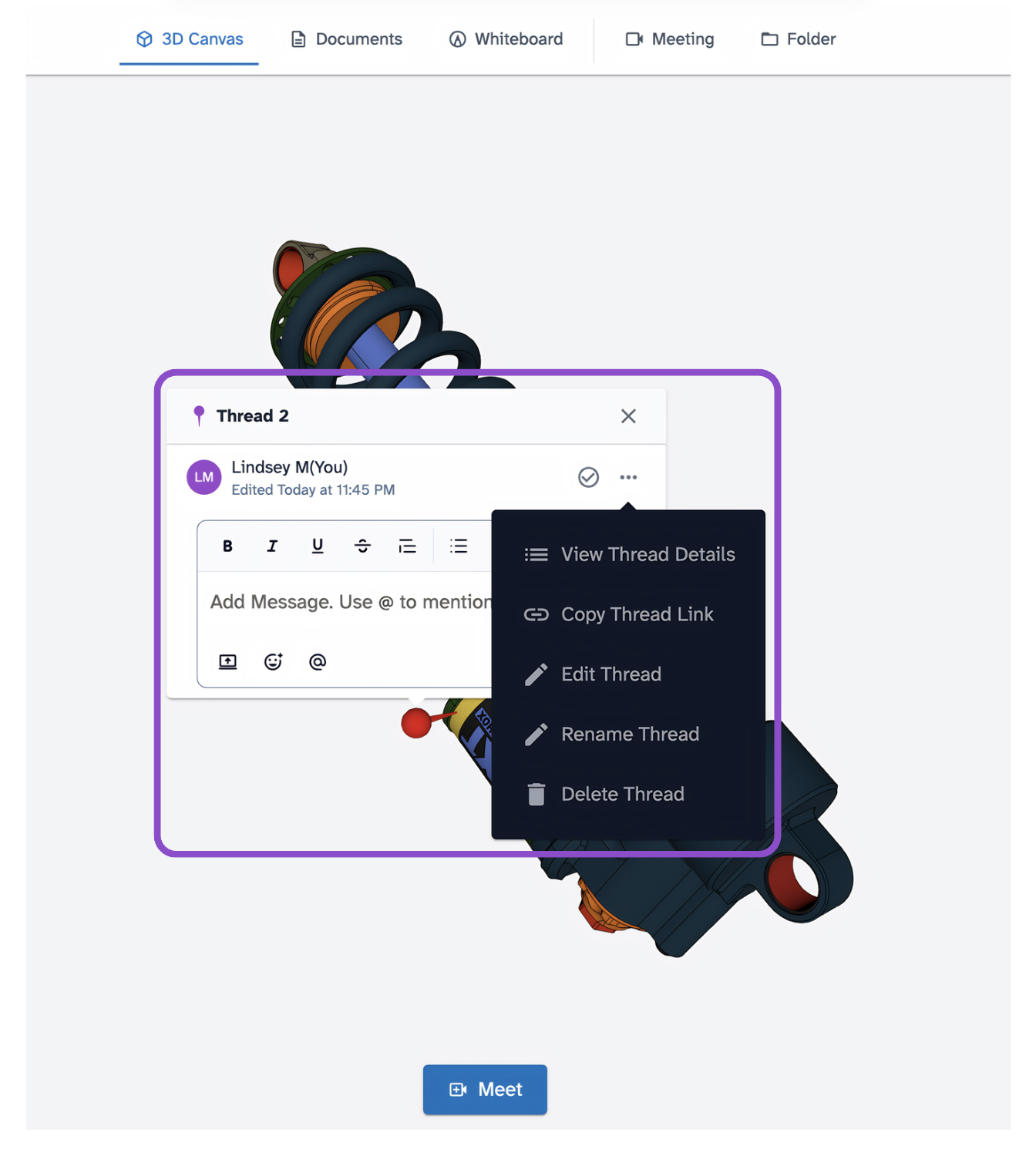
- Type your comment in the composer. Use the formatting toolbar for bold, italic, lists, links, and more. Use @ to mention a collaborator.
- Click the send arrow to post.
Resolve a thread
- Click the checkmark icon in the thread popup or Thread Details panel to mark a thread as resolved
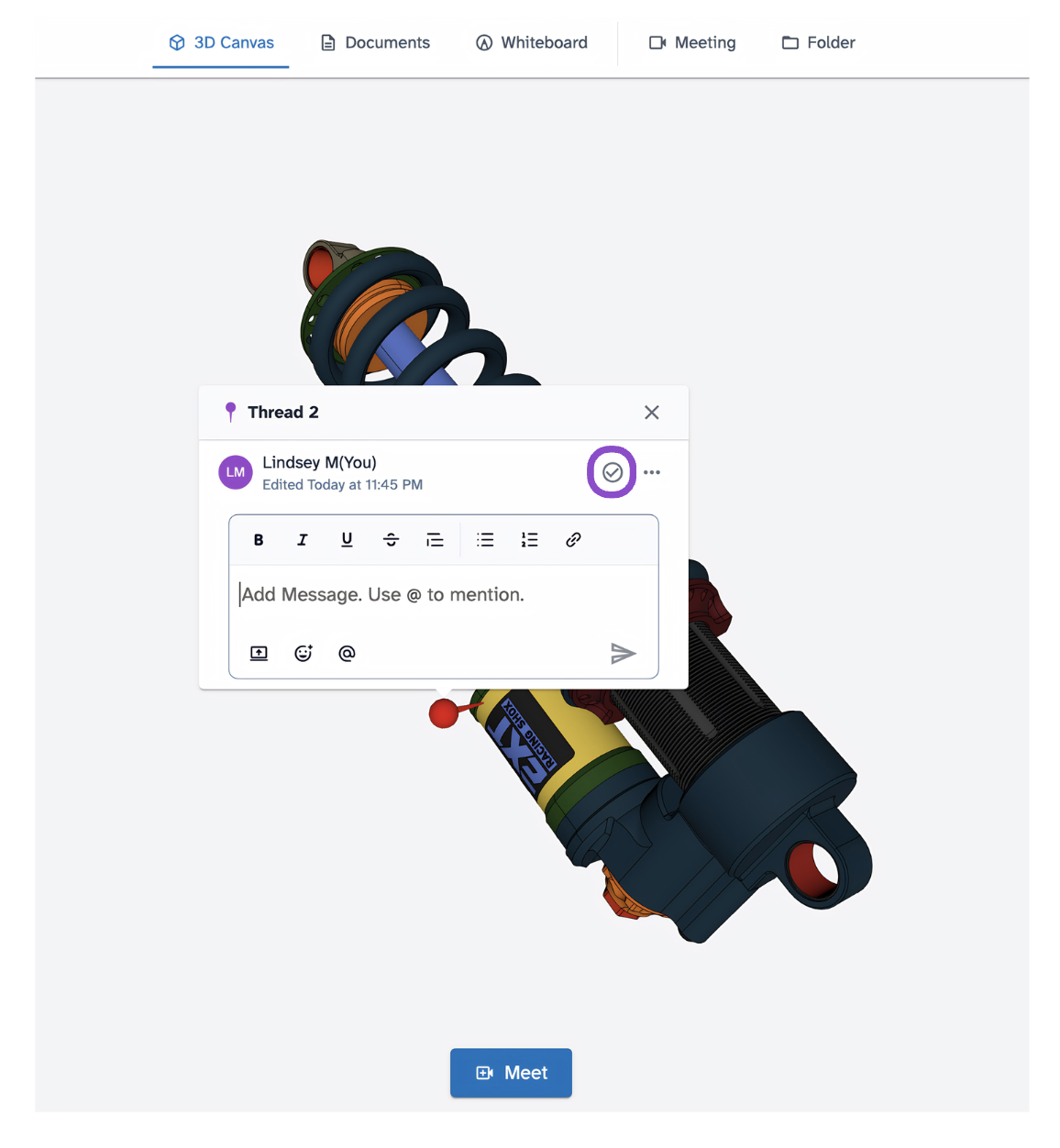
- It displays a green RESOLVED badge. Click the checkmark again to reopen it.
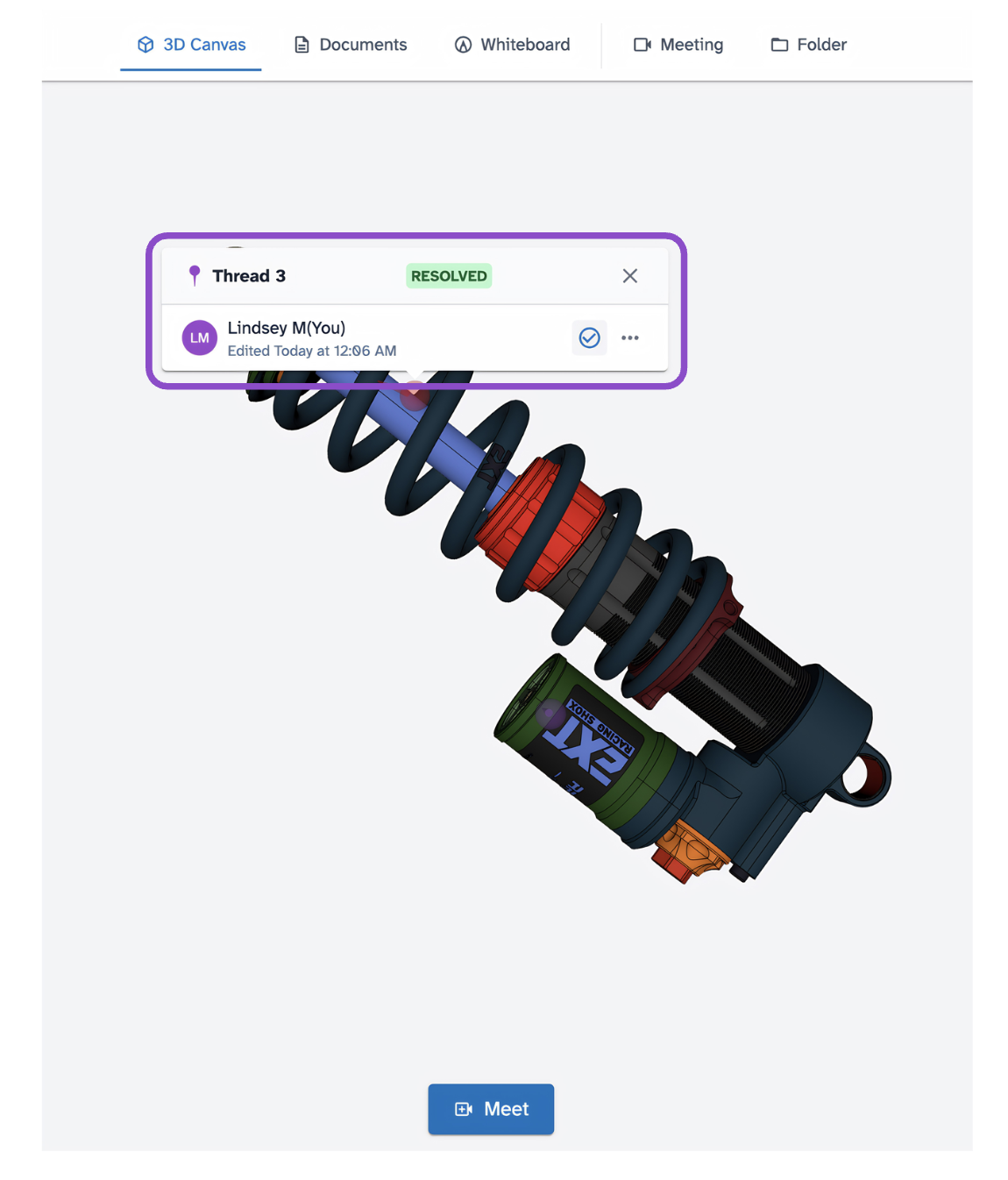
Thread options
Click the "..." icon in the thread popup or Thread Details panel to access: View Thread Details, Copy Thread Link, Edit Thread, Rename Thread, or Delete Thread.
Tips and edge cases
- Threads work on the 3D Canvas, Documents tab, and Whiteboard tab.
- The Threads panel in the left sidebar lists all threads for the current space section.
- The thread popup shows a reply count so you can see activity at a glance.
- If a pin disappears after placing it, you may have clicked outside the canvas. Click directly on the model or document surface.
- If you can't delete a thread, you may not be the thread author or a space owner.
- Double-clicking places a pin by default. You can change this to Zoom To in User Preferences if you prefer double-click to zoom instead.
- All collaborators with at least Can Comment permission can add pins and reply to threads.