
Understand the space layout
Tabs
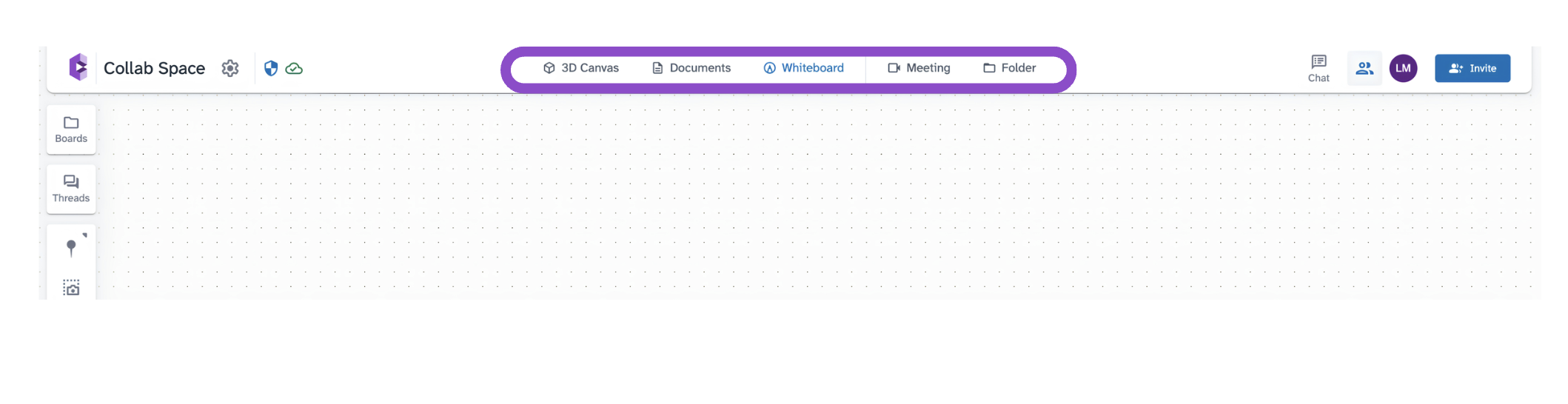
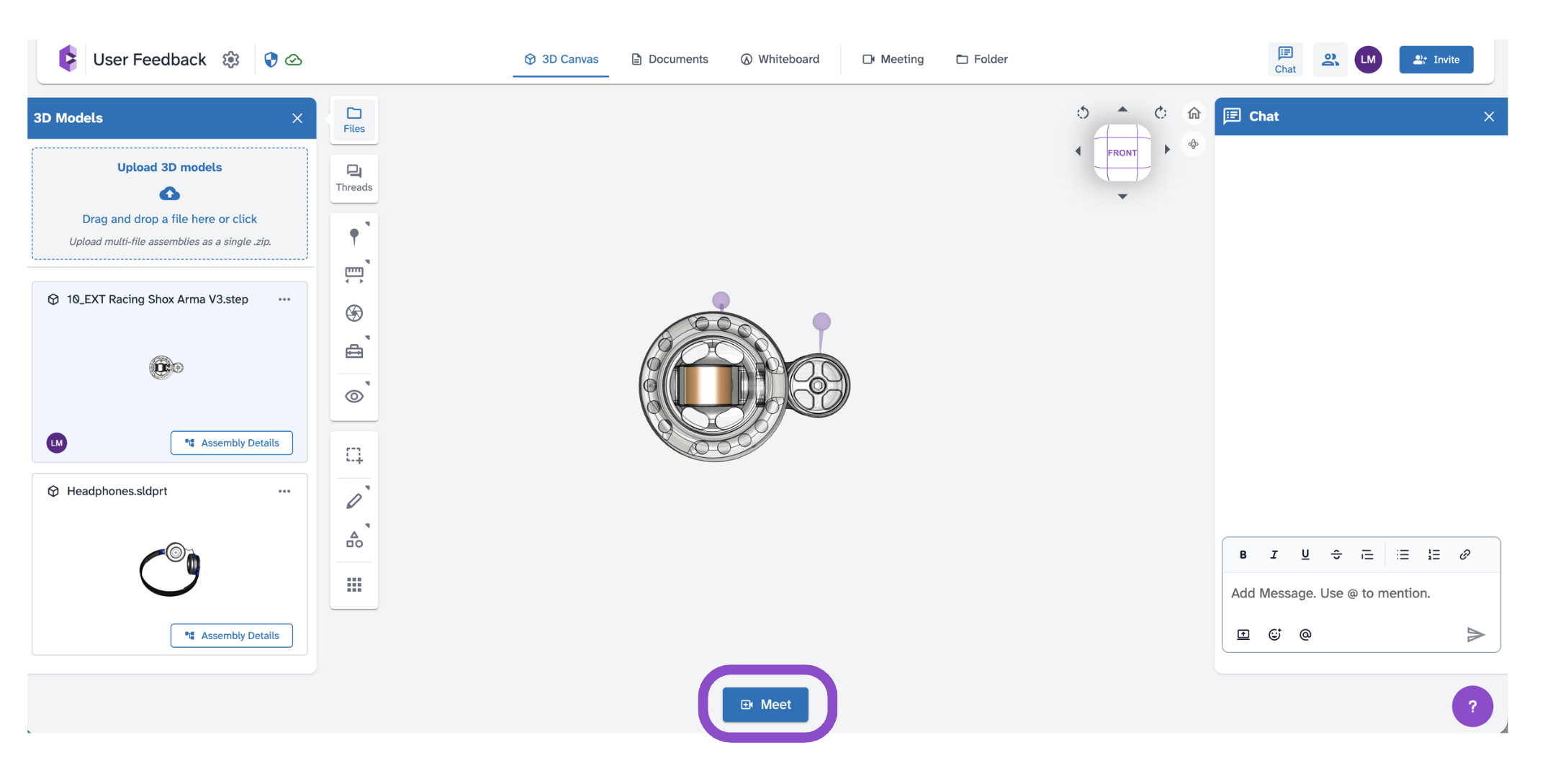
At the top center of a space, five tabs control what you're working on: 3D Canvas, Documents, Whiteboard, Meeting, and Folder. You open on the 3D Canvas tab by default.
Space header
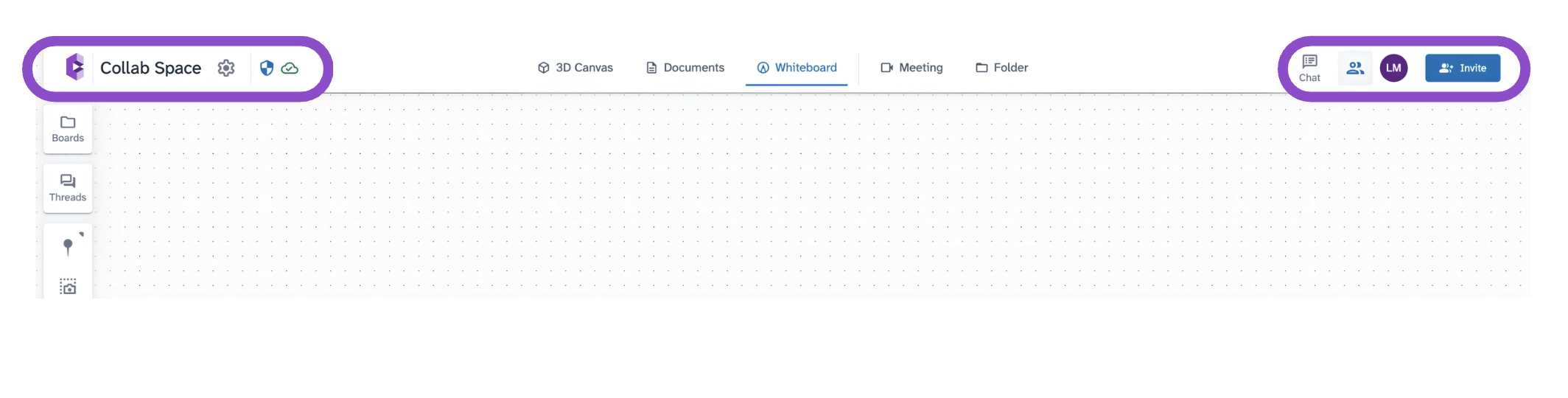
The top-left shows the space name with icons for Settings (⚙), privacy, and sync status. The top-right has Chat (opens the chat panel), a Members icon, your initials icon, and the Invite button.
Left toolbar
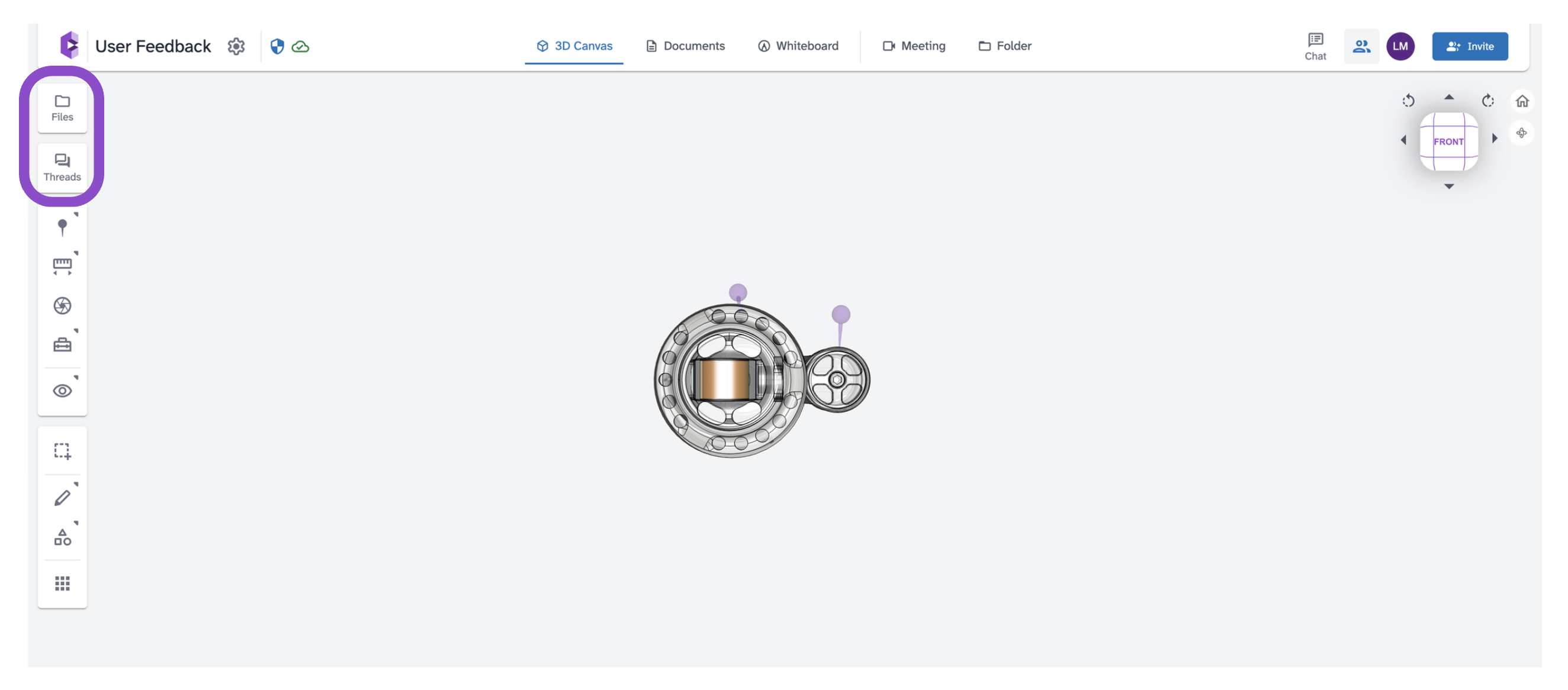
The left side of the canvas has two sections at the top, Files and Threads, which toggle their respective panels. Below those are tab-specific tools. The tools available change depending on which tab you're on.
Panels
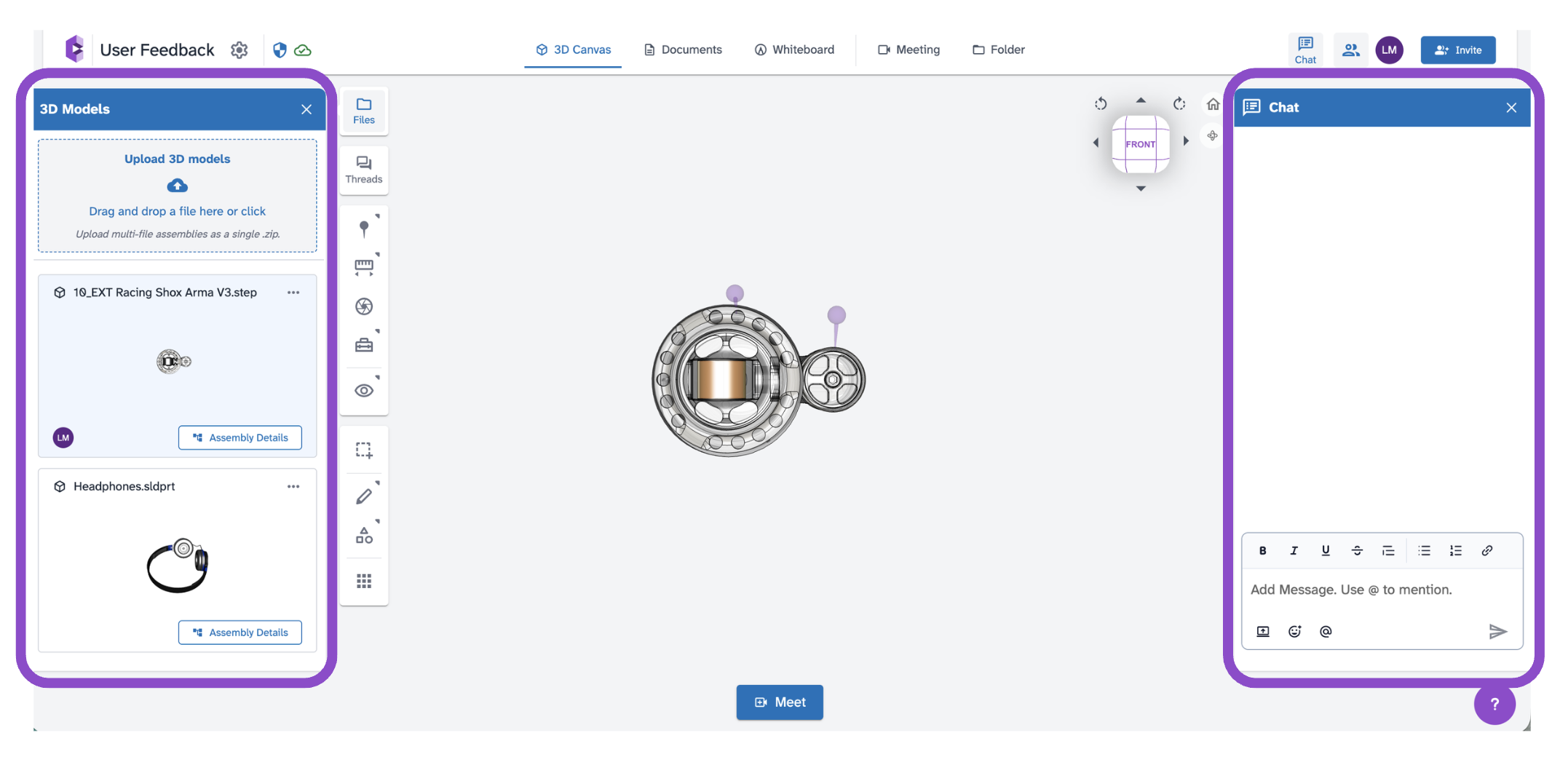
Chat is a sliding panel that opens on the right side and is available on all tabs simultaneously.
Files panel (left) shows uploaded 3D models on the 3D Canvas tab, or uploaded documents on the Documents tab.
Threads panel (left) lists all pins and threads in the current space section.
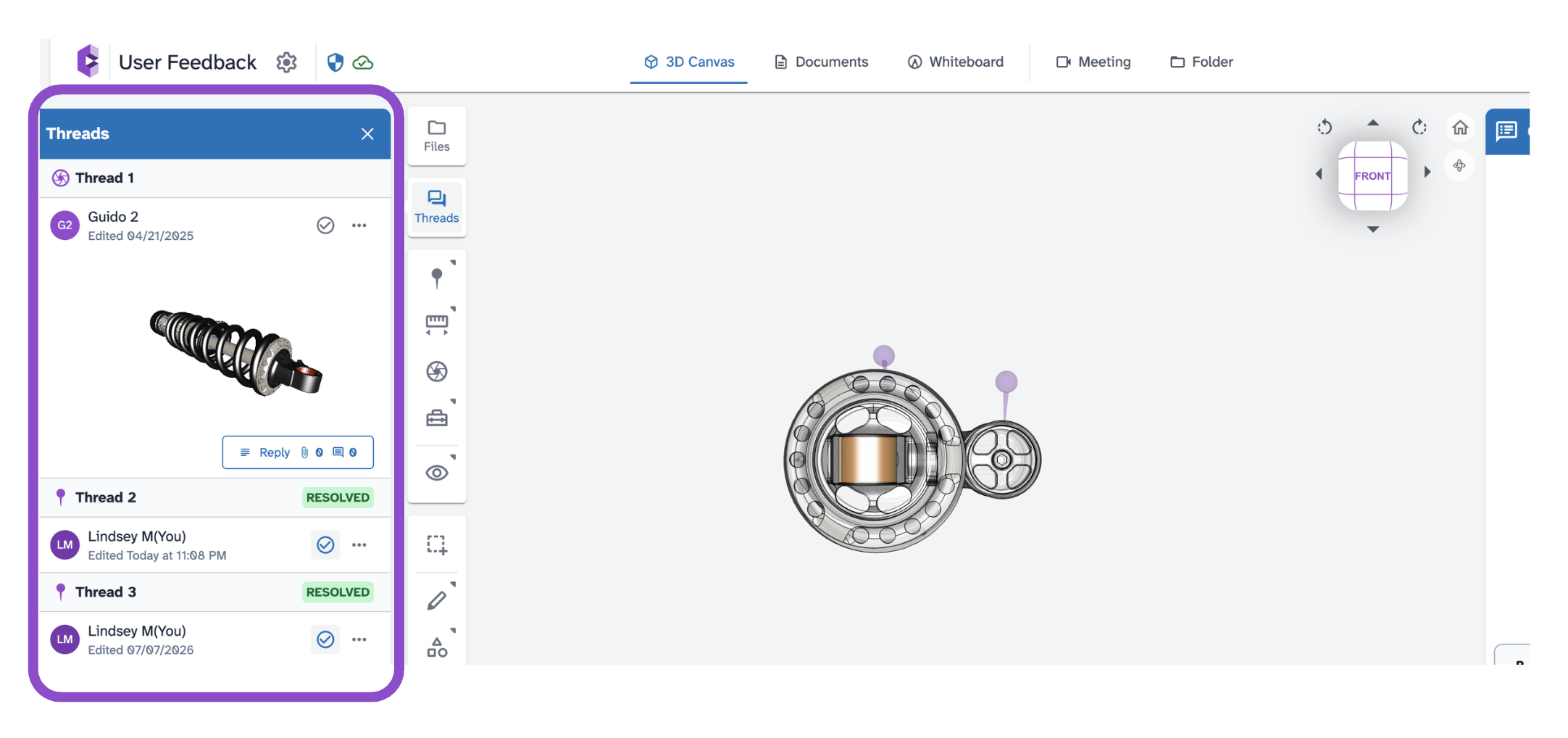
You can have both a left panel and the Chat panel open at the same time.
Meet button
The Meet button at the bottom center of the canvas starts an ad hoc call. See Start an ad hoc meeting with the Meet button.
Tips and edge cases
- If the toolbar looks different from what you expect, check which tab you're on, each tab has its own left toolbar.
- If the Chat panel isn't visible, click Chat in the top right to open it.
- If you can't see the Meet button, try reducing your browser zoom level.