
Manage spaces in your organization
Rename, move, share, delete, and organize spaces from the organization page in CADchat.
The organization page
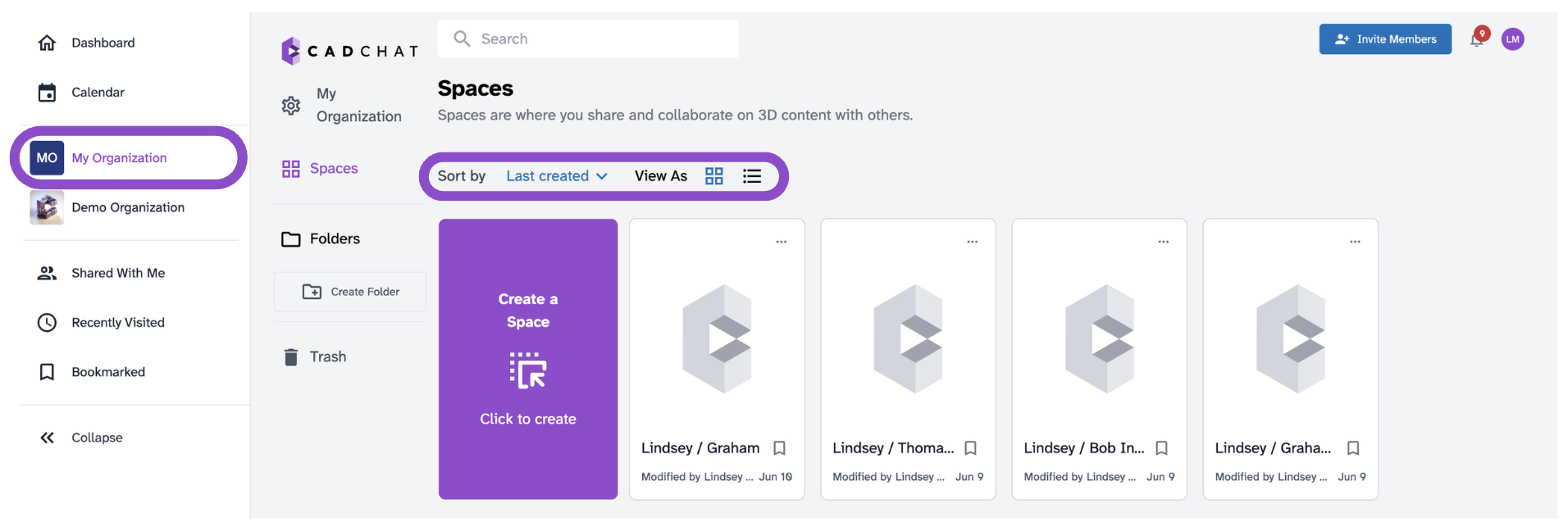
Click your organization name in the sidebar to open the organization page. All spaces appear as cards here. Use the grid and list options to adjust the view. You can sort your spaces alphabetically, by last modified, and by last created.
Space card options
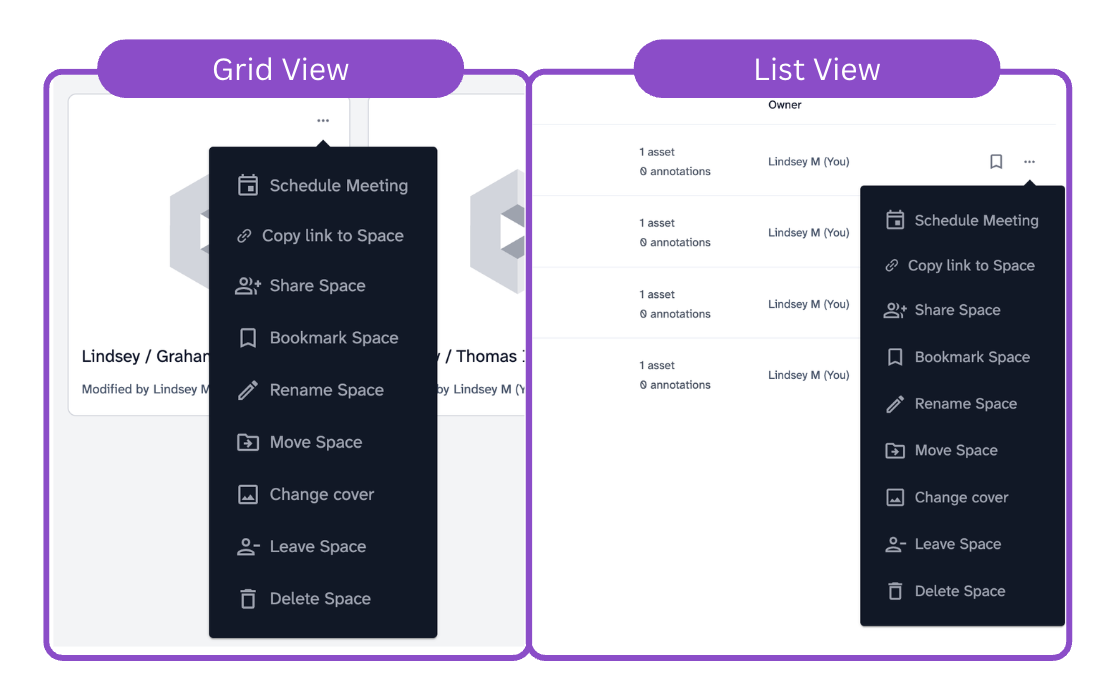
Hover over a space card and click the "..." icon to open the options menu.
Menu Items
- Schedule Meeting: Schedule a meeting tied to this space.
- Copy link to Space: Copy a direct link to your clipboard.
- Share Space: Open sharing settings. See Manage sharing and general link access.
- Bookmark Space: Pin the space to your Bookmarked section.
- Rename Space: Change the space name.
- Move Space: Move the space into a folder.
- Change cover: Set a custom cover image for the space card.
- Leave Space: Remove yourself as a member.
- Delete Space: Send the space to Trash. Spaces remain there for 30 days before permanent deletion. See Restore a deleted space.
Organizing with folders
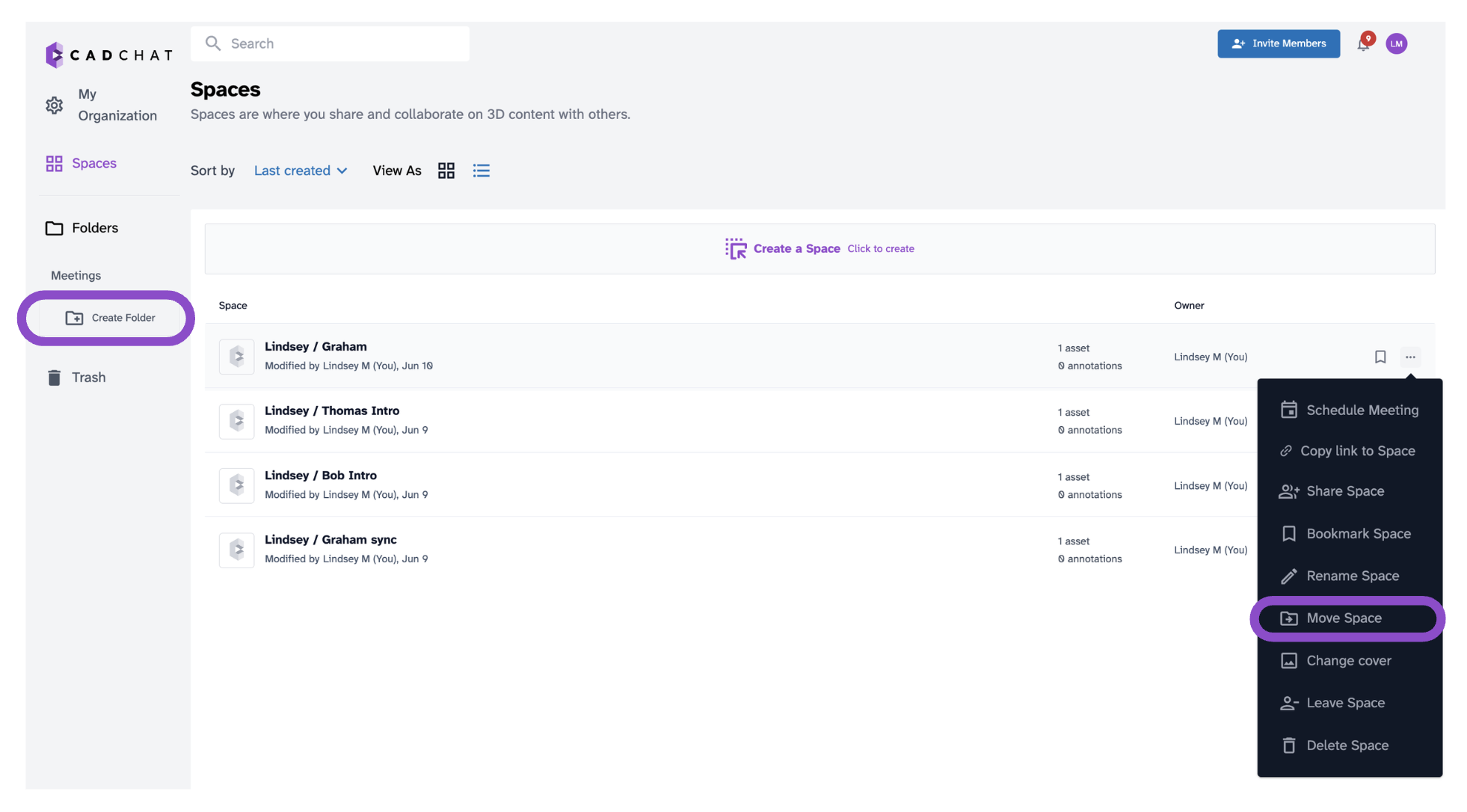
To create a folder, click Create Folder in the sidebar. Then use Move Space from the space card options menu to move spaces into it.
Tips and edge cases
- Only org admins and space owners can delete spaces. If Delete Space is missing from your menu, you don't have that permission.
- Deleted spaces can be restored from Trash within 30 days.