
View events on the calendar
The Calendar page
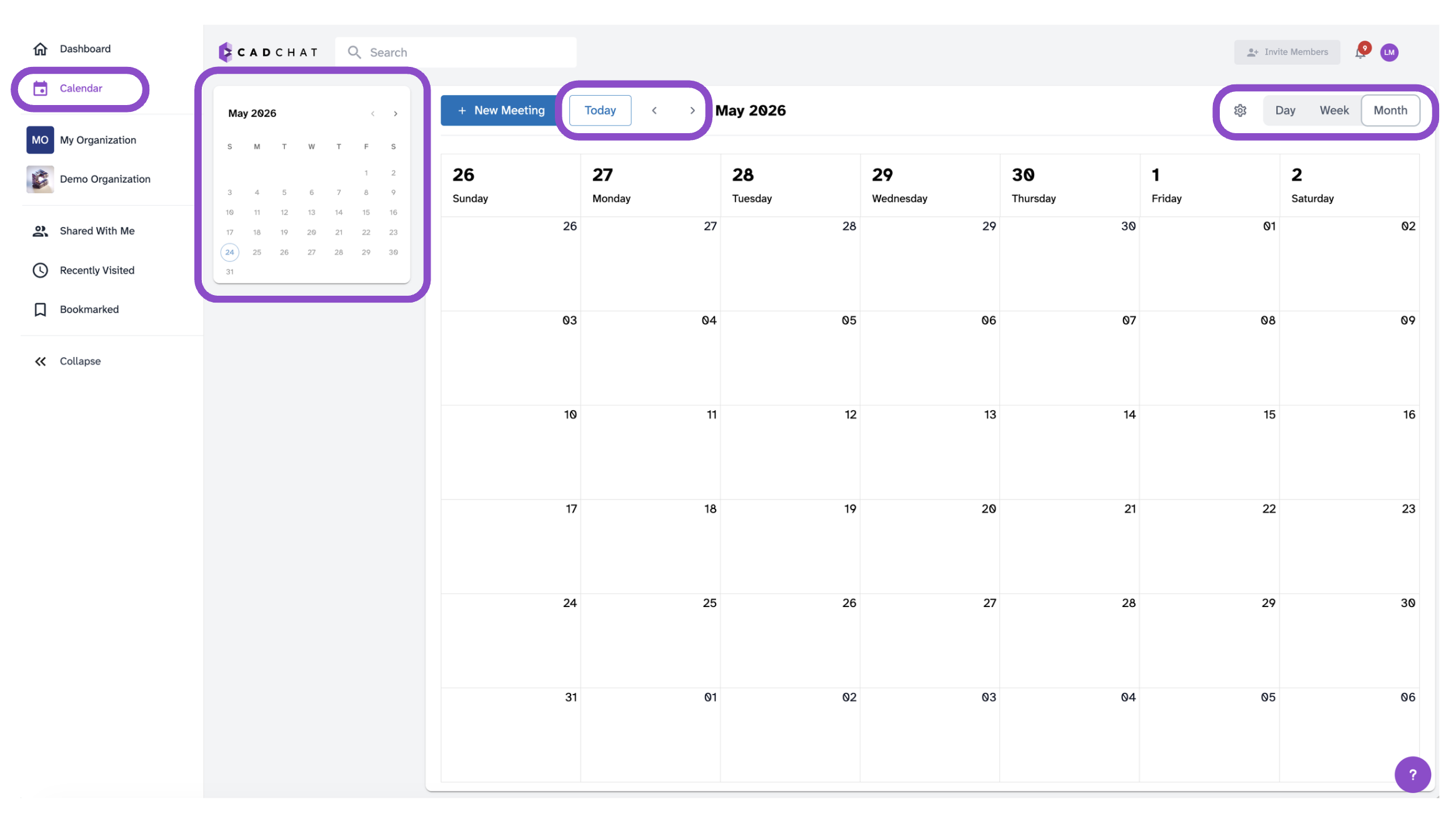
Click Calendar in the sidebar to open your calendar. Use the Day / Week / Month toggle to switch views, the < > arrows to move between time periods, and Today to jump back to the current date. A mini calendar on the left lets you jump to any date quickly.
To schedule a new meeting from the calendar, click + New Meeting. See Schedule a meeting for the full steps.
Event details
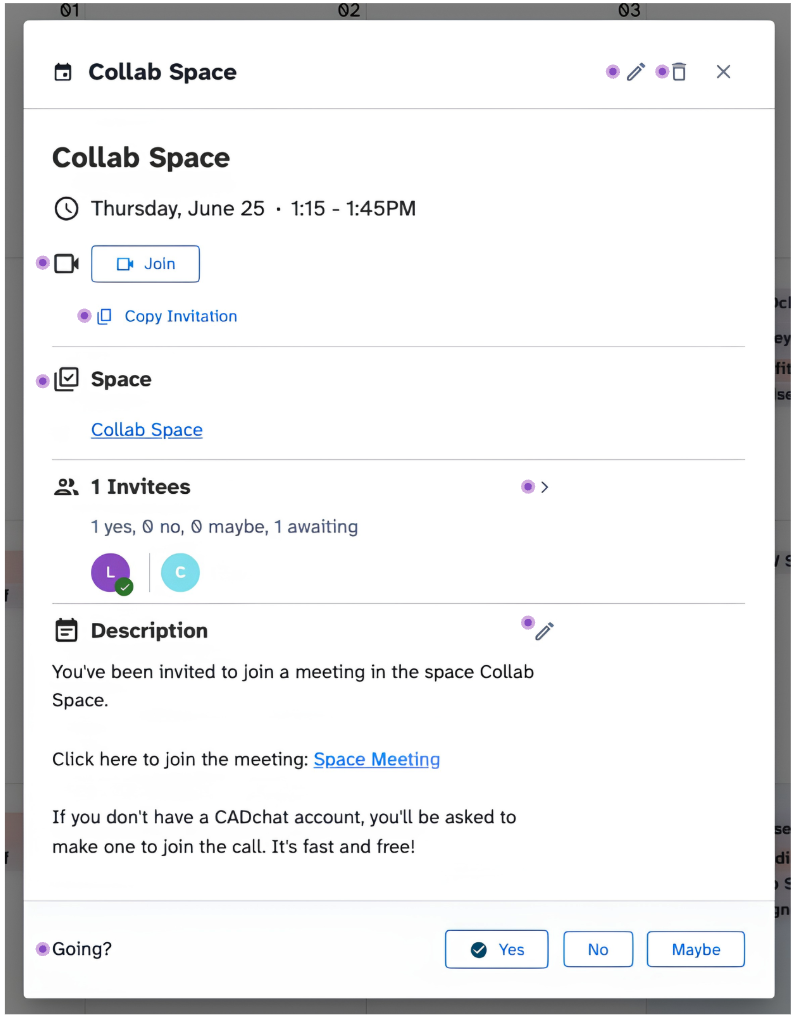
Click any event block to open its detail popup. From here you can:
- Click Join to enter the meeting.
- Click Copy Invitation to copy the meeting link.
- Click the linked space name under Space to navigate to that space.
- Click the > arrow next to the invitee count to expand the full invitee list with RSVP status.
- Click Yes, No, or Maybe under Going? to set your RSVP.
- Click the pencil icon next to Description to edit the meeting description.
- Click the pencil icon at the top right of the popup to edit the full meeting.
- Click the trash icon to delete the meeting.
Calendar Settings
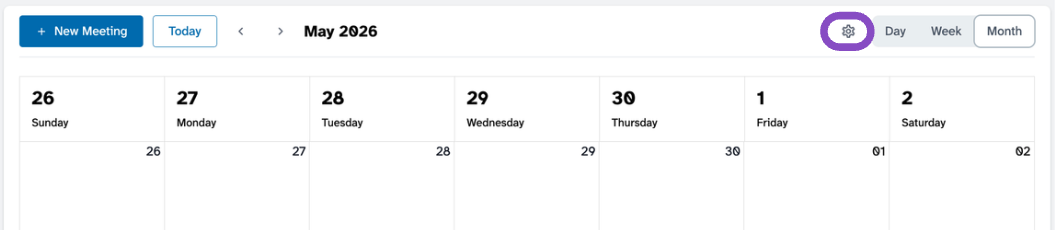
Click the gear icon at the top of the Calendar page to open Calendar Settings.
General Settings
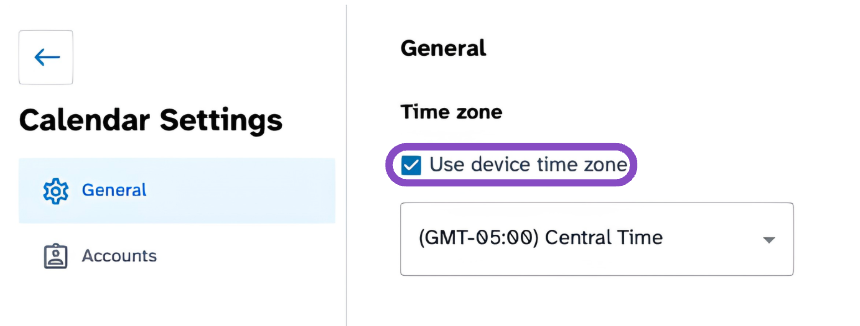
By default, CADchat uses your device's timezone. To set a different timezone, uncheck Use device time zone and select one from the dropdown.
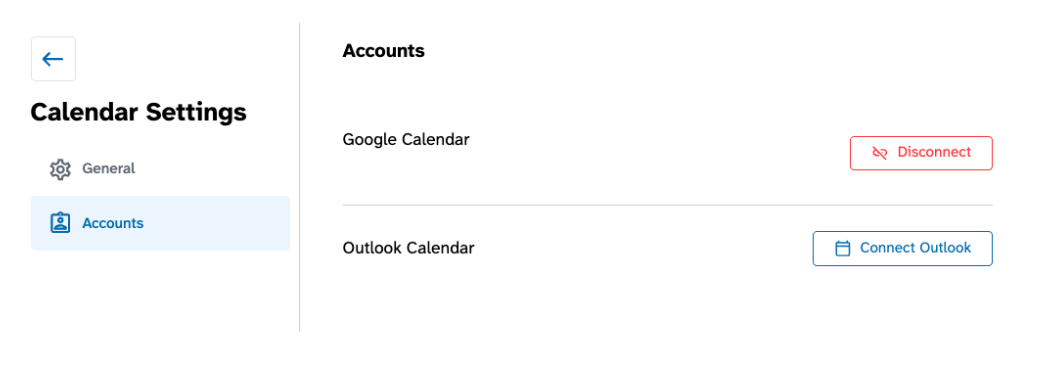
Accounts
Connect your Google Calendar or Outlook Calendar here so CADchat can send calendar invitations when you schedule meetings. Click Connect Outlook or Connect Google — if already connected — Disconnect to remove an account.
Tips and edge cases
- In day and week view, a red horizontal line on the calendar shows the current time.
- If Join is greyed out, the meeting may not have started yet or has already ended
- Only the meeting organizer can edit or delete a meeting.