
Work with DXF and DWG layers
Show or hide individual layers in DXF and DWG drawings uploaded to the Documents tab.
Toggle layers in a drawing
- Open a space and click the Documents tab.
- In the Files panel, find the DXF or DWG file, it shows a Contains layers tag.
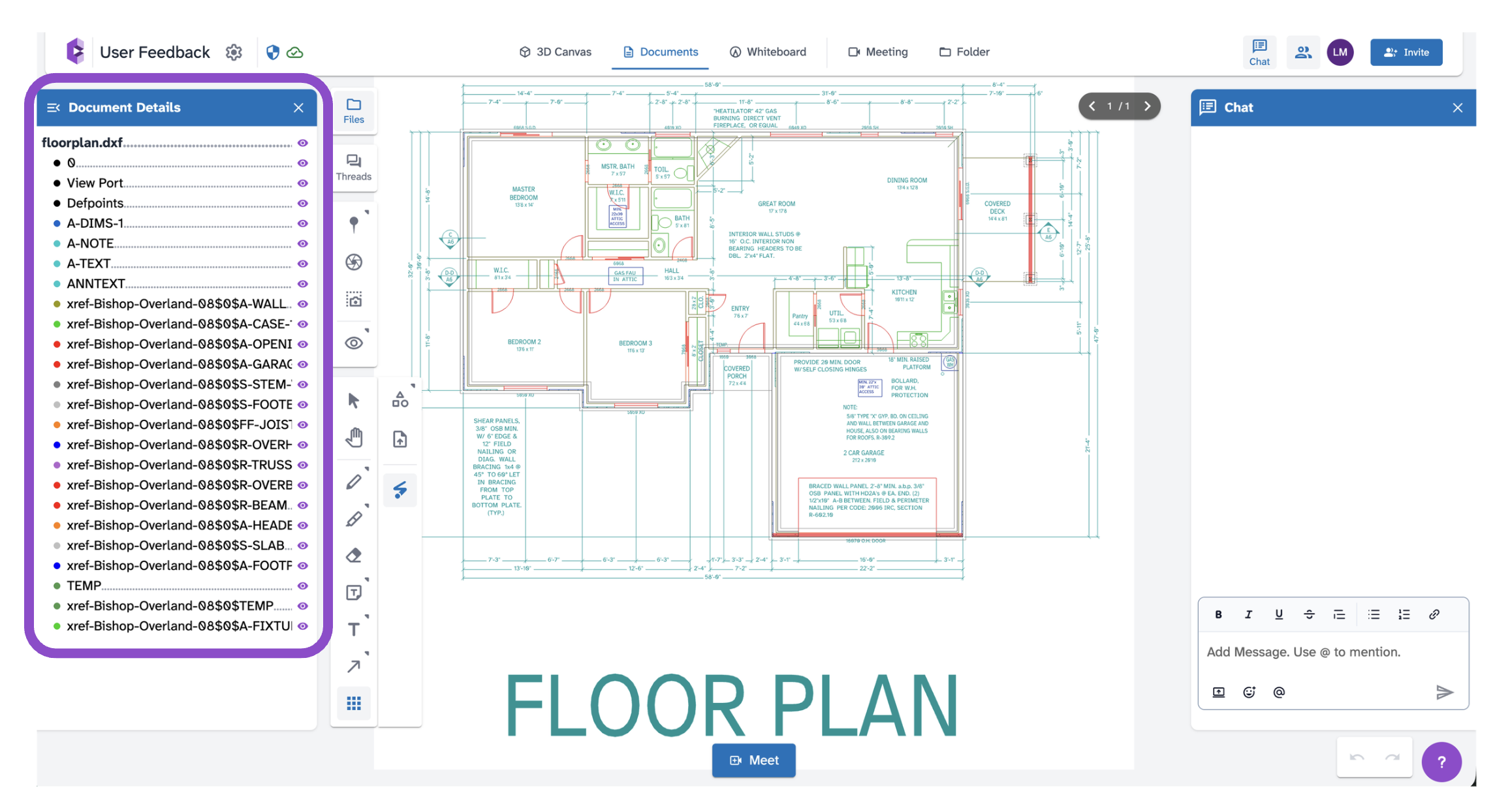
- Click Layers next to the file to open the Document Details panel on the right.
- The panel lists all layers in the drawing, each with a colored dot and an eye icon.
- Click the eye icon next to any layer to toggle it on or off.
The drawing updates immediately.
Tips and edge cases
- Layer colors in the panel match the colors from the original file.
- Hiding a layer is non-destructive and does not modify the file.
- Layer visibility is per-user. Changes you make don't affect other collaborators' views.
- If the Layers button isn't visible, the file may have uploaded as a flat image. Try re-uploading.
- If the drawing appears blank after toggling layers, you may have hidden all layers. Turn them back on in the panel.