
Invite people to a space
Invite collaborators to a space by email and set their permission level directly from within the space.
Before you start
You need Can Edit access or higher to invite people. If you don't see the Invite button, ask the space owner to adjust your permissions. See Permission levels in CADchat for details.
Invite someone to a space
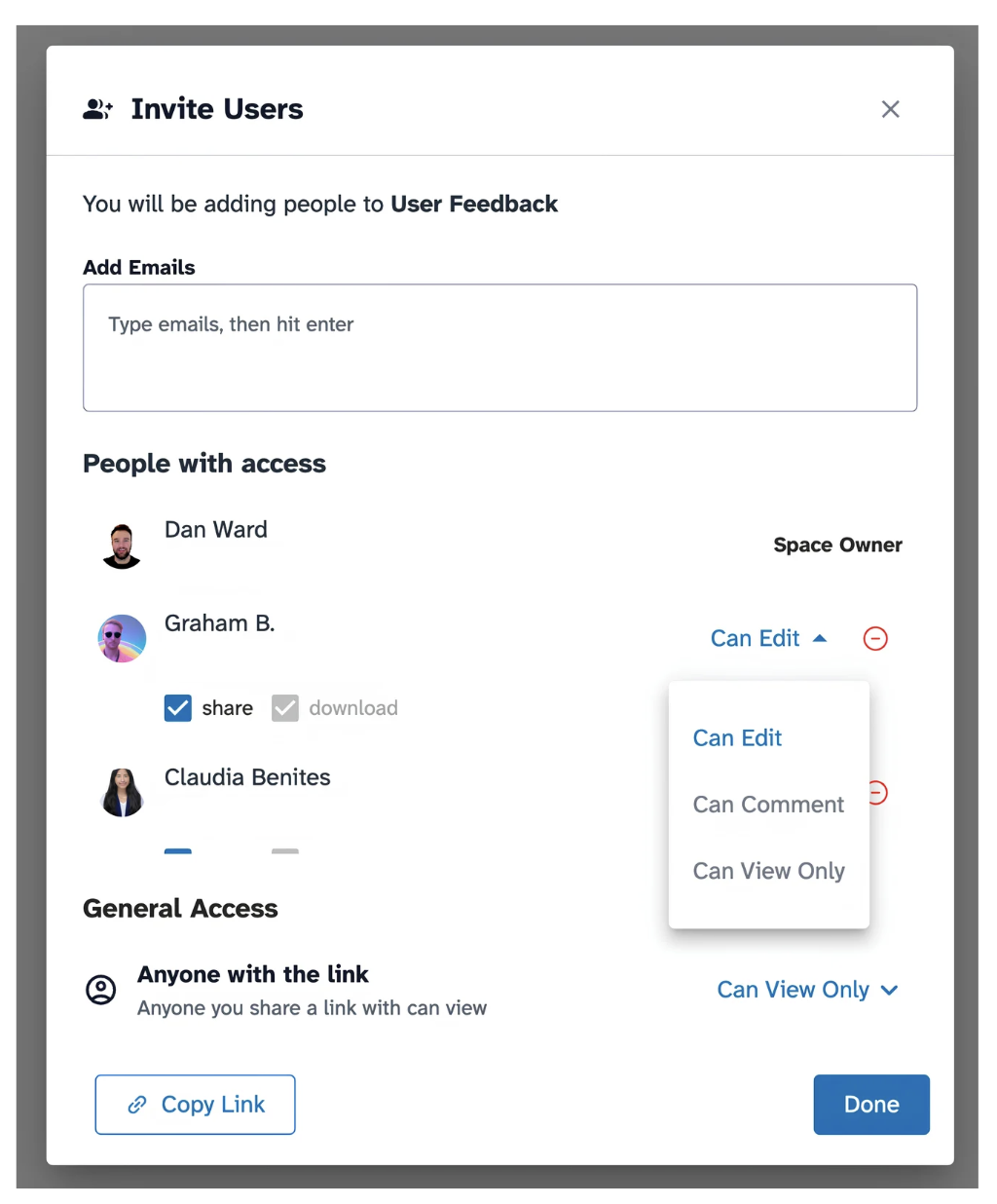
- Open the space and click Invite in the top right, or click the ⚙ icon next to the space name and select Members.
- In the Invite Users modal, type an email address in the Add Emails field and press Enter. Repeat for additional people.
- Under People with access, set each person's permission level: Can Edit, Can Comment, or Can View Only.
- Optionally toggle the share and download checkboxes per person.
- Click Done.
Invitees receive an email with a link to the space.
Share via link
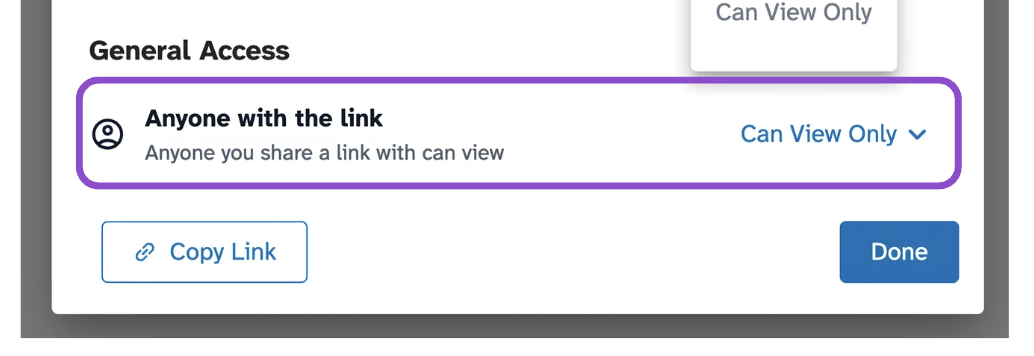
To share without a direct invite, set the General Access level under Anyone with the link to control what link recipients can do. Click Copy Link to grab the link. See Manage sharing and permissions for more.
Tips and edge cases
- Permission levels apply per space. The same person can have different permissions in different spaces.
- You can update someone's permission at any time by reopening the Invite Users modal.
- If an invitee doesn't receive their email, ask them to check spam and verify the address you entered is correct.
- The share and download toggles give you additional control on top of the permission level.Overview
You can invite collaborators to a space by email directly from within the space. Inviting someone gives them access to the space's content based on the permission level you assign.