
Organizations and Spaces
Organizations and spaces
CADchat organizes your work at two levels.
An organization is the top-level container for your team. It has its own member list, settings, and billing. You may belong to more than one organization, for example, if you work with multiple companies or teams.
A space lives inside an organization and is where work actually happens. Each space has its own 3D model viewer, chat, documents, whiteboard, and meeting tools. Spaces have their own members and permissions, independent of other spaces in the same organization.
Finding your organizations and opening spaces
When you sign in, you land on the Dashboard. Your organizations appear in the sidebar. Click an organization name to expand it and see its spaces.
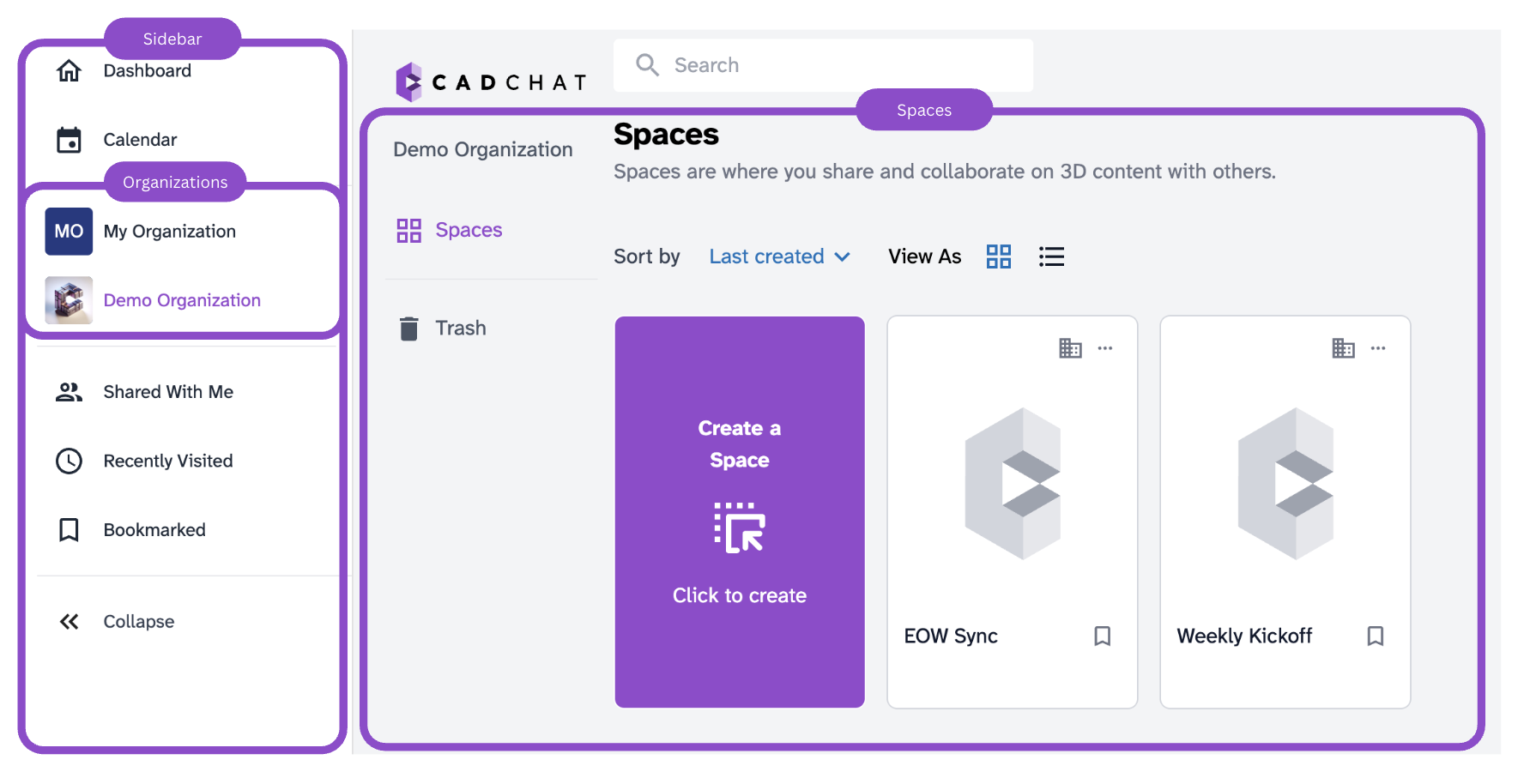
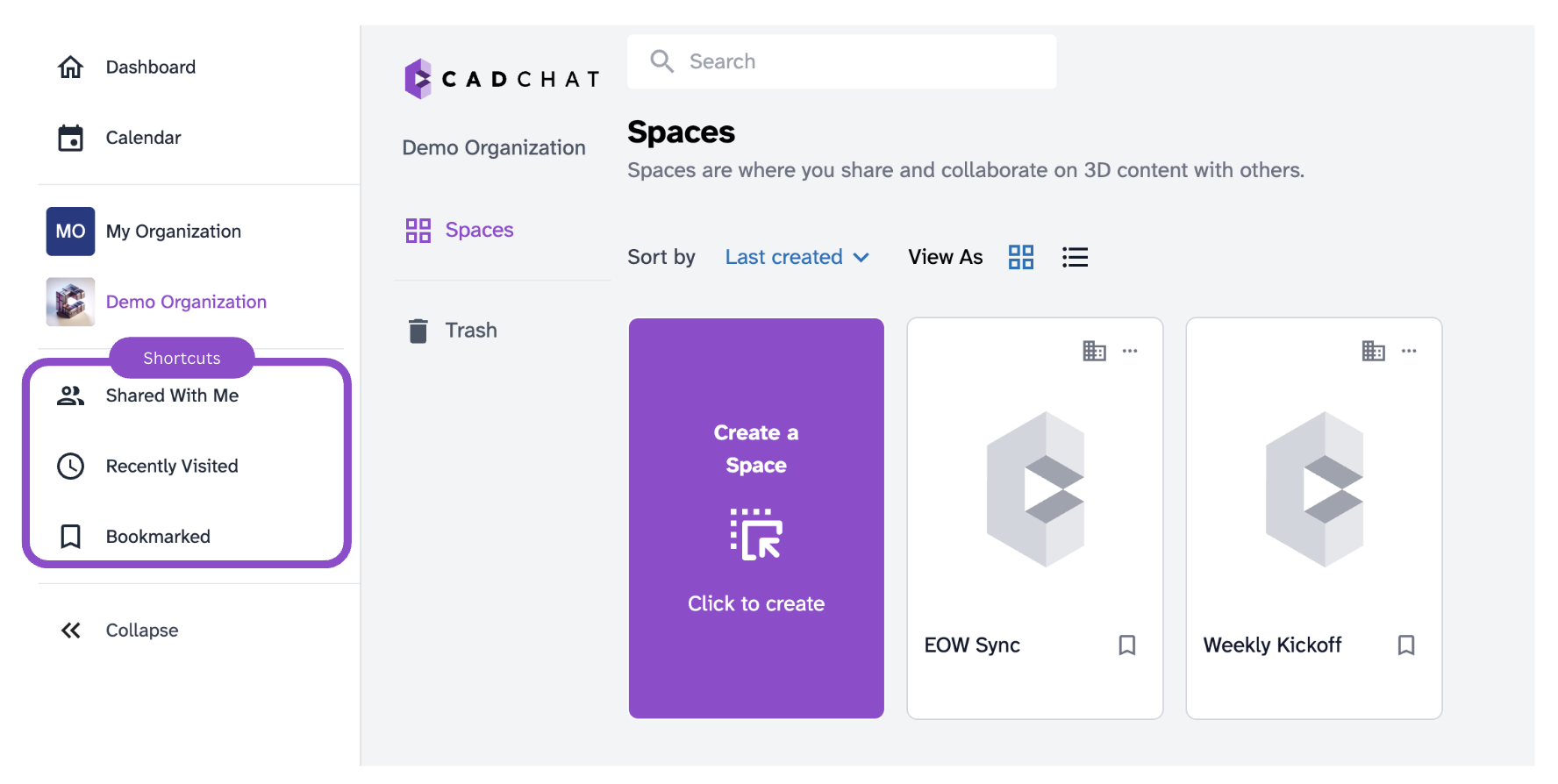
The Shared With Me section shows spaces you have access to that belong to other organizations. The Recently Visited and Bookmarked sections are shortcuts to spaces you open often.
Click any space card to open it. CADchat takes you to the 3D Canvas tab by default. Space cards show the space name, last modified date, and who made the last change.
Tips and Edge Cases
- If you can't find a space you expect, check Shared With Me. It may belong to a different organization than the one you're looking at.
- If the sidebar is collapsed, click Expand to reveal organization names and sections.
- To bookmark a space for quick access, click the bookmark icon on the space card.
- If a space is visible but you cannot open it, or get a permission error, you may need to be invited to the space. Ask the space owner to invite you.
- If a space opens blank, wait a moment for it to load, then refresh if needed.
Related articles