
Manage organization users
View, change roles, and remove members from your organization in the Users settings page.
Before you start
You must be an org admin to access Users. If you don't see it, contact your org admin.
Manage users
- Within your organization click the ⚙ icon next to your organization's name ,or click your initials icon in the top right and select Account Settings.
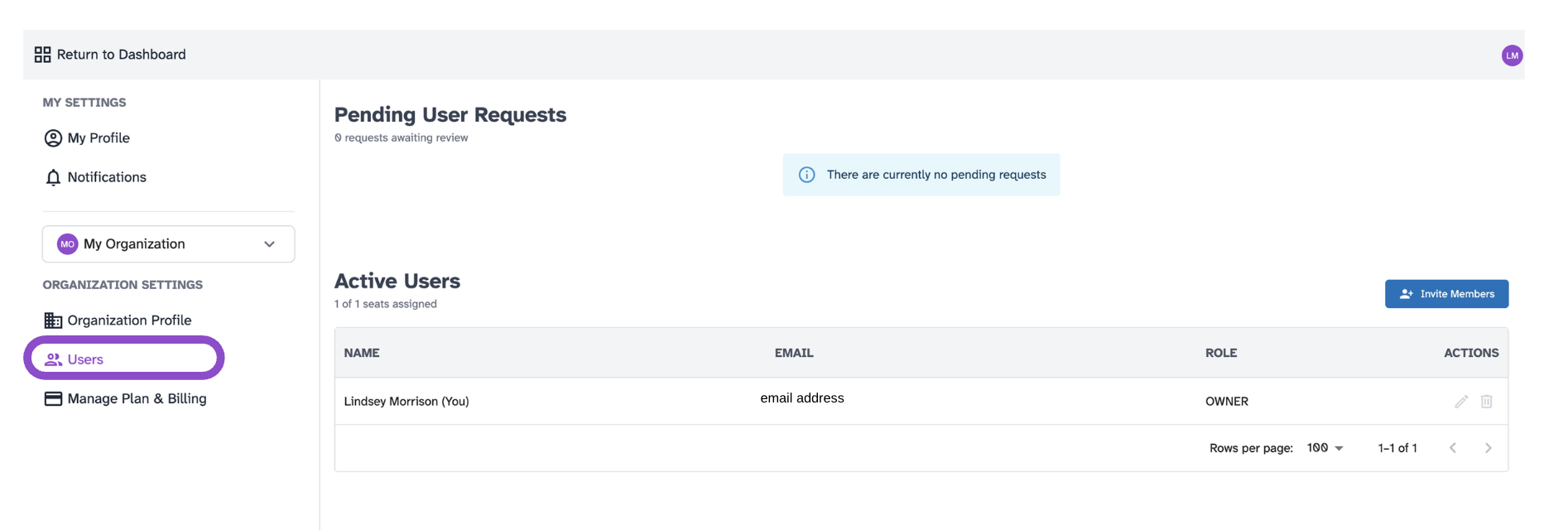
- Select your organization from the dropdown, then click Users under Organization Settings.
- Review the list of current members.
- To change a user's role, click the role dropdown next to their name and select a new role.
- To remove a user, click the remove option next to their entry.
Tips and edge cases
- Removing a user from the organization does not remove them from individual spaces they were directly invited to. Remove them from those spaces separately via the Invite Users modal.
- Role changes take effect immediately.
- To add new members at the org level, see Invite members at the organization level.