
User Preferences
Customize navigation controls, rendering, and performance settings that apply to your account across all spaces.
Open User Preferences
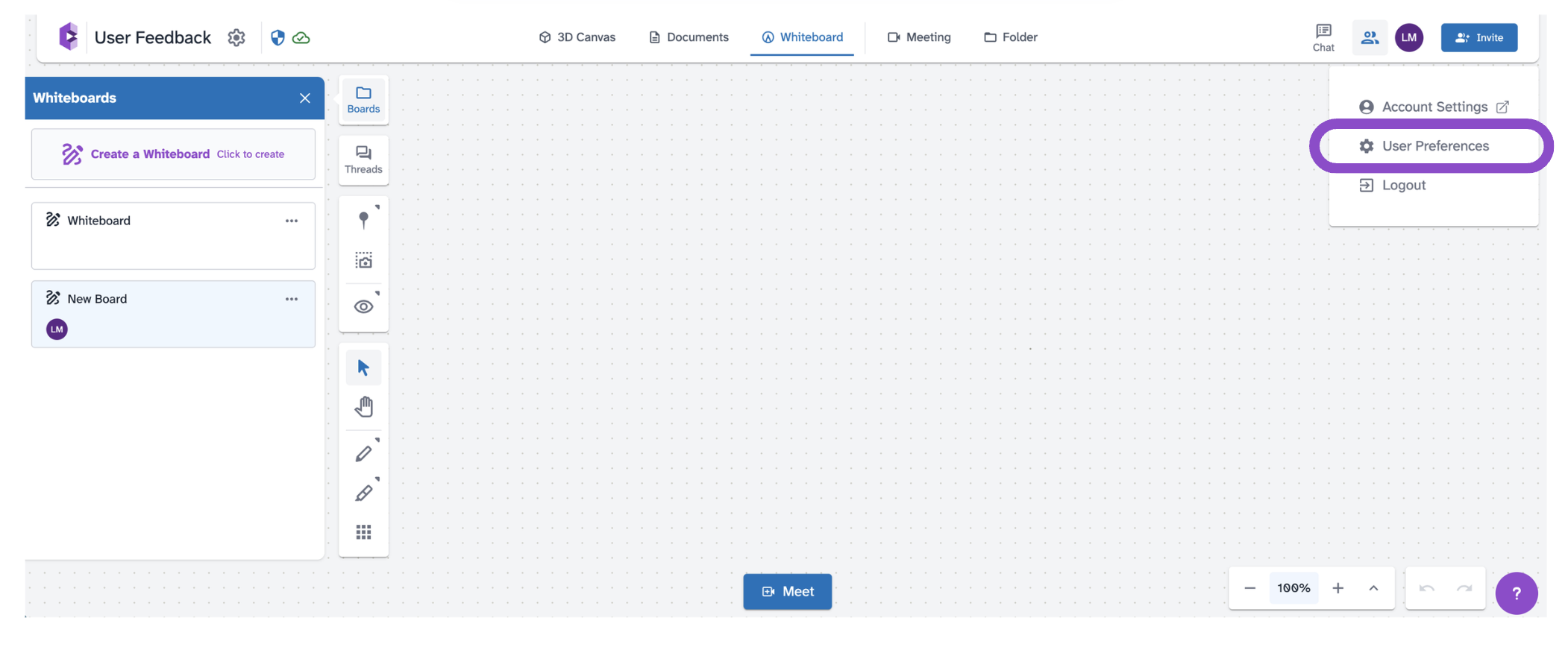
From inside any space, click your initials icon in the top right and select User Preferences. The panel opens with three tabs for Controls, Rendering, and Performance.
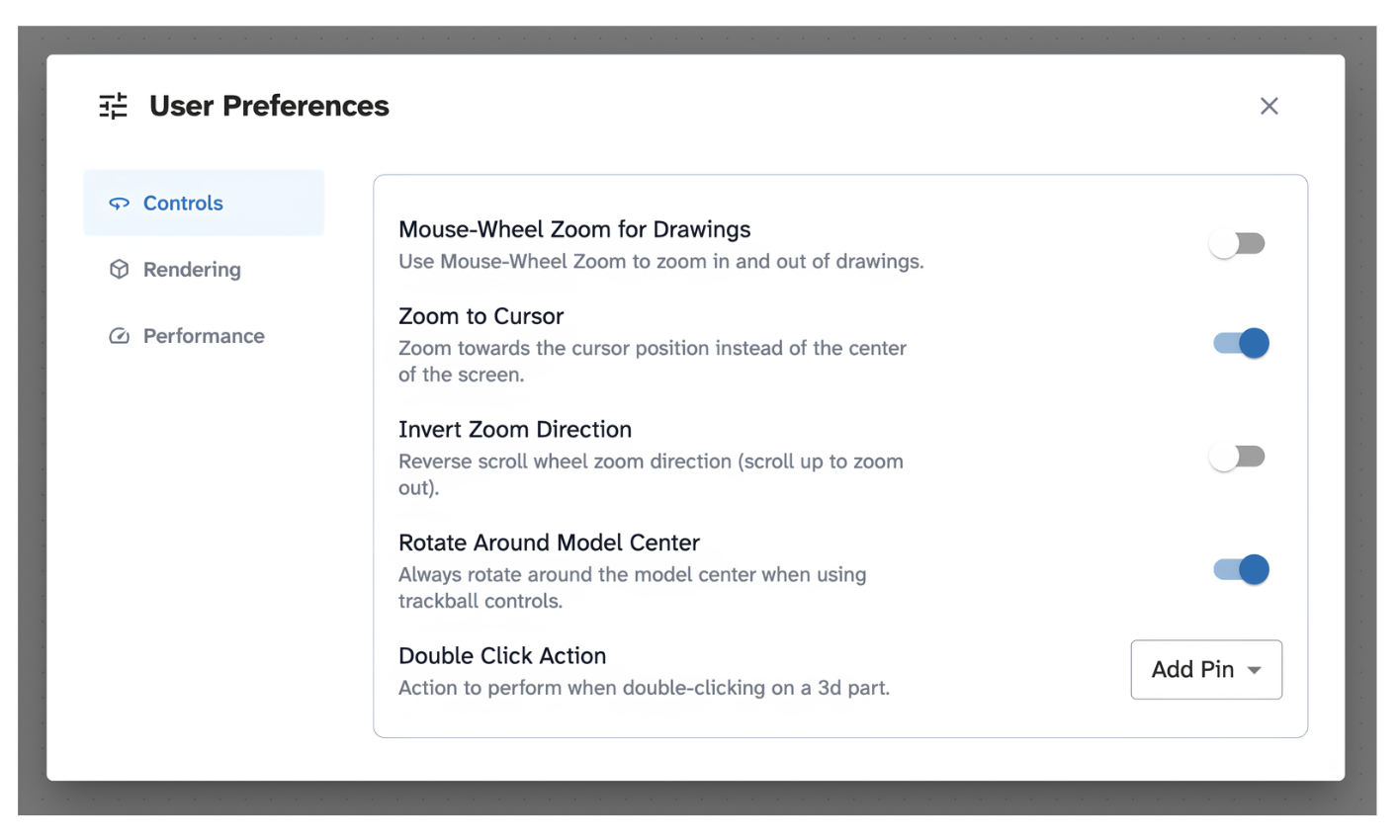
Controls
- Mouse-Wheel Zoom for Drawings: Use the scroll wheel to zoom in the Documents tab. Default: Off.
- Zoom to Cursor: Zooming centers on your cursor position. Default: On.
- Invert Zoom Direction: Reverses scroll direction for zooming. Default: Off.
- Rotate Around Model Center: Rotation orbits around the model center. Default: On.
- Double Click Action: Choose what happens when you double-click the 3D canvas: Add Pin or Zoom To. Default: Add Pin.
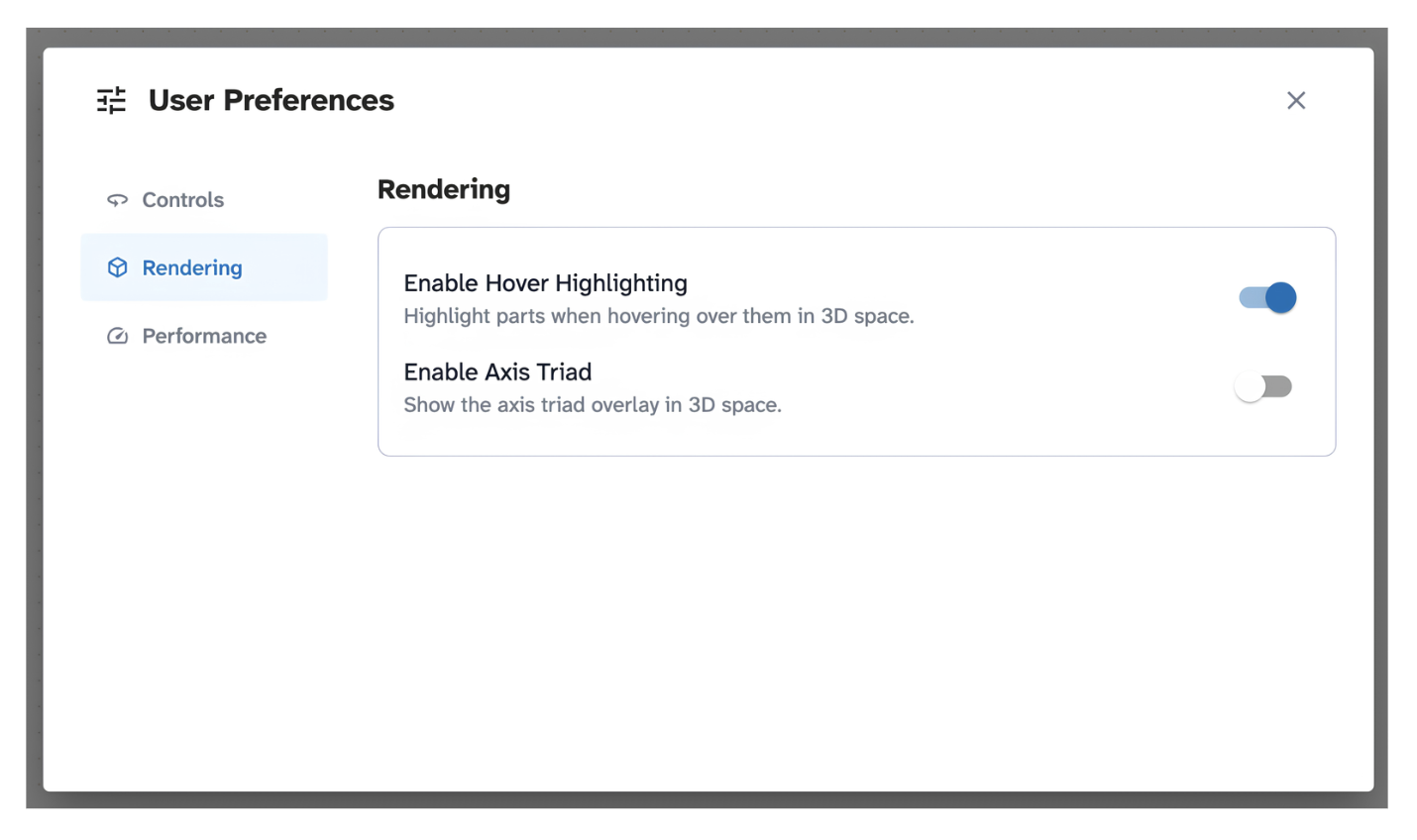
Rendering
- Enable Hover Highlighting: Highlights parts when you hover over them in the 3D canvas. Default: On.
- Enable Axis Triad: Shows the X/Y/Z axis indicator in the canvas. Default: Off.
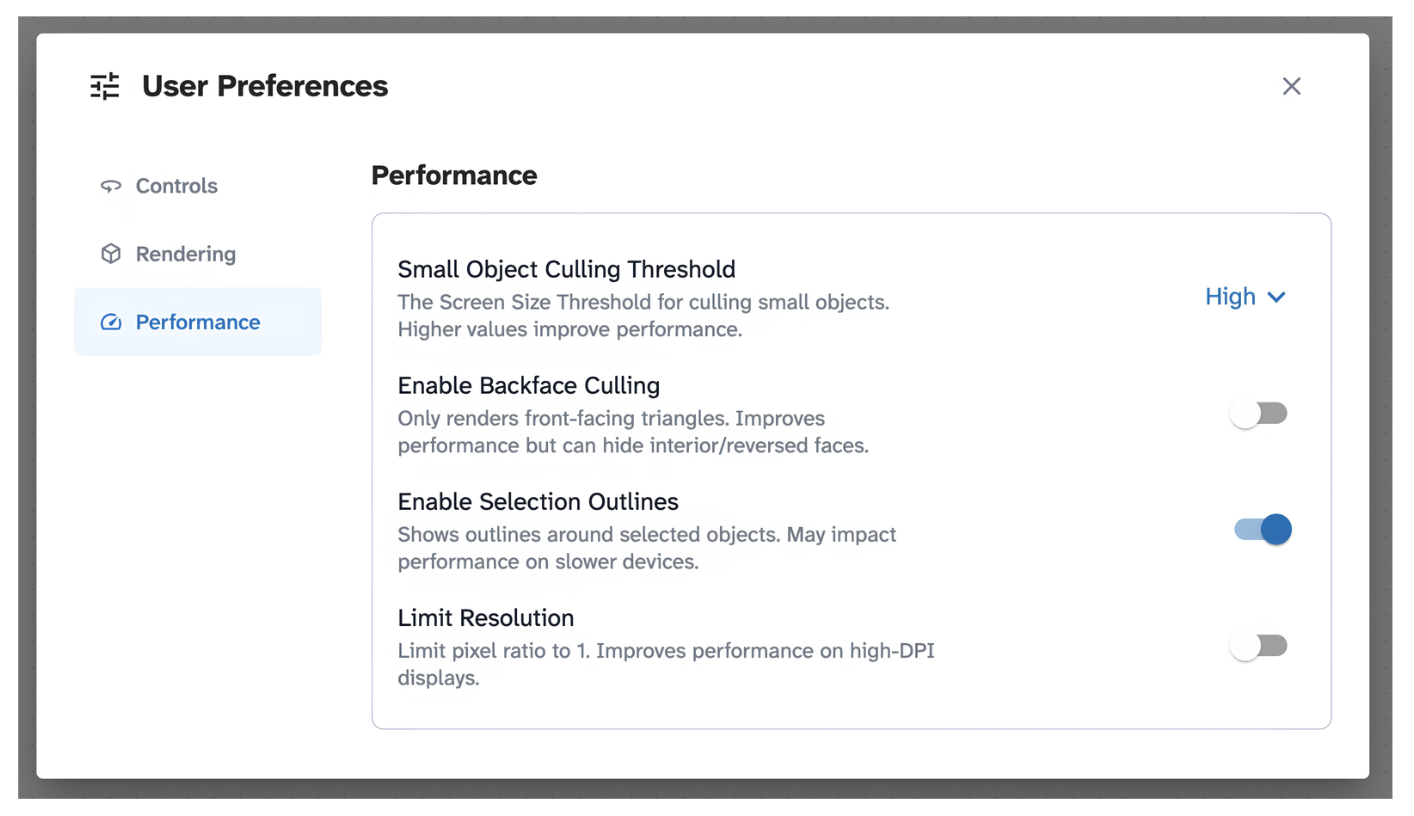
Performance
- Small Object Culling Threshold: Controls the level at which small geometry is skipped for performance. Default: High.
- Enable Backface Culling: Only renders front-facing triangles. Improves performance but can hide interior or reversed faces. Default: Off.
- Enable Selection Outlines: Shows an outline highlight around selected parts. Default: On.
- Limit Resolution: Reduces render resolution to improve performance on slower devices. Default: Off.
Tips and edge cases
- User Preferences is only accessible from inside a space, the option doesn't appear on the dashboard.
- If performance is poor, try enabling Limit Resolution and setting Small Object Culling Threshold to High.
- The Double Click Action setting also affects the Documents and Whiteboard tabs.