
Update your profile
Update your name, photo, role, and contact details in account settings. Changes are visible to collaborators in spaces and meetings.
Update your profile
1. Click your initials icon on the top right corner of your dashboard.
2. Click Account Settings.
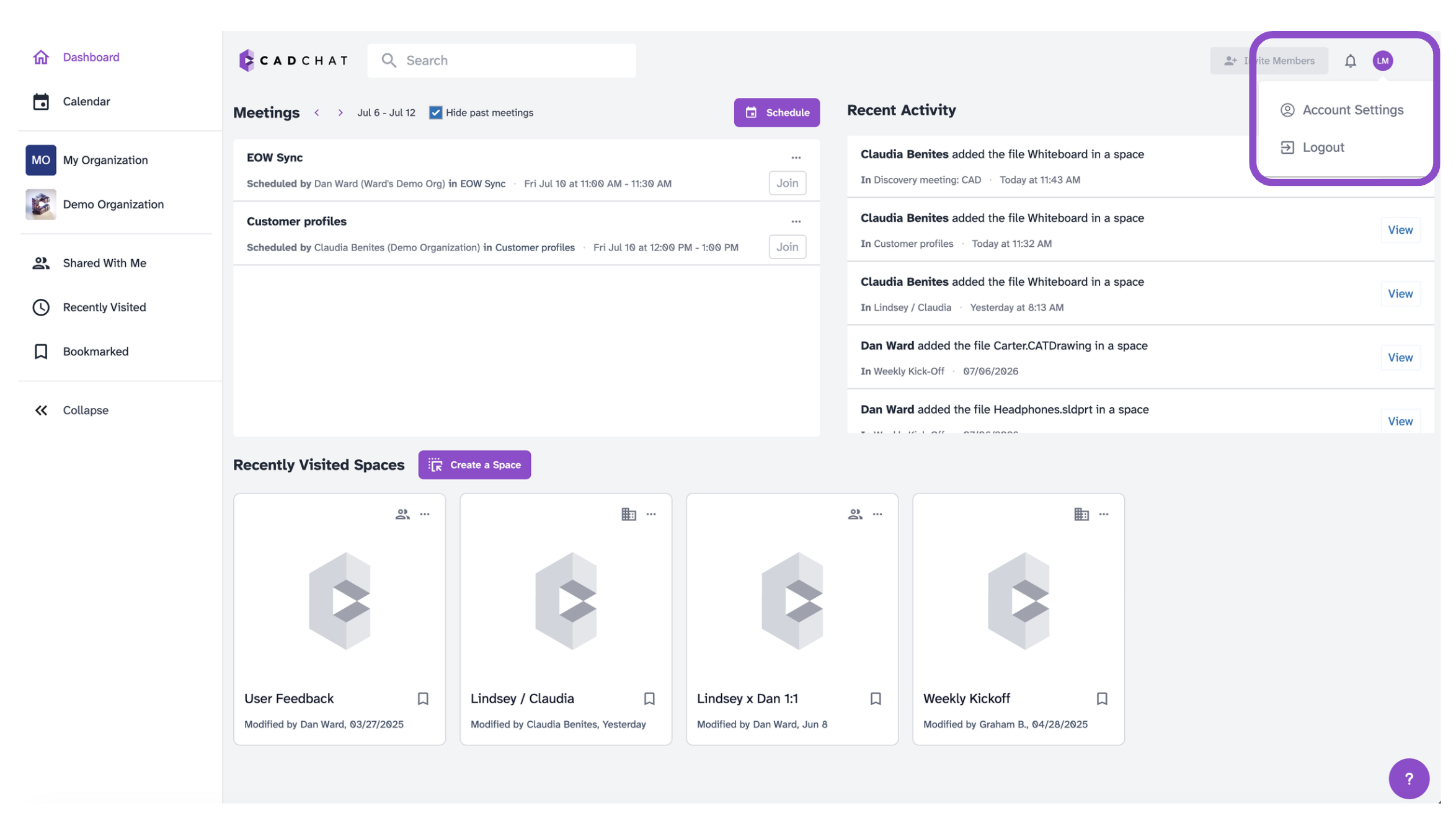
3. Navigate to My Profile on the left sidebar.
4. Update any of the following fields:
- Photo: Click Upload to add a photo, or Remove to delete the current one.
- First Name / Last Name
- Display Name: The name others see when you collaborate.
- Company
- Role
- Avatar Color: The background color of your initials avatar when no photo is set.
- Phone Number: Click Add a phone number to add one.
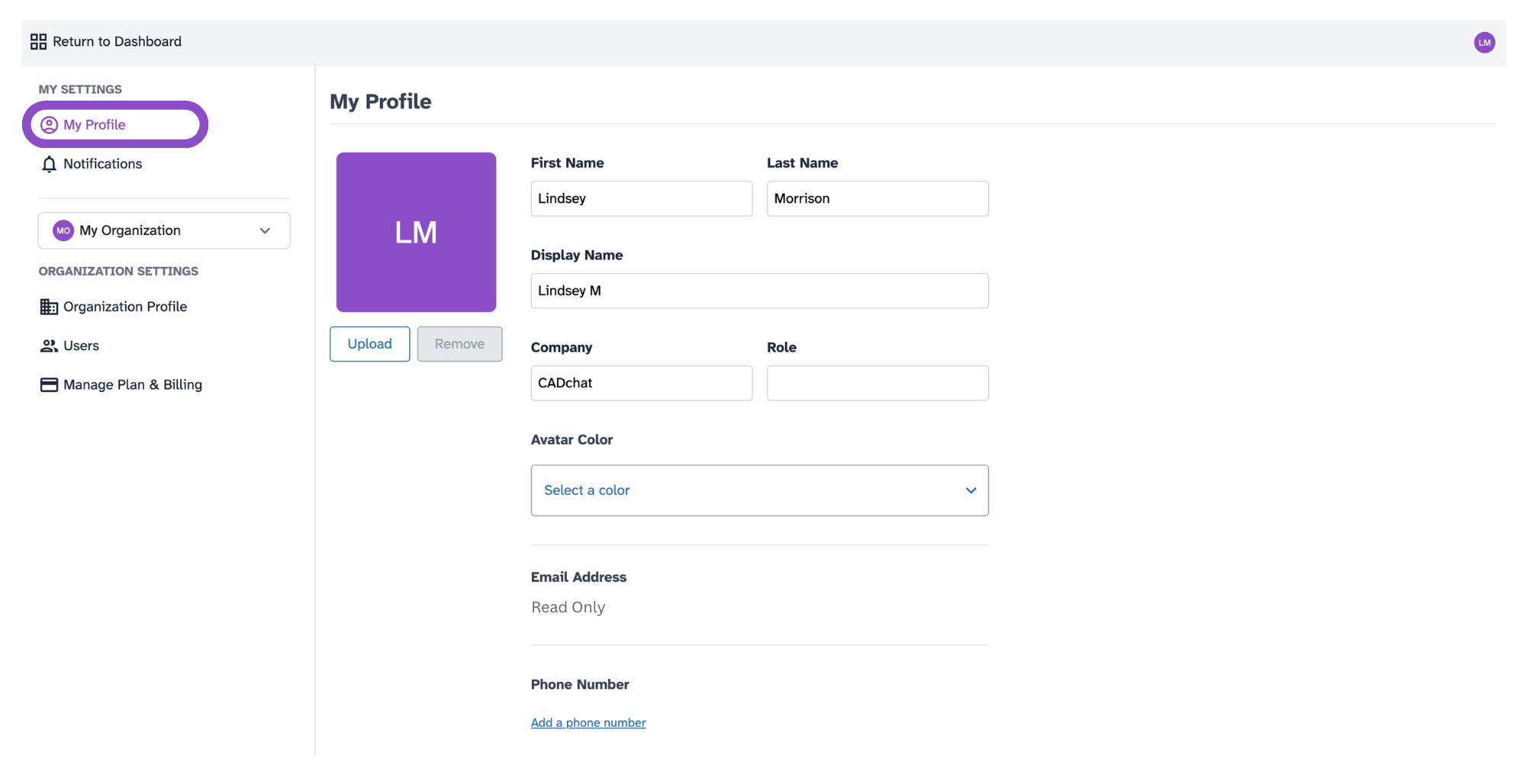
Changes save automatically.
Tips and edge cases
- Your email address is read-only and cannot be changed from this page.
- Display Name is what appears in threads, chat, and meeting participant lists.
- If your name change isn't visible to collaborators, ask them to refresh their browser.
- If you cannot upload a photo, check that the image is JPG or PNG and not too large.