
Invite members at the organization level
Add members to your organization as a part of your team.
Before you start
You must be an org admin to invite members. Inviting users may affect your billing seat count, check your plan limits first. See Manage plan and billing.
Invite org members
- Click into your organization, then click the ⚙ icon next to your organization's name, or click your initials icon in the top right.
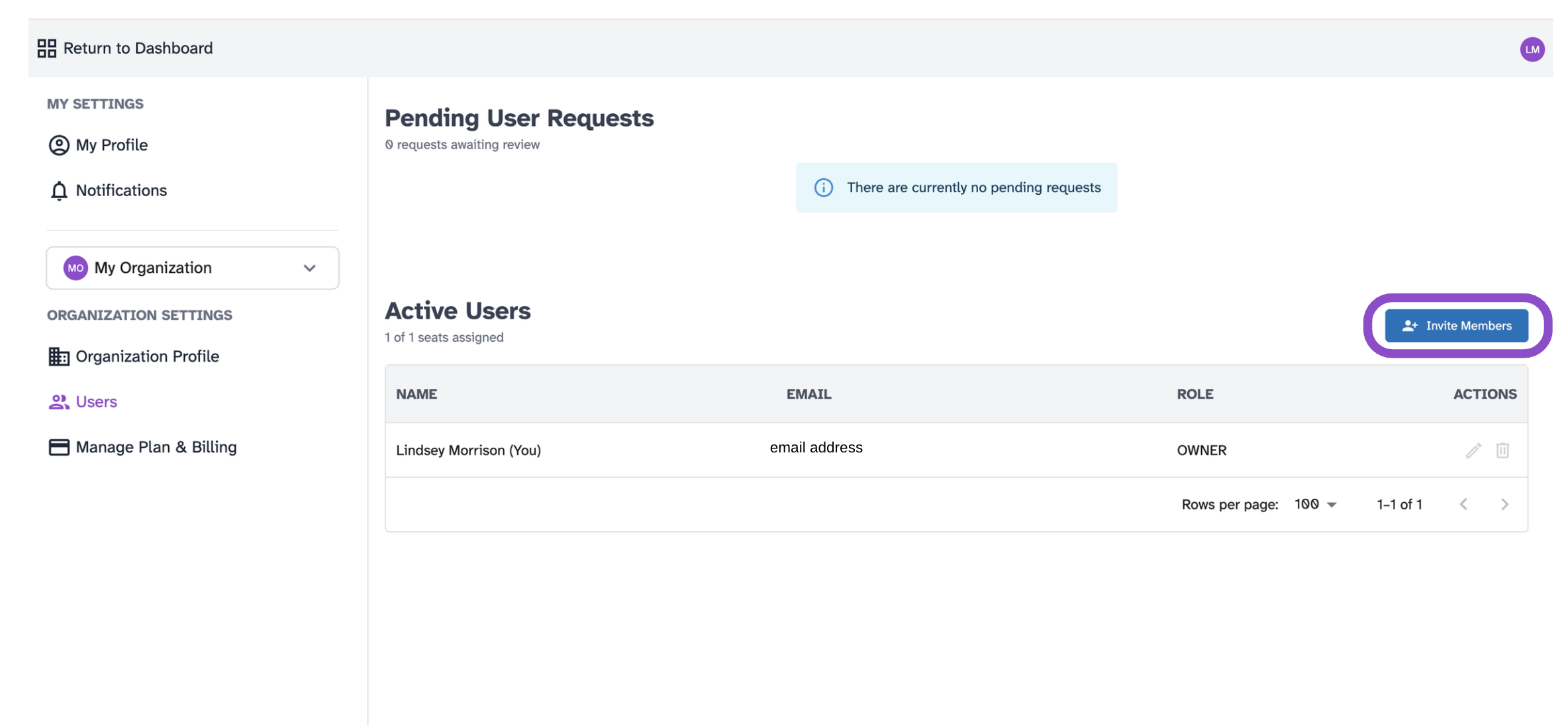
- Select your organization from the dropdown, then click Users under Organization Settings.
- Click Invite Members.
- Enter the email addresses of the people you want to add.
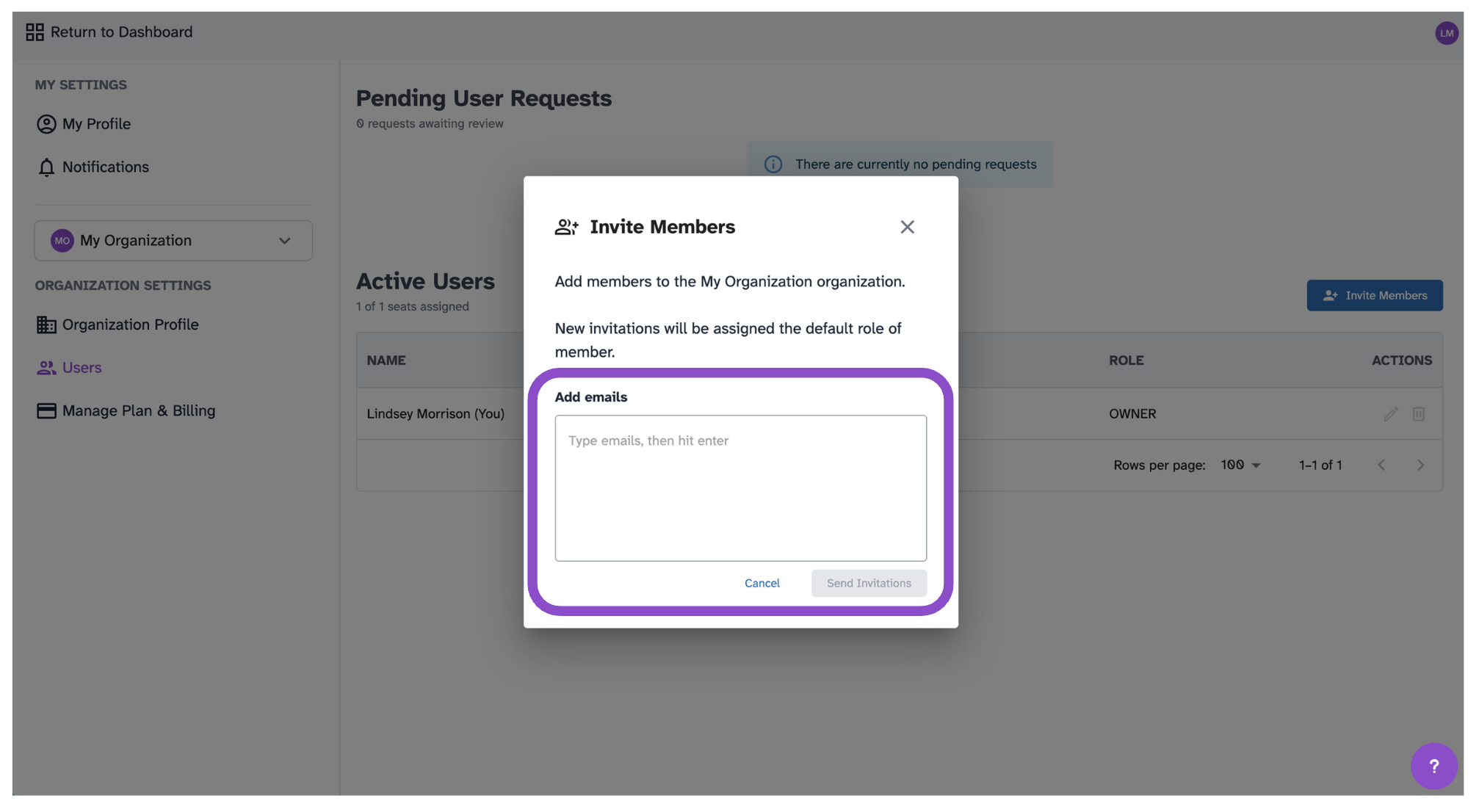
5. Confirm the invitation.
Invitees receive an email to accept and join the organization.
Tips and edge cases
- Org-level membership is separate from space access. Org members still need to be invited to individual spaces to view or collaborate in them.
- If Invite Members is disabled, check your plan's seat limit or verify your admin role.
- If invitees don't receive the email, verify the address and ask them to check spam.
- If seats are full, upgrade your plan or remove unused members before sending new invitations.