
Change camera type
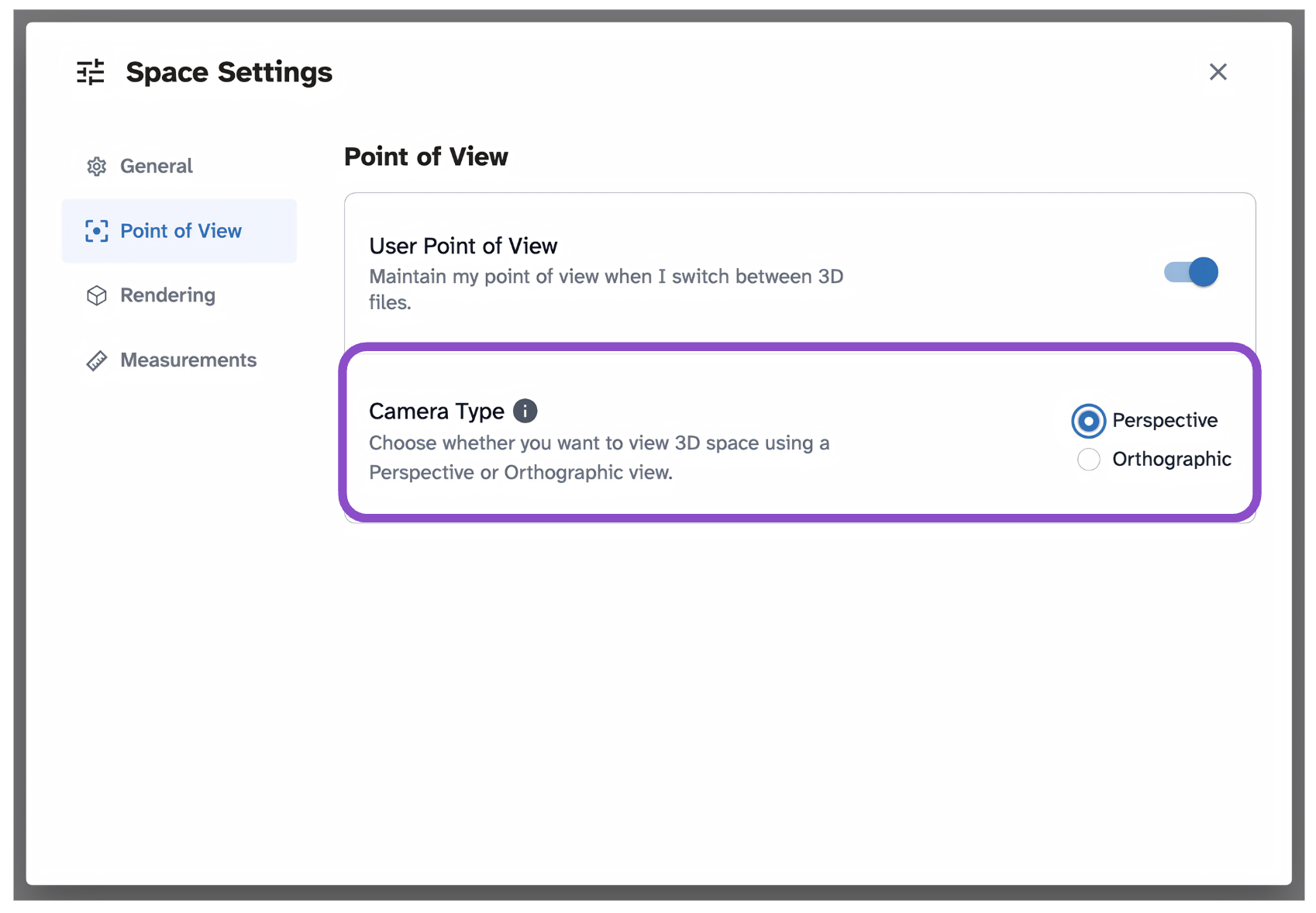
Switch between Perspective and Orthographic camera modes in Space Settings to match your review needs.
Perspective vs Orthographic
CADchat supports two camera modes:
- Perspective: Objects further away appear smaller, matching natural human vision. Good for general 3D review.
- Orthographic: Parallel lines remain parallel with no depth distortion. Better for comparing dimensions and reviewing technical drawings.
Your camera type applies to your view only and does not affect other collaborators.
Tips and edge cases
- The User Point of View toggle on the same tab controls whether your camera position carries over when switching between 3D files in the same space.
- If the view doesn't update after switching, click into the 3D canvas and scroll once to refresh the renderer.