
Use 3D viewer tools
Access seven display tools from the viewer toolbar to control how your 3D model appears in the canvas.
Open the viewing tools
Open a space and click the 3D Canvas tab. If no model is loaded yet, you'll need to upload one first. See Upload a 3D model file to a space.

Open the viewing tools
In the left toolbar, click the Show Viewing Tools icon (toolbox icon, fourth from top). A dark fly out panel expands to the right with seven tools.
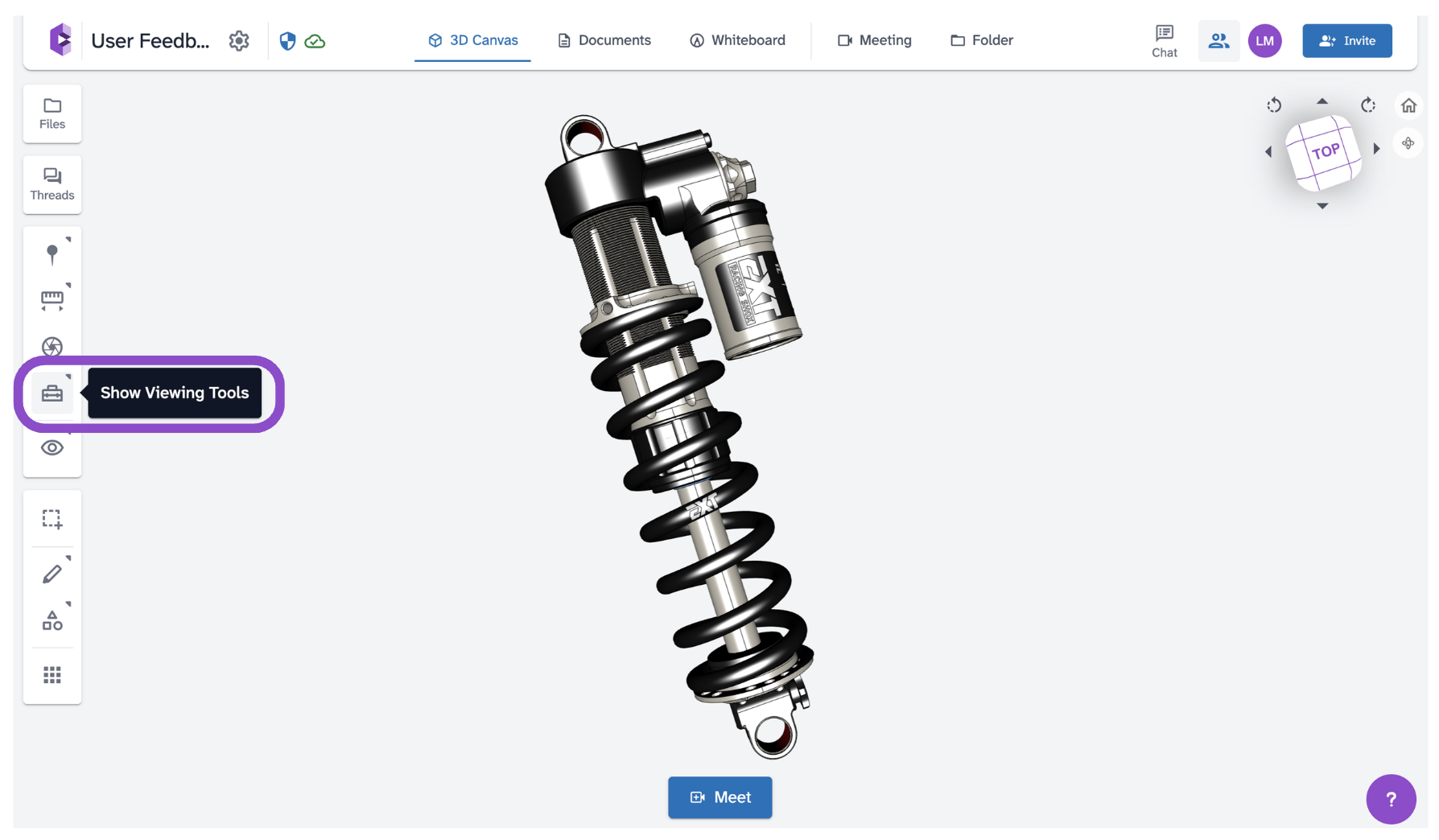
A dark fly out panel expands to the right with seven tools.
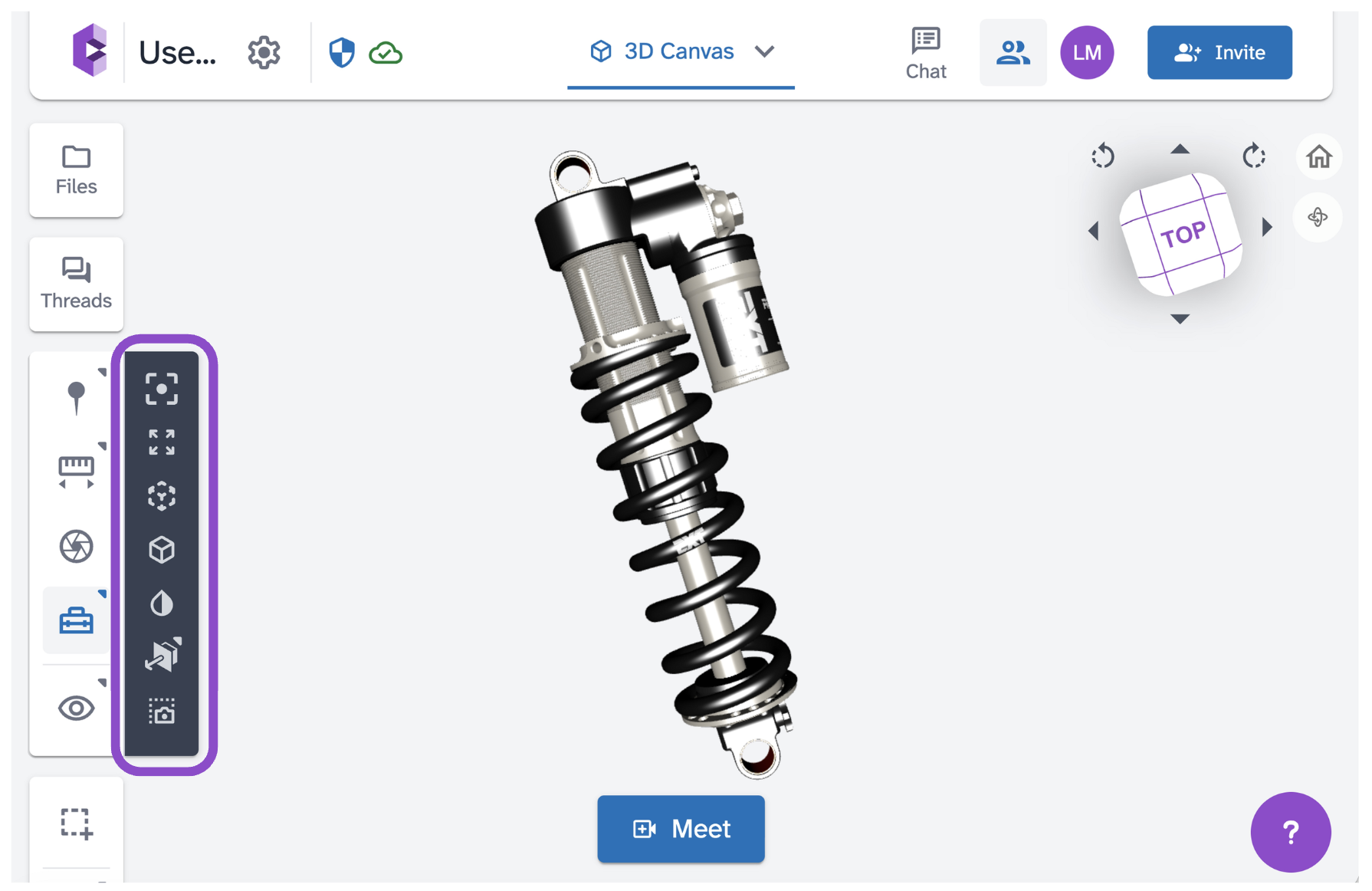
Available tools
Click any tool to activate it. Click it again to toggle it off. Multiple tools can be active at the same time.
- Fit to Screen: resets the view so the entire model fits in the canvas.
- Show Exploding Assemblies: spreads assembly components apart so you can see individual parts.
- Show Transparent Parts: makes model geometry semi-transparent for internal visibility.
- Hide BRep Edges: removes edge lines from the model surface for a cleaner visual.
- Recolor Model: applies a unified color to the model.
- Plane Cut: slices the model with a cutting plane to reveal its interior.
- Capture Screen Area: draw a selection rectangle to capture a snapshot of that area.
All tool states are visible to other collaborators in the space in real time.
Tips and edge cases
- Show Exploding Assemblies only has a visible effect on multi-part assembly files. If nothing happens, the file may be a single-part model.
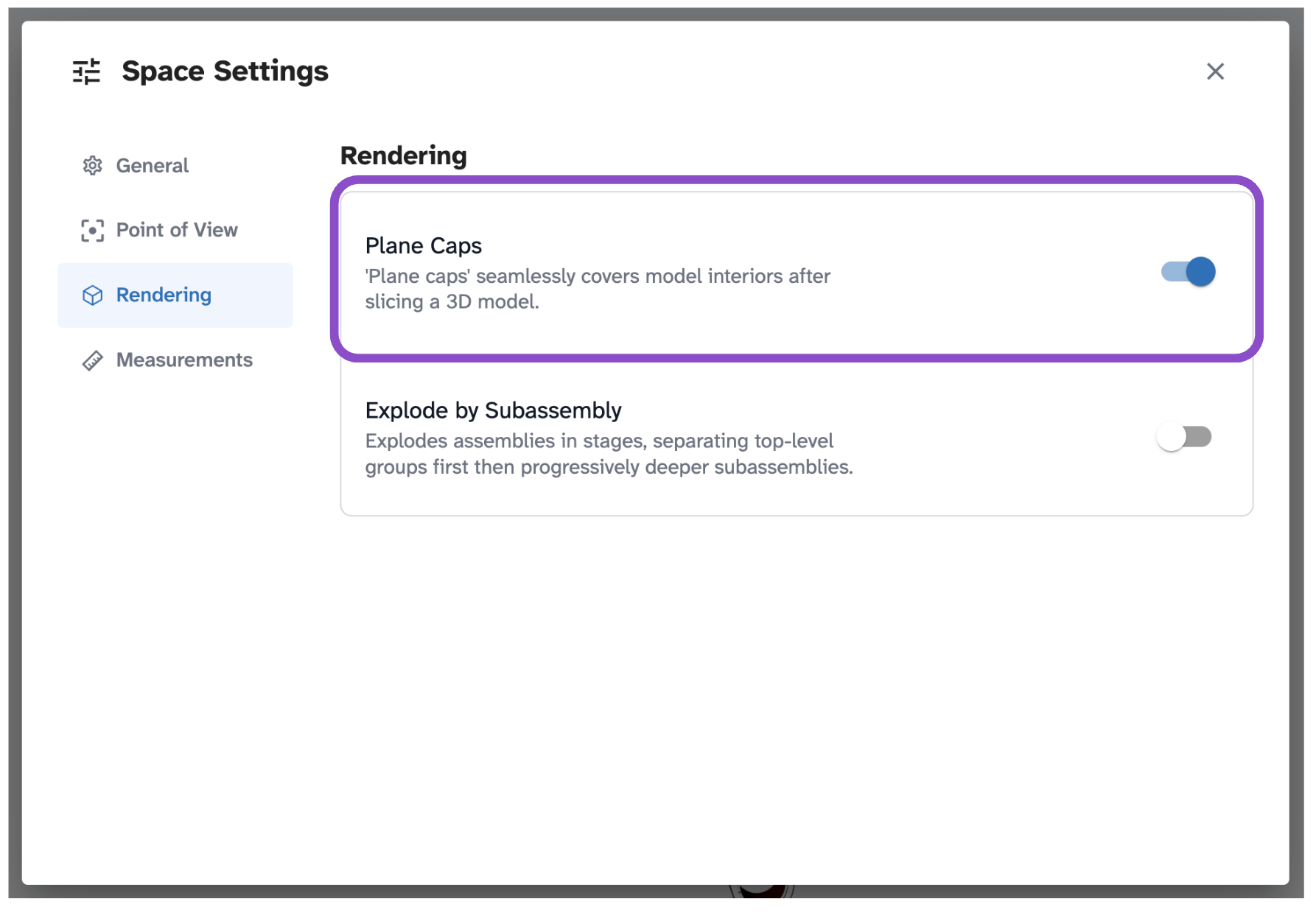
- Plane Cut interacts with the Plane Caps setting in Space Settings.
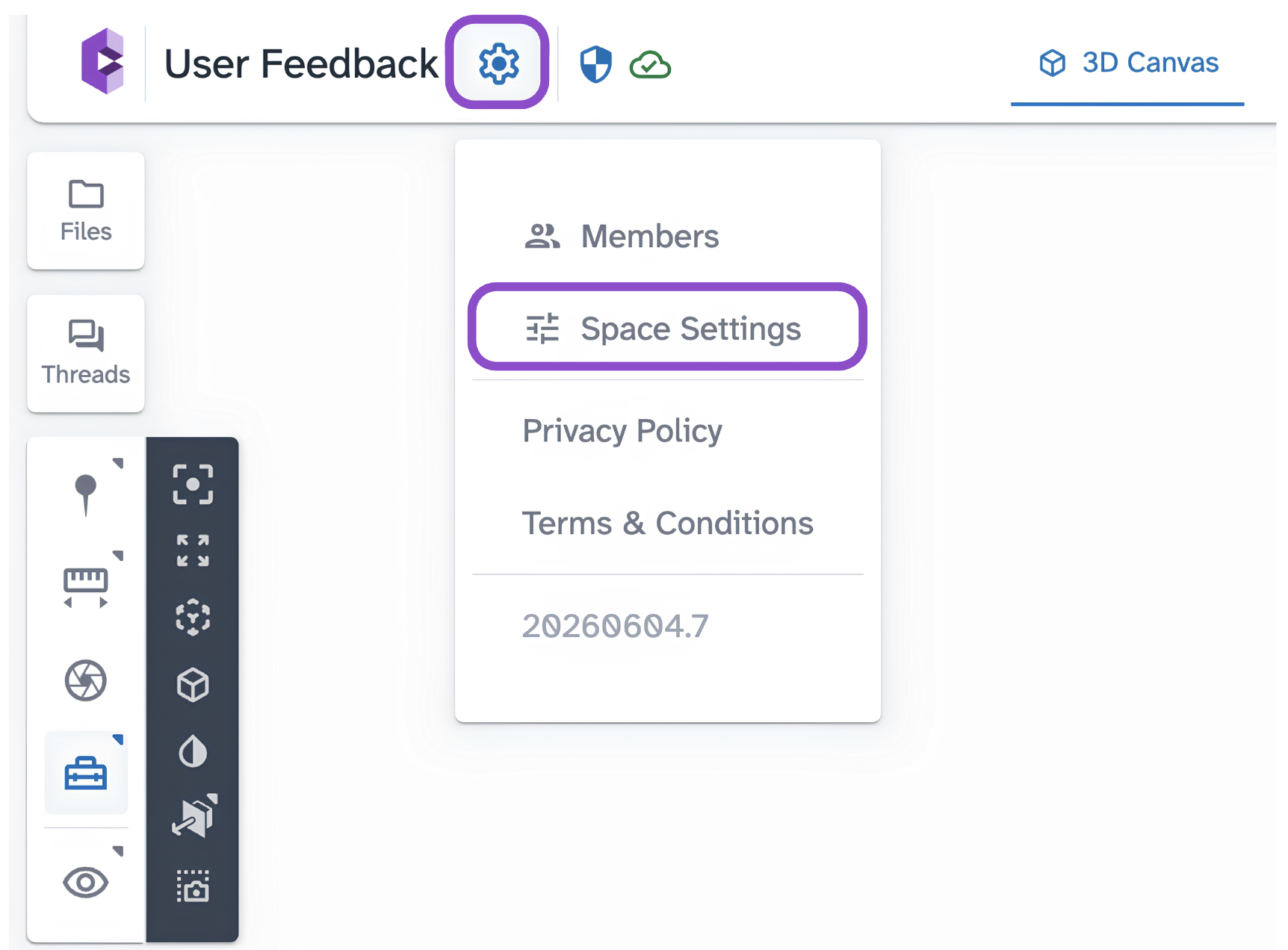
Enable Plane Caps for a clean filled cut surface rather than a hollow opening. See Space settings overview.
- If the model looks washed out, check whether Recolor Model or Show Transparent Parts is active and toggle them off.