
Permission levels in CADchat
Learn what Can Edit, Can Comment, and Can View Only allow collaborators to do in a space.
Permission levels
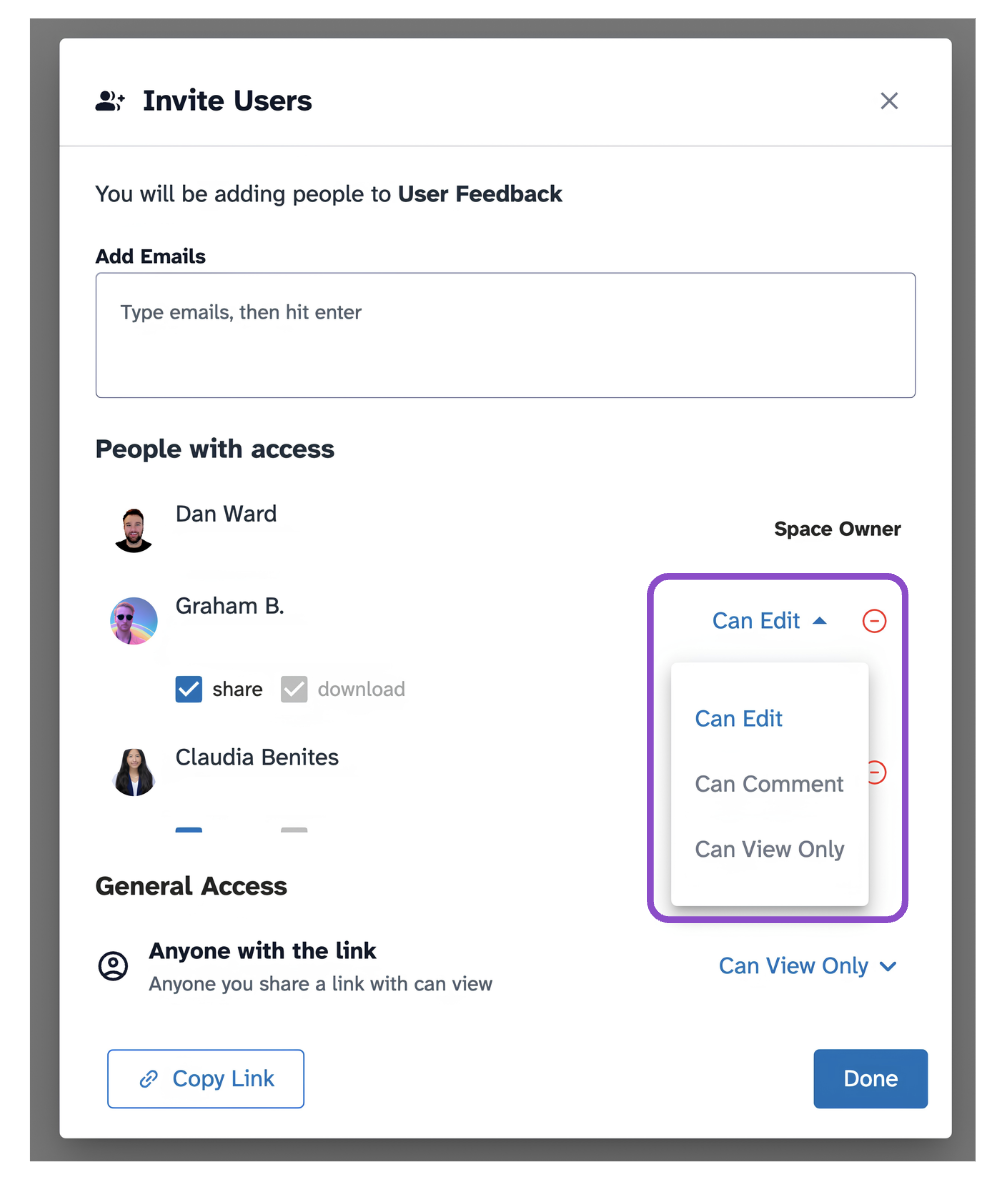
You assign a permission level when you invite someone to a space, or when updating their access in the Invite Users modal.
- Can Edit: Full access. Users can upload files, add and manage 3D models, use drawing and markup tools, place pins and threads, and modify space content.
- Can Comment: Partial access. Users can view content, place pins and threads, and reply to threads. They cannot upload files or modify space content.
- Can View Only: Read-only access. Users can view the 3D model, documents, and whiteboard. They cannot add annotations, upload files, or post threads.
Tips and edge cases
- Permission levels apply per space. The same user can have different permissions in different spaces.
- The share and download checkboxes in the Invite Users modal are independent of the permission level, you can restrict or allow these separately.
- General Access (Anyone with the link) uses the same three permission levels and applies to anyone who opens the link without a direct invite.
- Space owners always have full control, regardless of which permission level is assigned.
- If a collaborator cannot upload files, check that their permission is set to Can Edit.
- If a collaborator cannot add threads, check that their permission is at least Can Comment.
- If you cannot change someone's permission, you may not be the space owner.