
Chat in a space
Use the chat panel in any space to send messages, share files, and mention collaborators in real time.
Open the chat panel
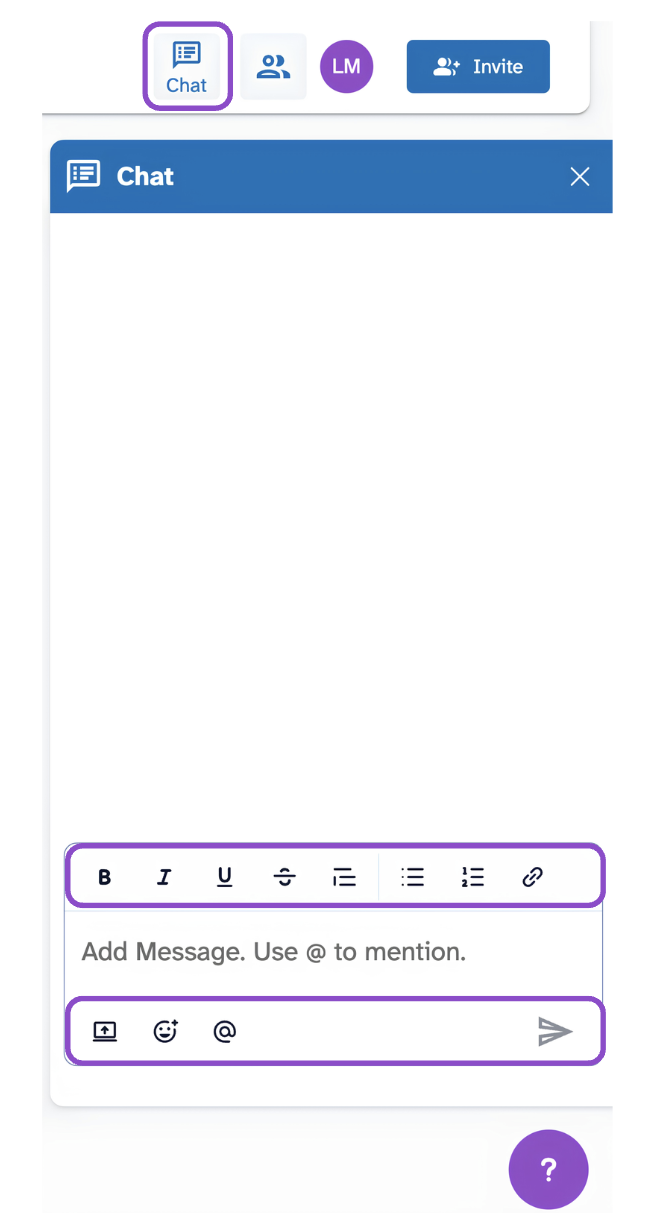
In any space, click Chat in the top right of the space header. The panel slides open on the right side. Click it again to close it.
Chat is persistent, messages stay in the space and are visible to all space members at any time, regardless of which tab they have open.
Send a message
- Click in the message composer at the bottom of the chat panel.
- Type your message. The placeholder reads "Add Message. Use @ to mention."
- Use the formatting toolbar to apply Bold, Italic, Underline, strikethrough, text alignment, bullet lists, numbered lists, or links.
- Click the file upload icon (box with arrow) to attach a file.
- Click the emoji icon to insert an emoji.
- Type @ or click the @ icon to mention a collaborator.
- Press Enter or click the send arrow to send.
Tips and edge cases
- Chat is separate from Threads. Chat is for general conversation; Threads are anchored to specific points on a model or document. See Threads overview.
- You can attach images directly in the chat composer.
- If @mention suggestions don't appear, start typing the person's display name after the @ symbol.
- To read older messages, scroll up in the chat history.