
Use the Documents tab
Upload and annotate PDFs, images, and CAD drawings in the Documents tab alongside your 3D model.
Upload a document
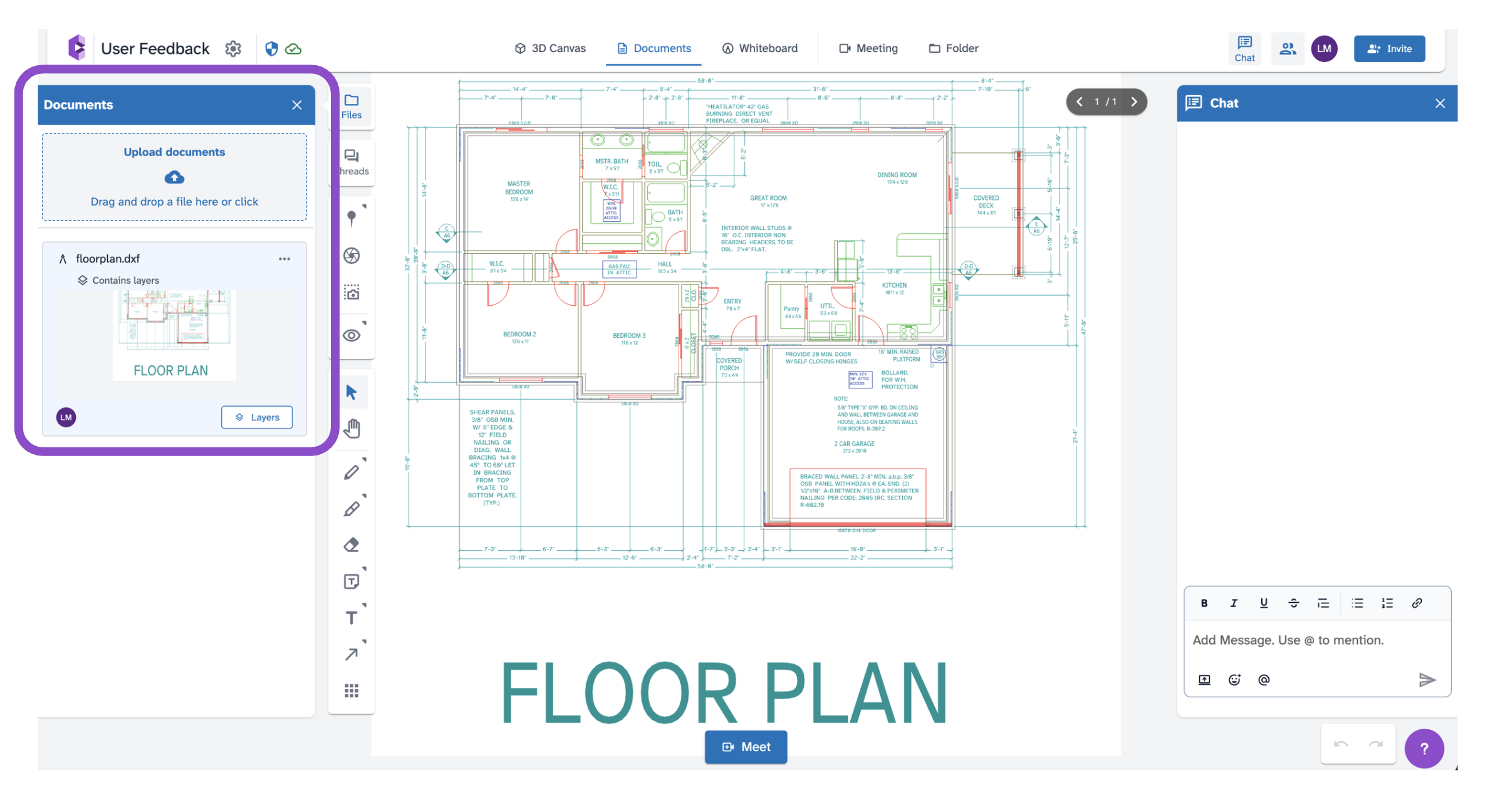
- Open a space and click the Documents tab.
- Click Upload documents or drag and drop a file into the upload zone.
Supported formats: PDF, JPG, JPEG, PNG, DXF, DWG, CATDRAWING
Once uploaded, the document fills the canvas. Use the page navigator in the top right to move between pages on multi-page files.
Documents toolbar
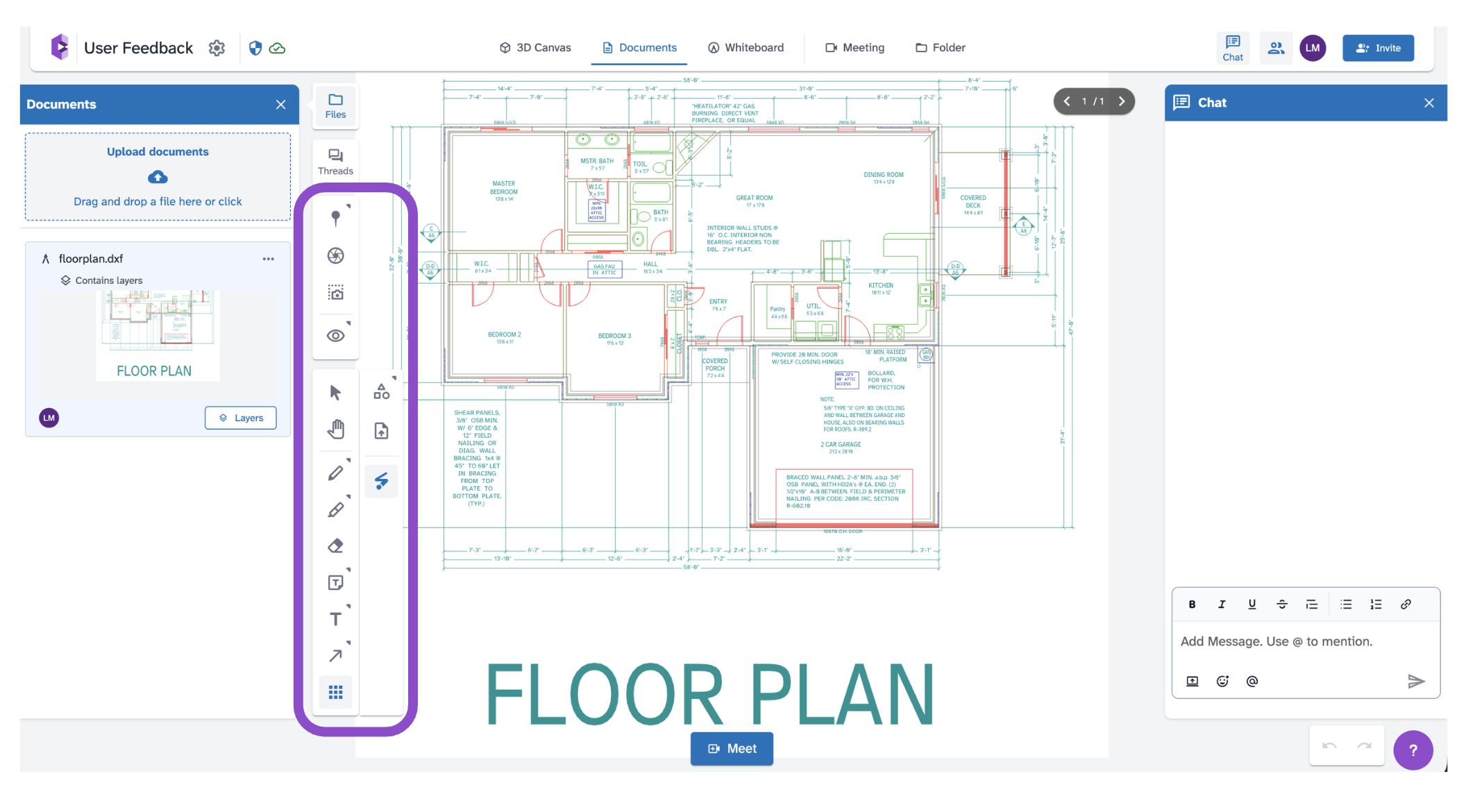
The left toolbar provides annotation and markup tools:
- Add Pin: Place an anchored thread anywhere on the document. See Threads overview.
- Add Snapshot: Capture a view of the document.
- Capture Screen Area: Draw a selection to capture a specific region.
- Markup Settings: Configure markup display options.
- Select: Select and move markup elements.
- Hand: Click and drag to pan the document.
- Draw: Draw freehand lines.
- Highlighter: Highlight areas of the document.
- Eraser: Remove markup elements.
- Sticky Note: Place a sticky note on the document.
- Text & Note: Add a text annotation.
- Arrow: Draw an arrow pointing to an area.
- Geo: Insert shapes.
- Asset: Add a new file to the tab
- Laser: Temporarily draw on documents, laser point on document.
Markups are visible to all space collaborators in real time.
Tips and edge cases
- DXF and DWG files show a Contains layers tag in the Files panel and a Layers button in the canvas. See Work with DXF and DWG layers.
- The Files panel shows all uploaded documents and their management options.
- If a document appears blank after uploading, wait for processing to complete and refresh.
- If the page navigator shows 1/1 for a multi-page PDF, the file may not have processed correctly, try re-uploading.