
Work with the 3D canvas
Open the 3D Canvas
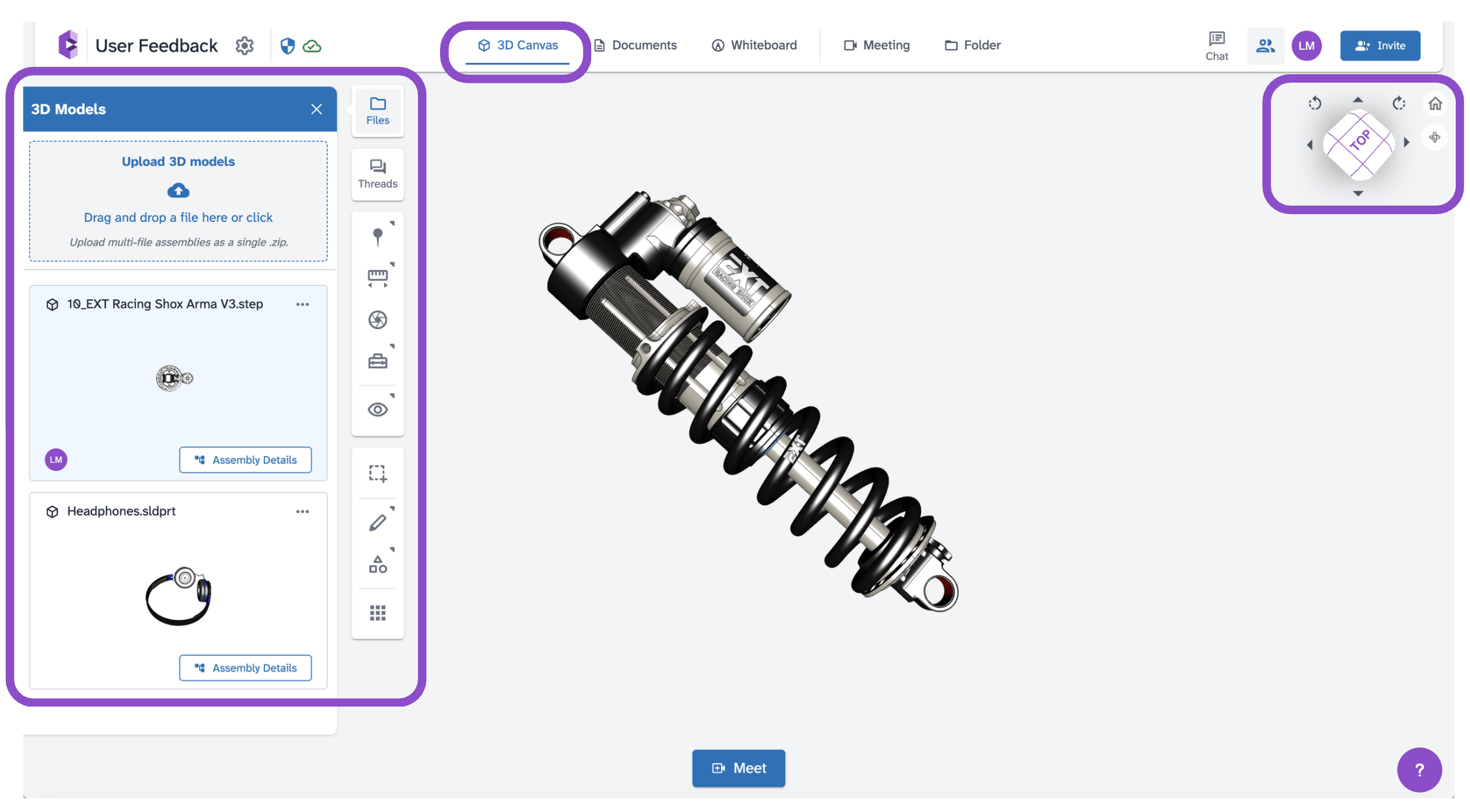
Open a space and click the 3D Canvas tab. If no model is loaded yet, click Upload 3D models or drag and drop a file into the upload zone. See Upload a 3D model file to a space for supported formats and upload steps.
ViewCube, and View Controls
The ViewCube in the top right corner shows orientation labels (FRONT, BACK, etc.). Click a face to snap to that standard view. Use the Roll -90 / Roll +90 buttons next to the ViewCube to rotate the view, or click the Home icon to reset to the default view.
Mouse Navigation
- Rotate: Click and drag.
- Pan: Right-click and drag.
- Zoom: Scroll wheel.
First-person navigation
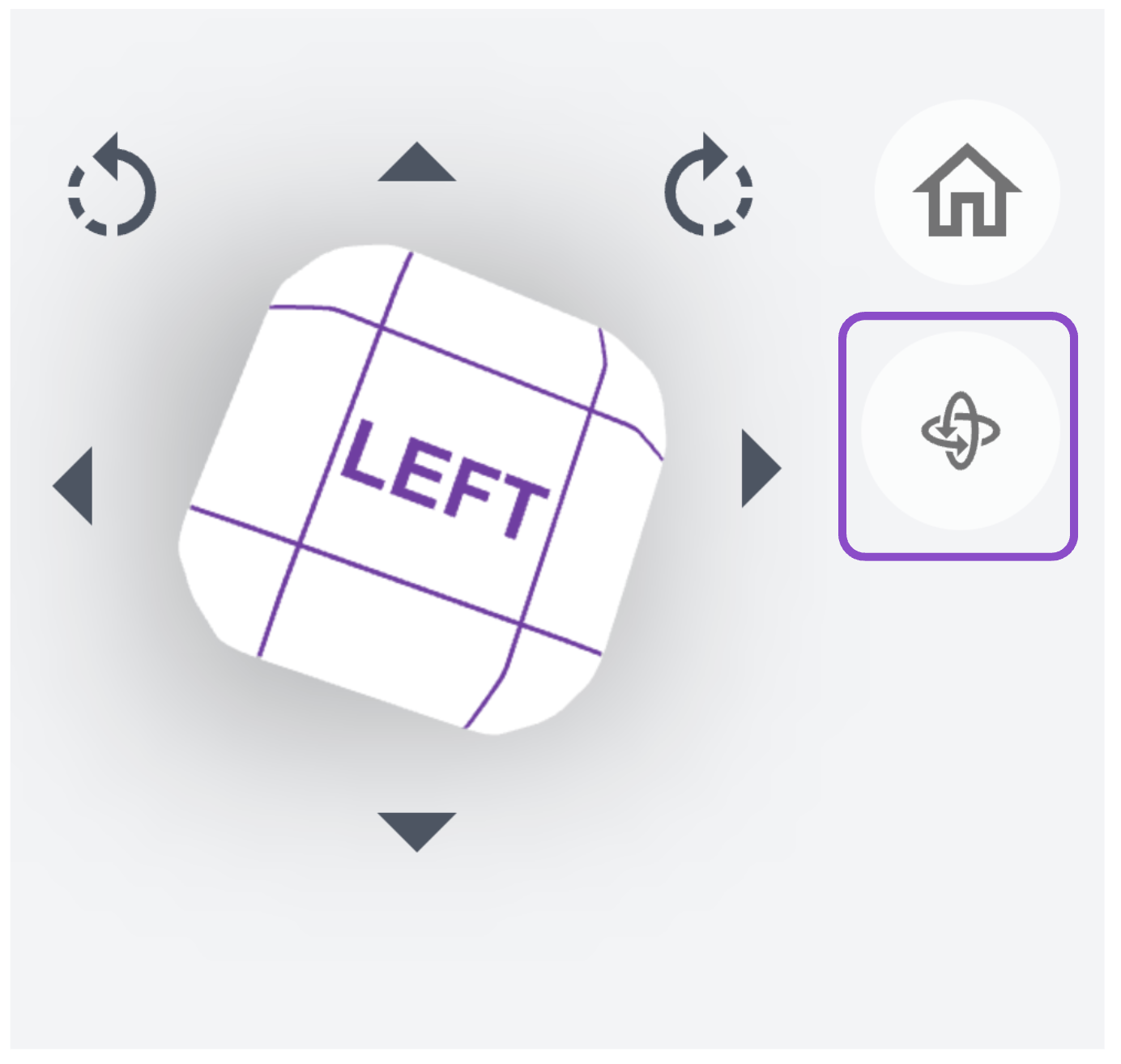
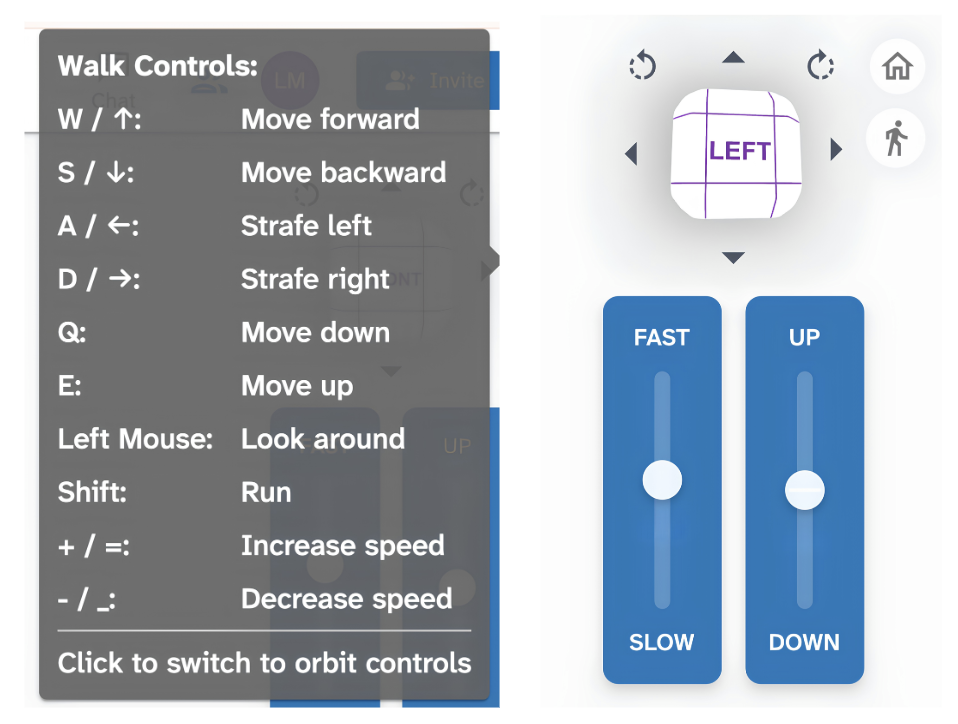
Click the Walk controls icon (fan shape) in the toolbar to enter first-person navigation mode. This is useful for large assemblies or architectural models.
Context menus
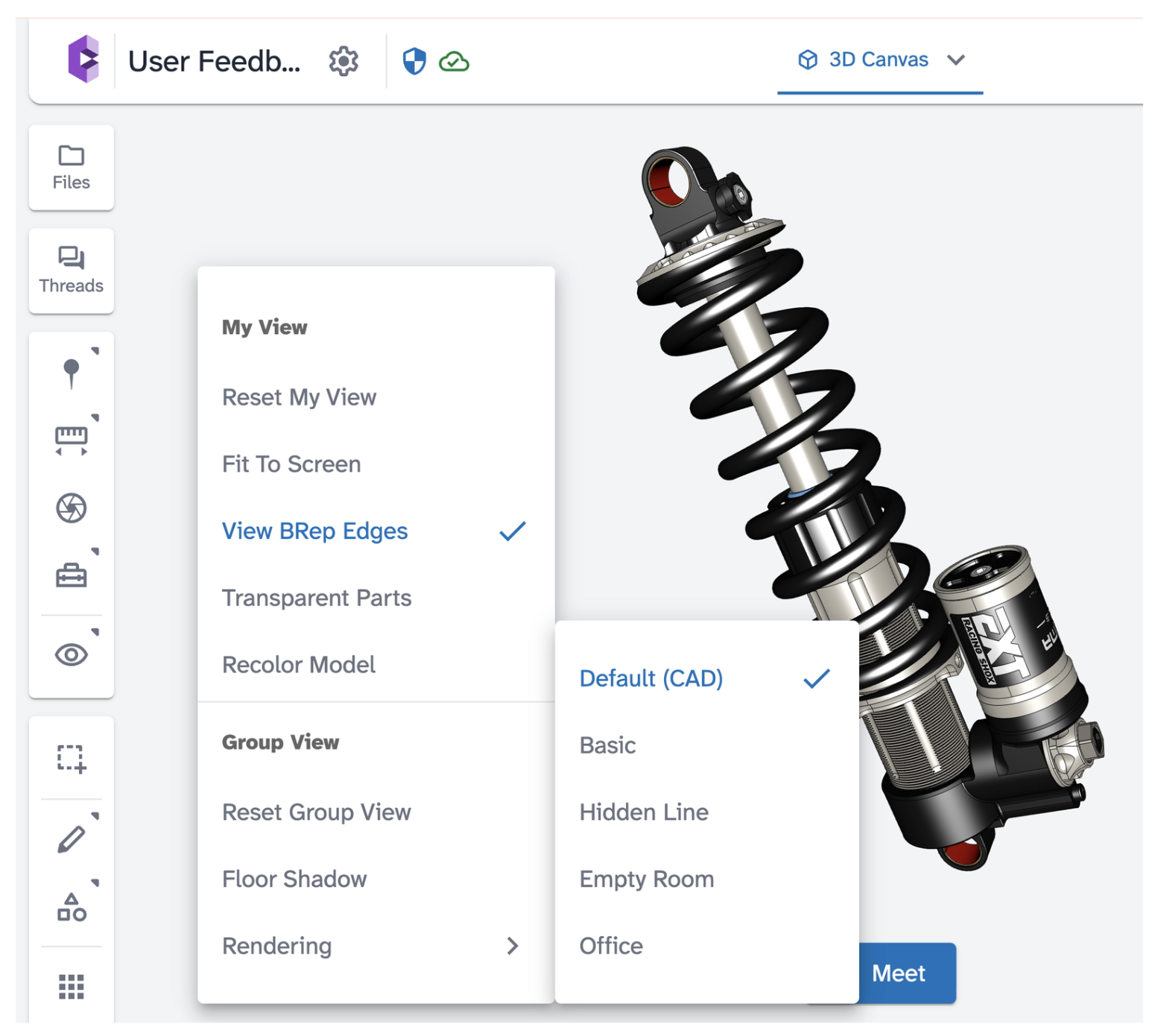
Right-click on the canvas background to open the canvas context menu with view and rendering options. See Use the 3D canvas context menu for details.
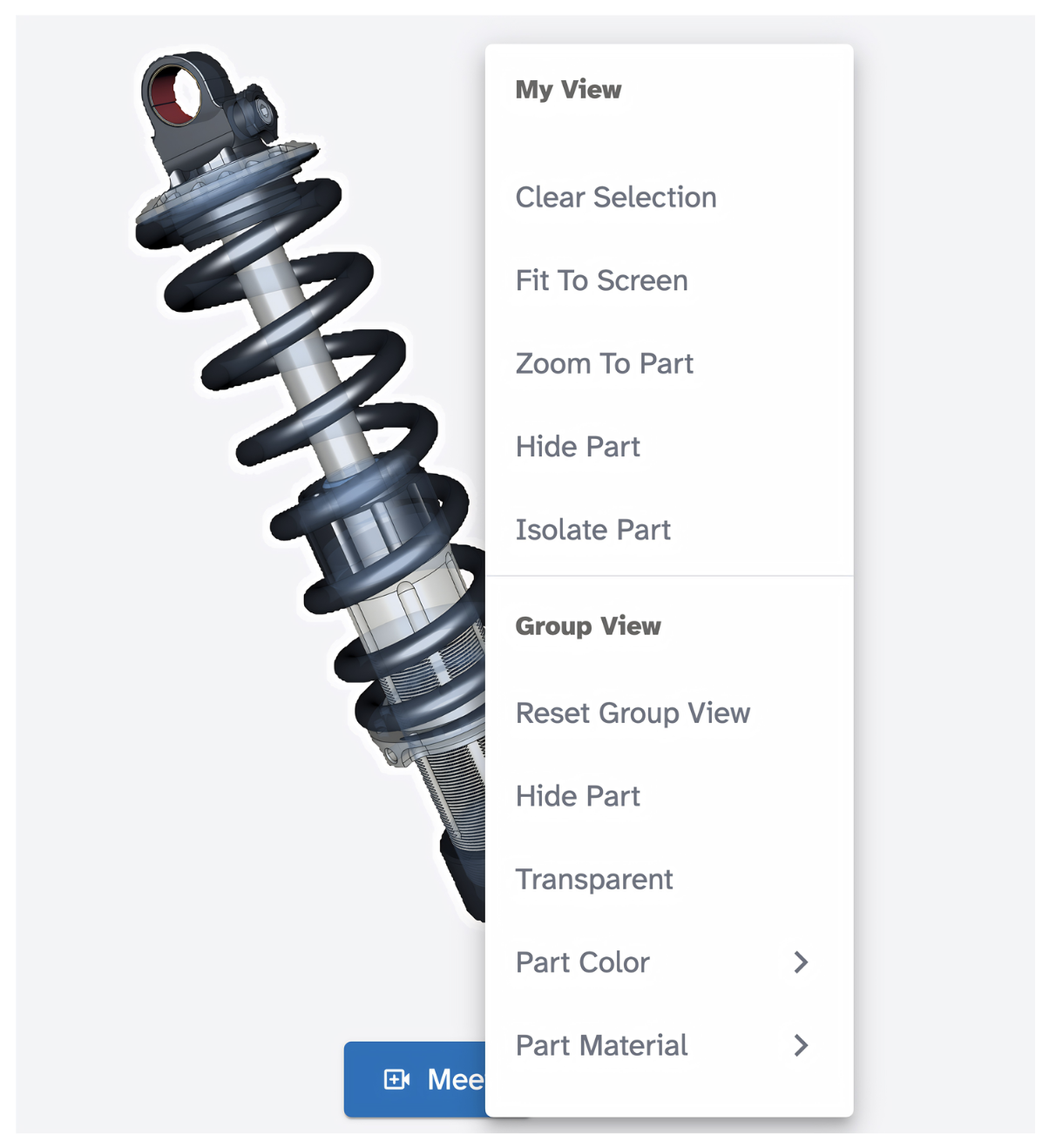
Right-click directly on a model part to access part-specific options including zoom, hide, isolate, recolor, and apply materials. See Interact with 3D model parts.
Tips and edge cases
- You can upload multiple files to the same space. They appear in the Files panel on the left.
- Double-clicking a part triggers an action based on your User Preferences setting. The default is Add Pin.
- If the model appears very small, right-click the canvas and choose Fit To Screen.
- If navigation feels sluggish, try enabling Limit Resolution in User Preferences.
- If the model doesn't appear after uploading, wait for processing to complete and refresh the page.