
Interact with 3D model parts
Right-click any part on a 3D model to access part-specific view, color, material, and visibility options.
Open the part context menu
In the 3D Canvas, right-click directly on any solid part of the model (not the background) to open the part context menu. Options are split into My View (personal) and Group View (shared).
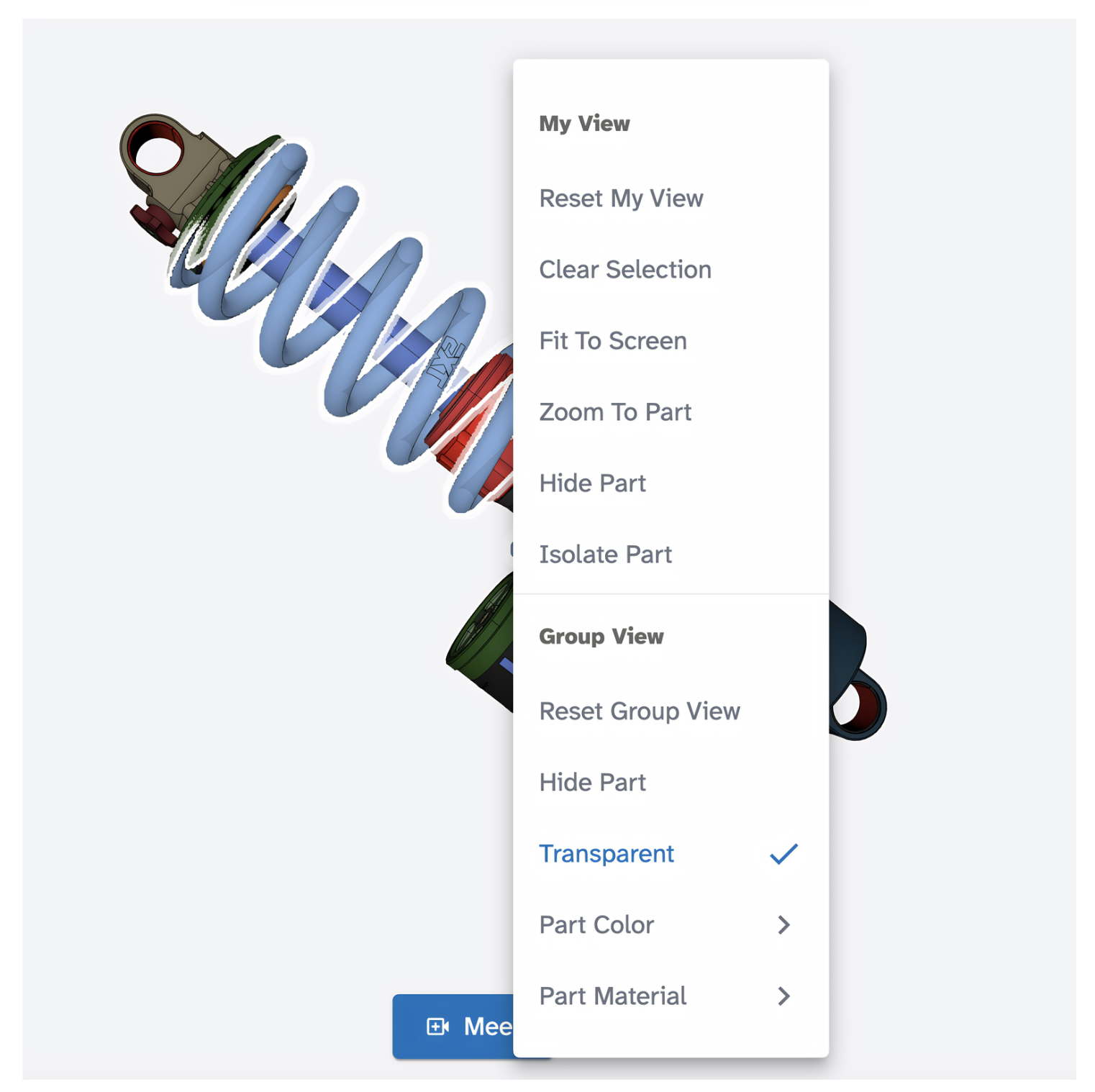
My View
These options only affect your view and are not visible to other collaborators.
- Reset My View: returns your camera to the default position.
- Fit To Screen: zooms to fit the entire model on screen.
- Zoom To Part: zooms your camera in to focus on this specific part.
- Hide Part: hides this part from your view only.
- Isolate Part: hides all other parts so only this part is visible in your view.
Group View
These options affect the shared view for all collaborators in real time.
- Reset Group View: resets the shared view to the default for everyone.
- Hide Part: hides this part for all collaborators.
- Transparent: makes this part semi-transparent for all collaborators.
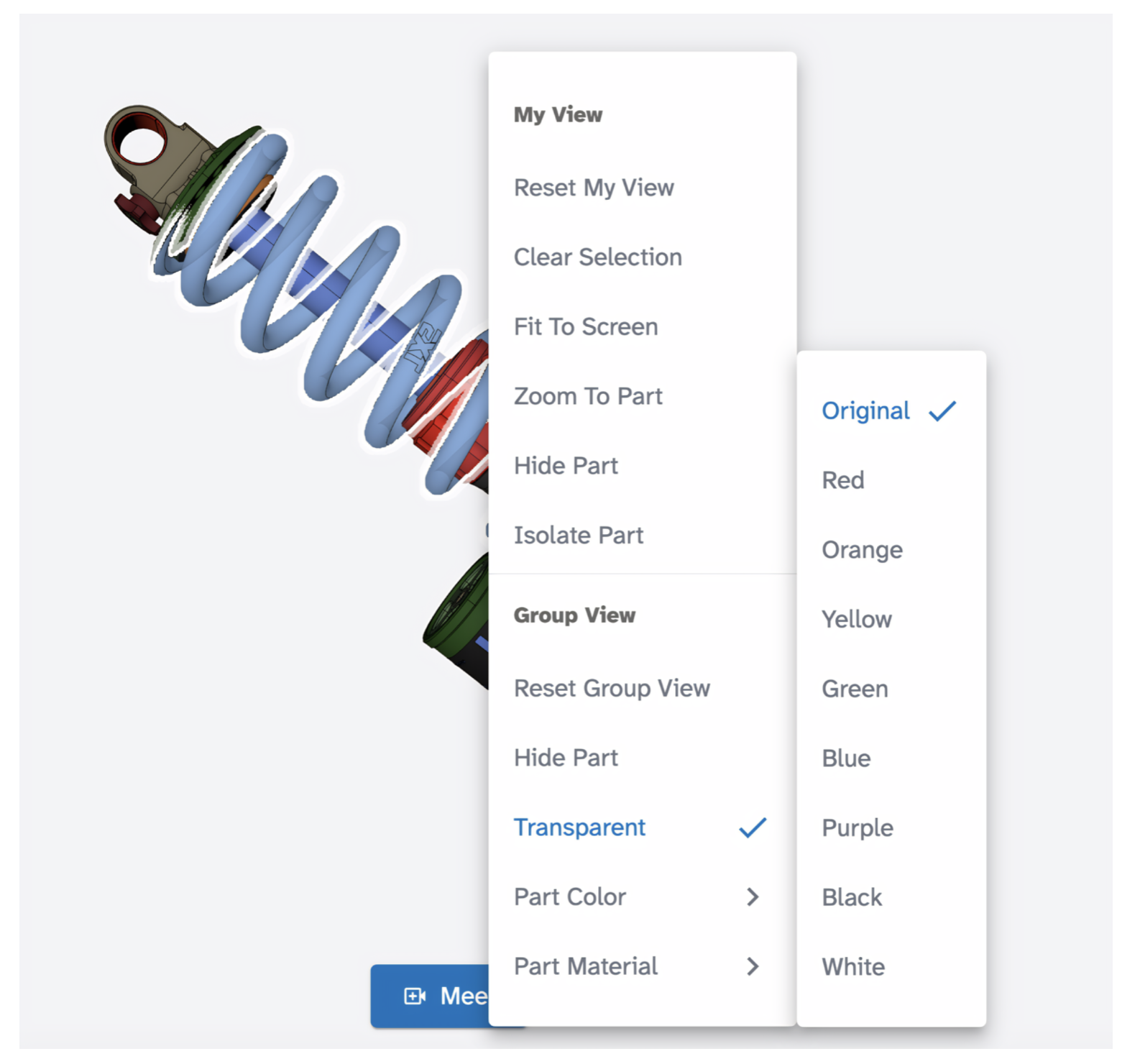
- Part Color: changes the color of this part for everyone. Options include Red, Orange, Yellow, Green, Blue, Purple, Black, White, and Original to revert.
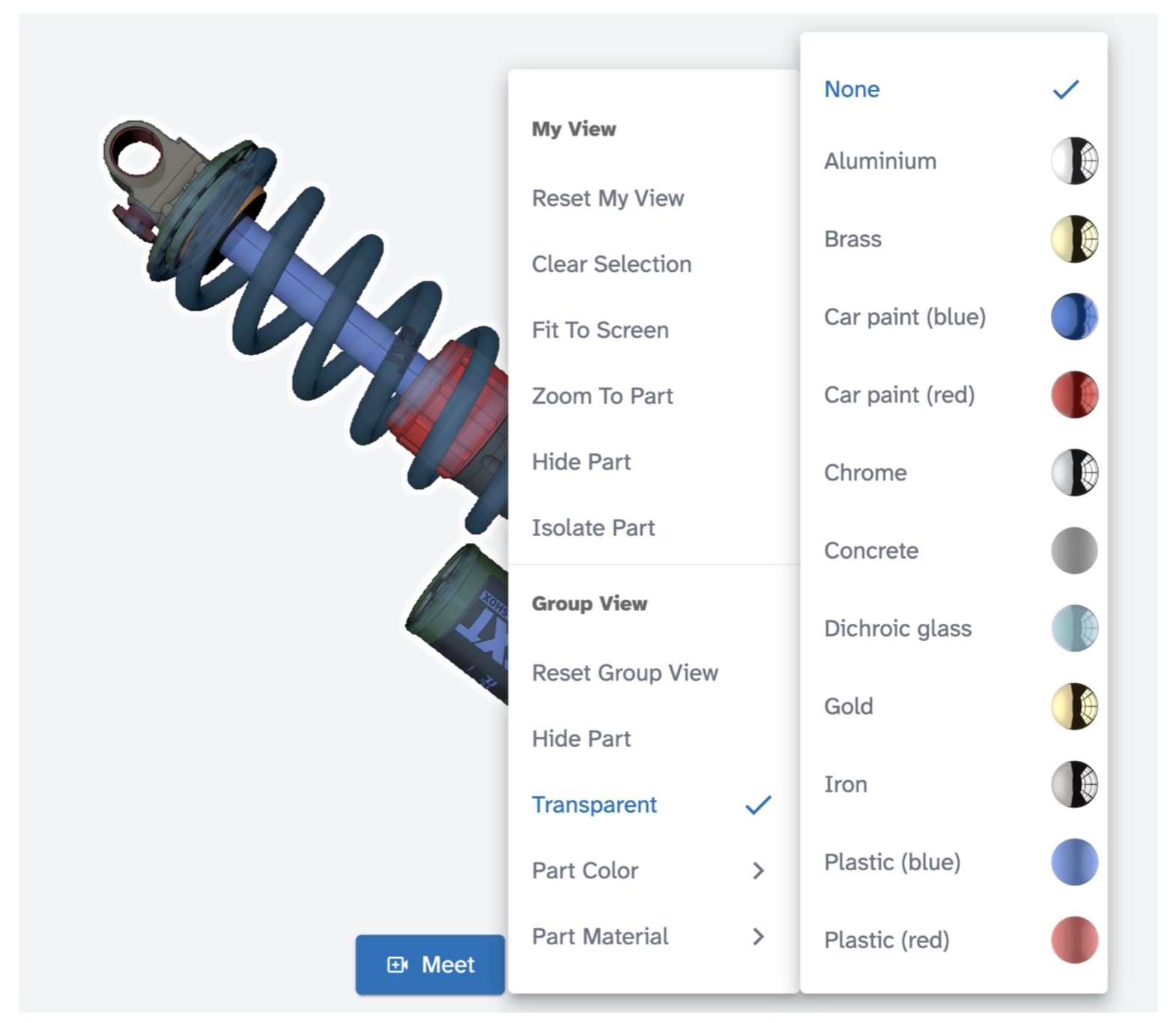
- Part Material: applies a material finish to this part for everyone. Options include Aluminium, Brass, Car paint (blue), Car paint (red), Chrome, Concrete, Dichroic glass, Gold, Iron, Plastic (blue), Plastic (red), Rubber, and None to revert.
Tips and edge cases
- My View changes are personal. Other collaborators cannot see them.
- Group View changes are visible to all collaborators immediately. Coordinate with your team before hiding or recoloring parts.
- To reset a part's color or material, right-click the part and select Part Color > Original or Part Material > None.