
View meetings on the dashboard
The dashboard gives you a weekly meetings overview, recent activity, and quick access to your spaces.
The dashboard
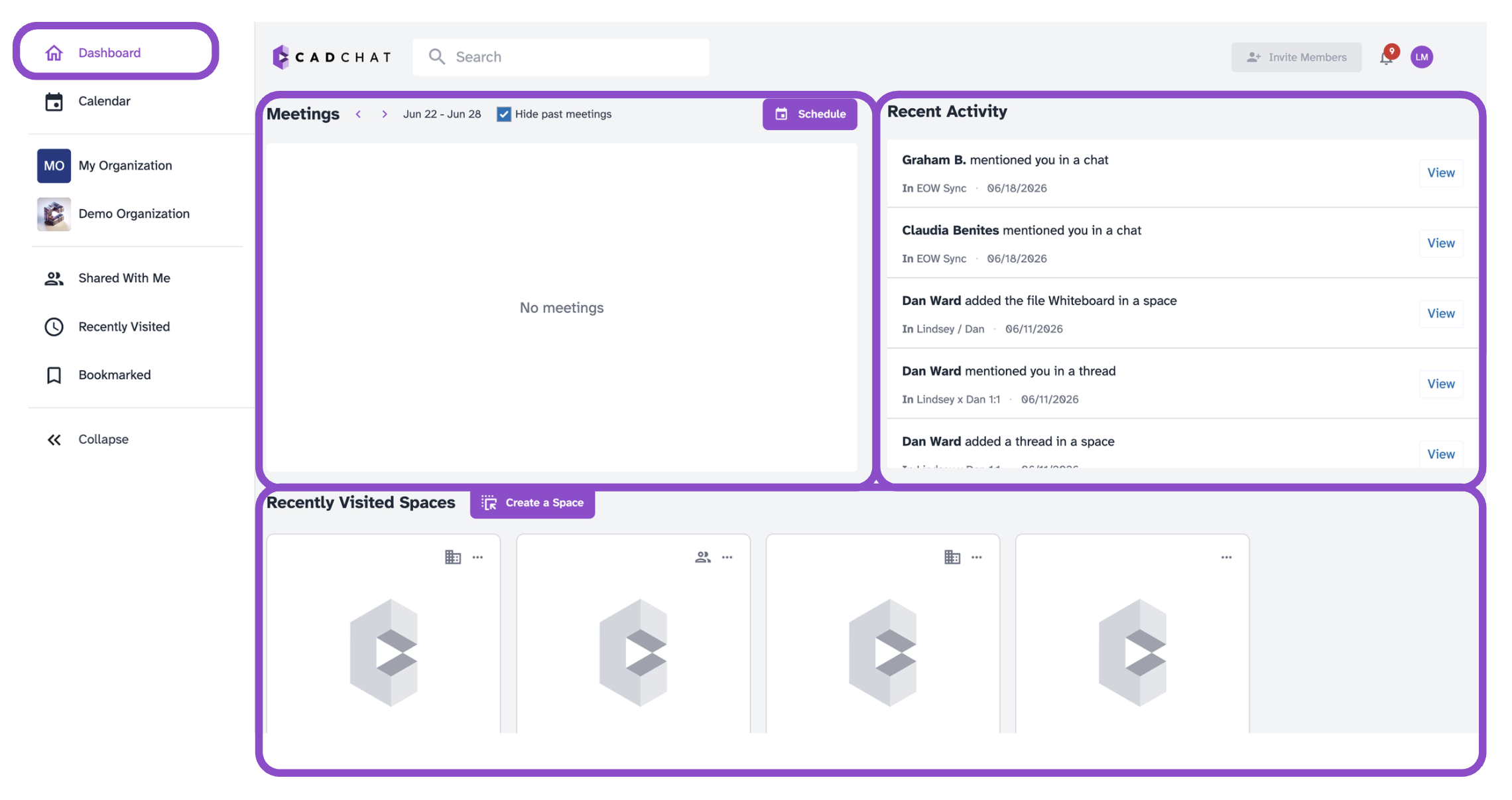
Click Dashboard in the sidebar to open your home view. It shows three main areas: upcoming meetings, recently visited spaces, and recent activity.
Meetings widget
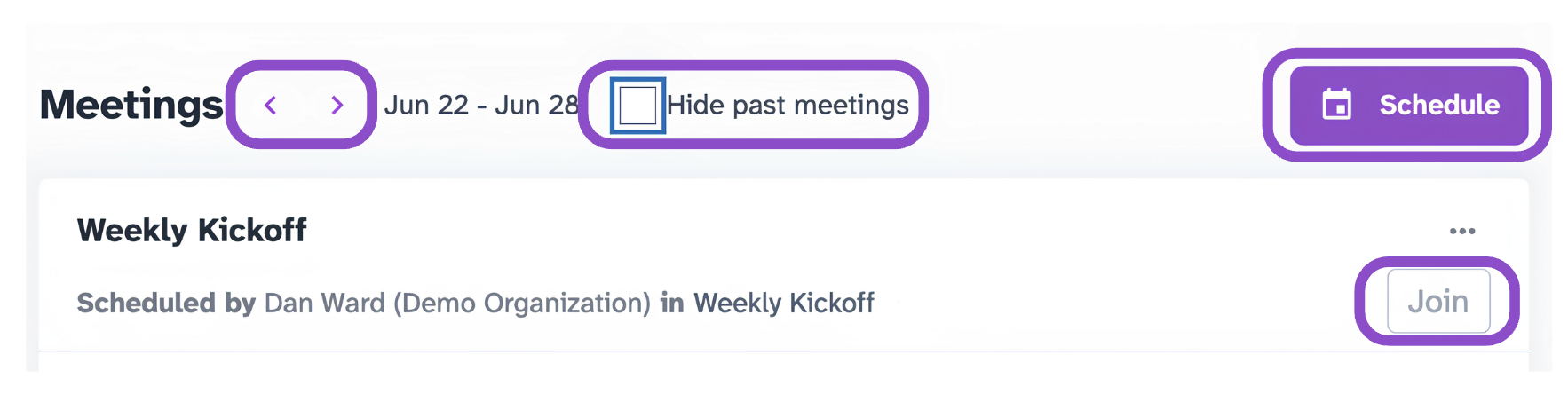
The Meetings widget shows all meetings scheduled for the current week. Use the < > arrows to move between weeks. Toggle Hide past meetings to show or hide meetings that have already ended.
From a meeting card you can:
- Click Join to enter the meeting.
- Click Schedule to create a new meeting. See Schedule a meeting for the full steps.
Recently visited spaces and recent activity
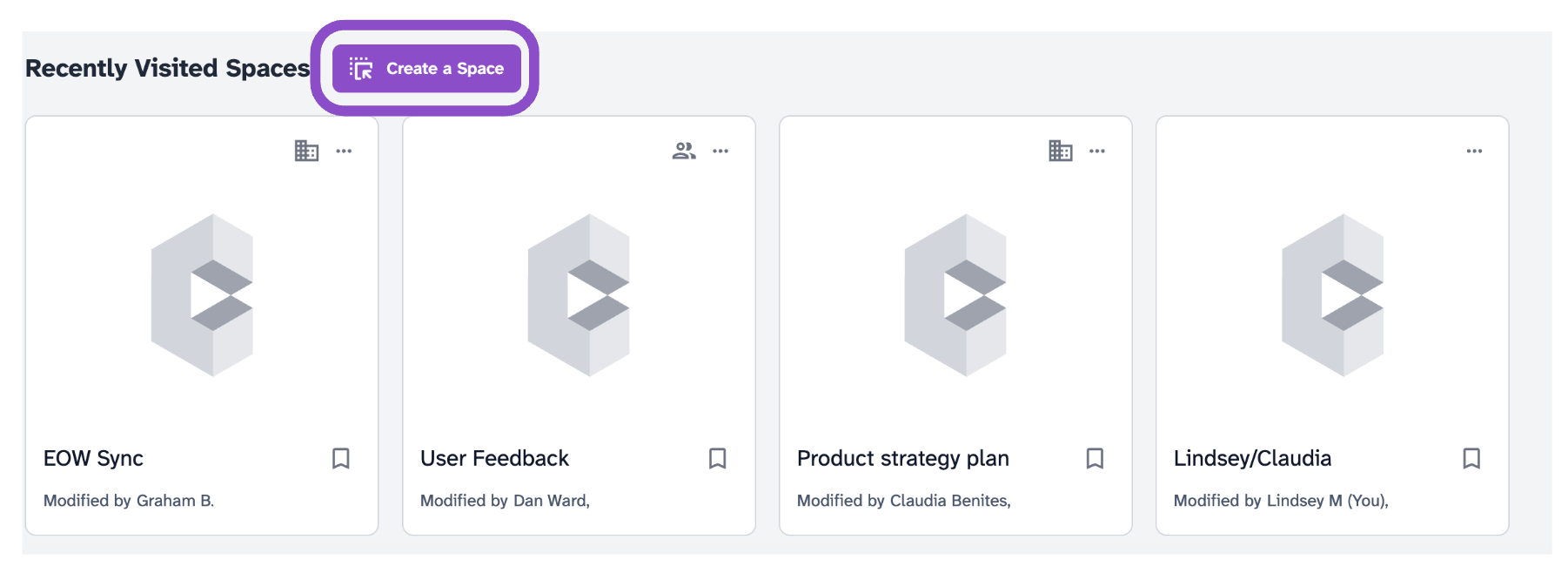
The Recently Visited Spaces section appears below the Meetings widget. Click Create a Space next to the heading to create a new space directly from the dashboard.
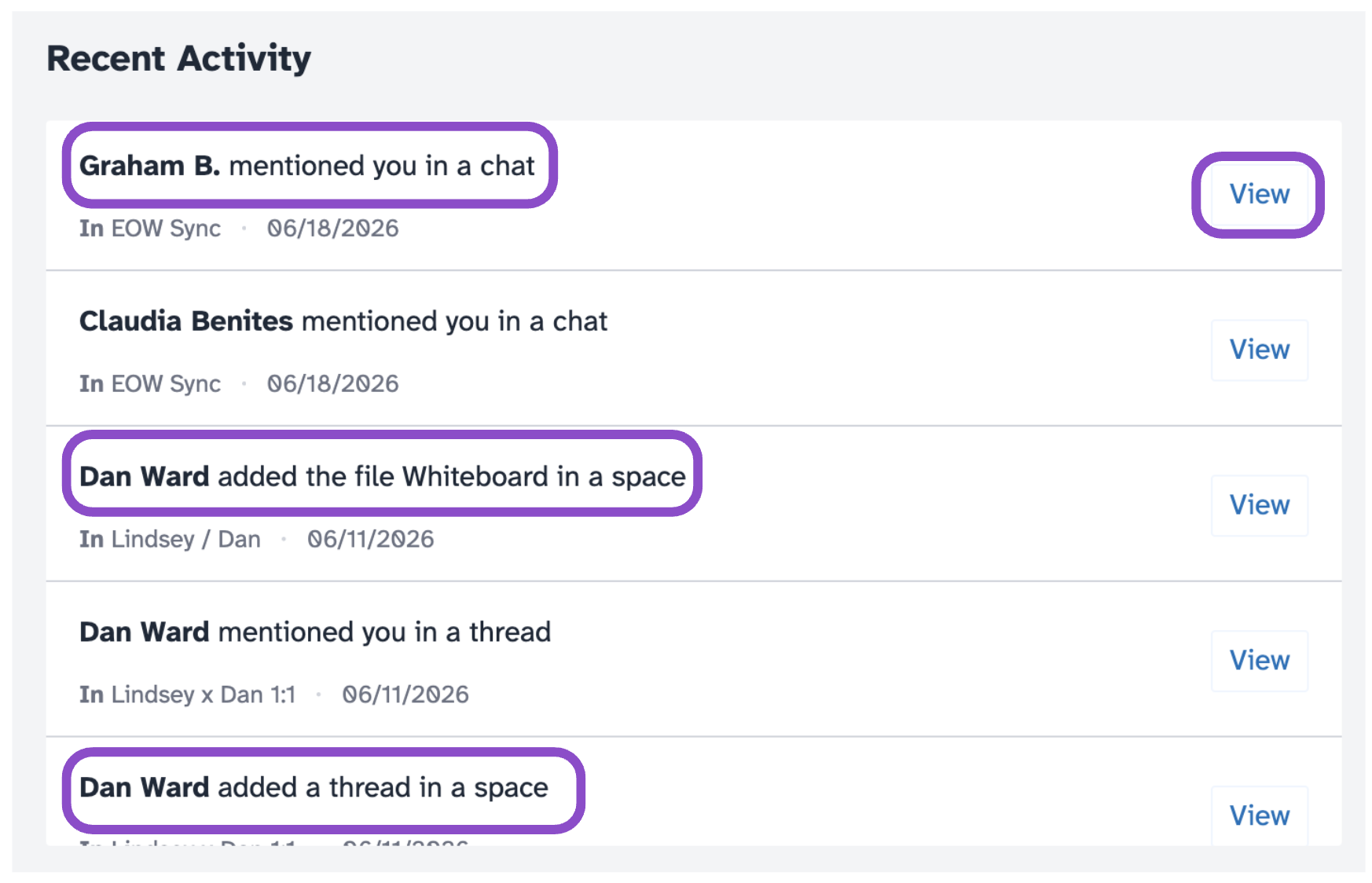
The Recent Activity panel on the right shows the latest actions across your spaces: threads added, files uploaded, and other collaborator activity with a timestamp and View link.
Tips and edge cases
- If the Meetings widget appears empty, toggle off Hide past meetings to check whether past meetings are hidden.
- If a meeting you scheduled isn't showing, refresh the page or verify it was saved on the Calendar page.
- If Recent Activity is empty, no activity has occurred recently in your spaces.