
Space settings overview
Before you start
You need Can Edit access to change space settings. If the option is missing from the gear menu, ask the space owner to adjust your permissions.
Open Space Settings
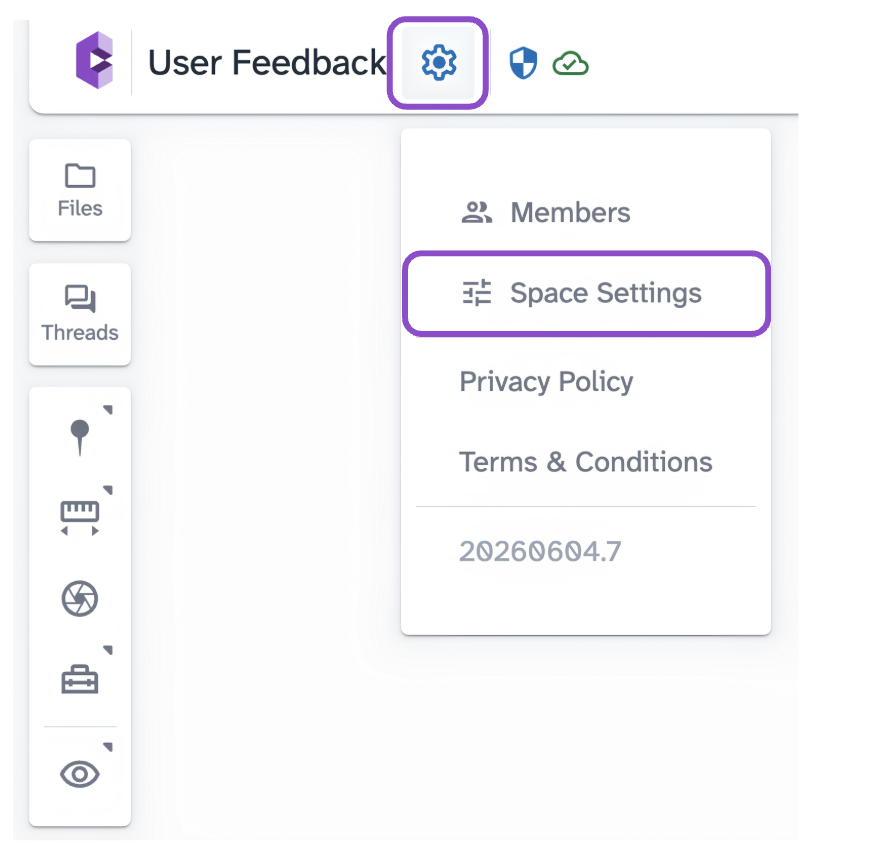
In the space header, click the gear icon and select Space Settings. Changes take effect immediately, there is no save button.
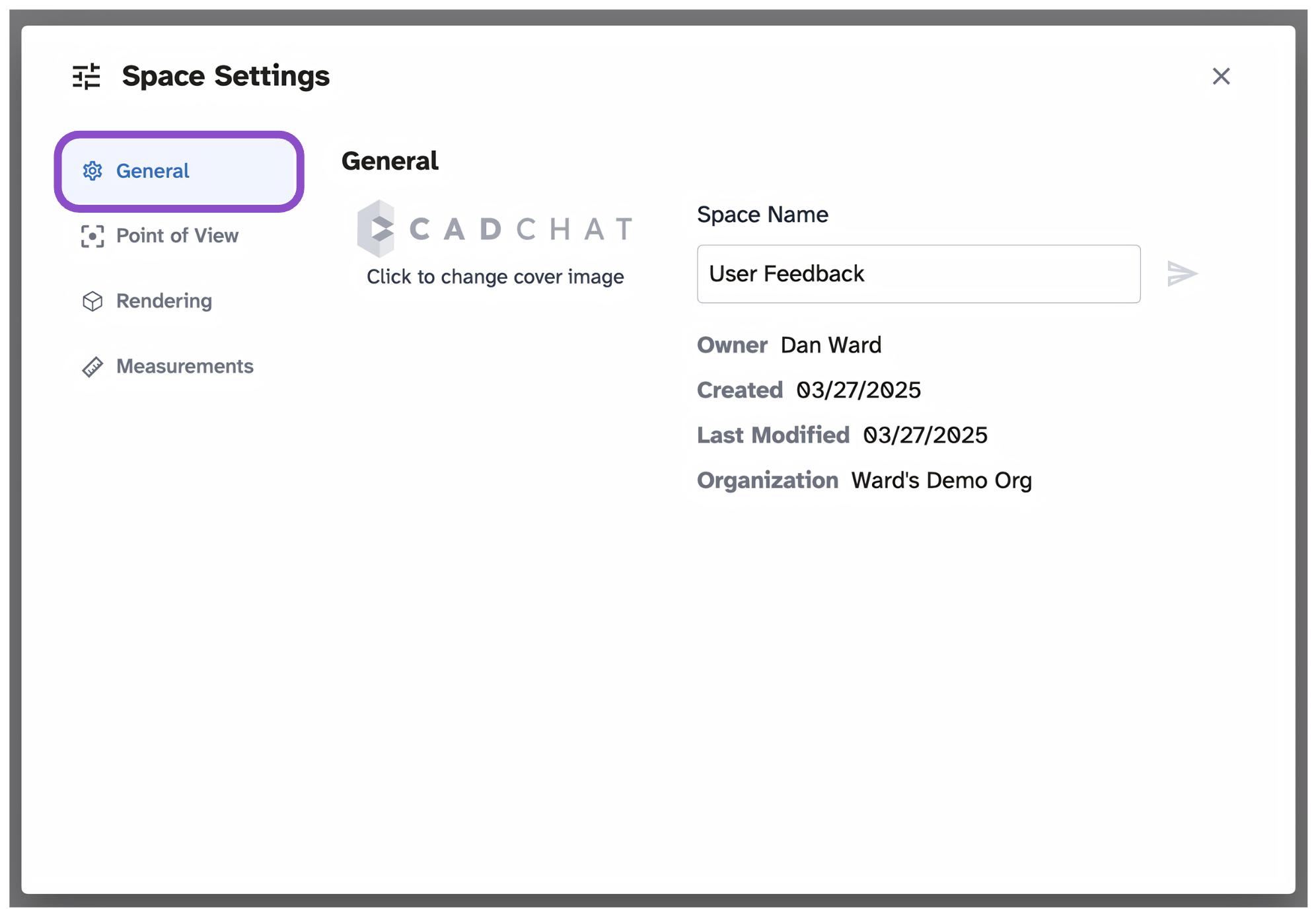
General
Rename the space, update the cover image, and view metadata including owner, created date, last modified, and organization. Cover image changes appear on the space card in the organization view.
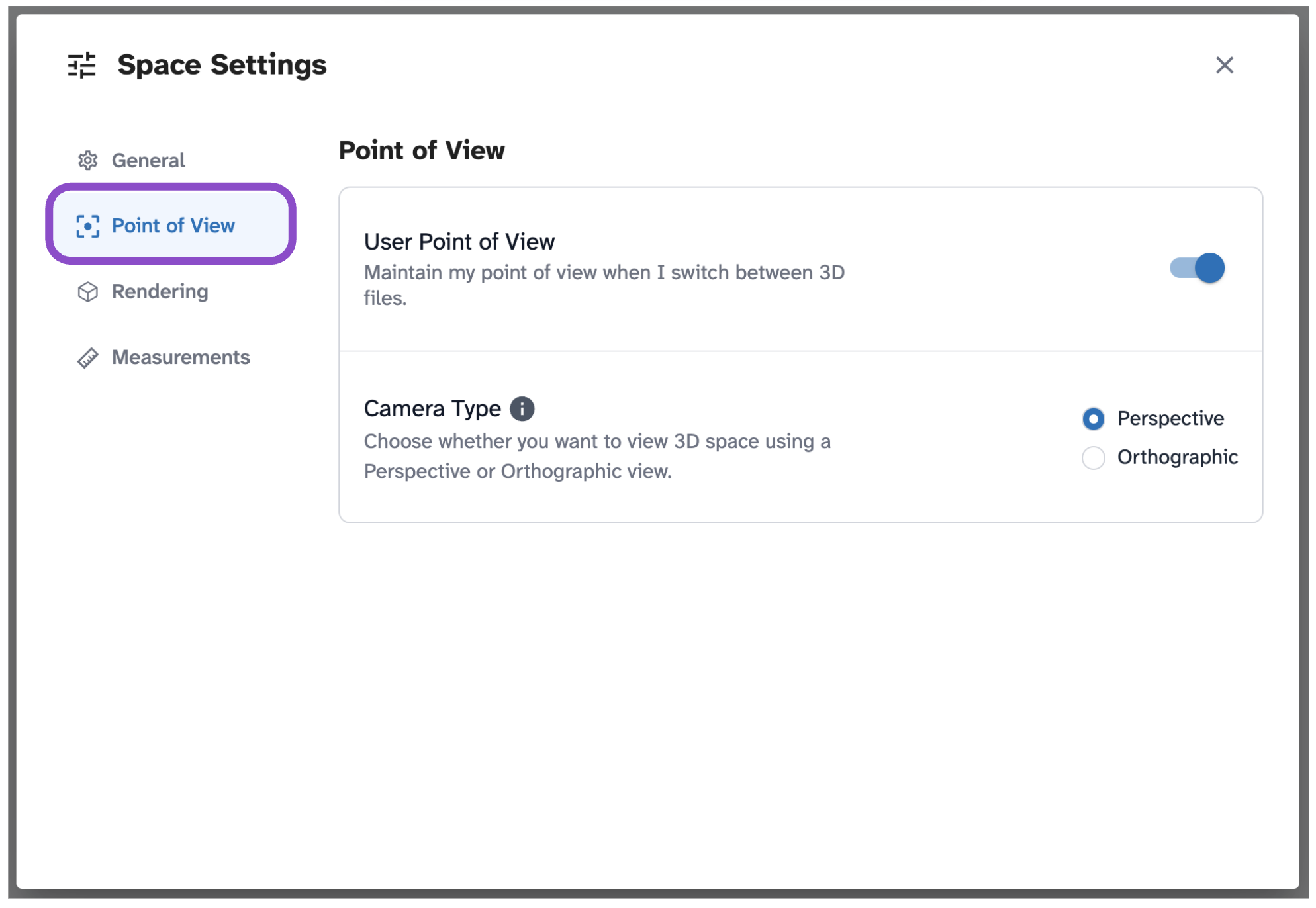
Point of View
Toggle whether your camera position is maintained when switching between 3D files in the space. You can also set the camera mode here: Perspective or Orthographic. See Change camera type for more. Point of View settings are per-user. Each collaborator can set their own preference.
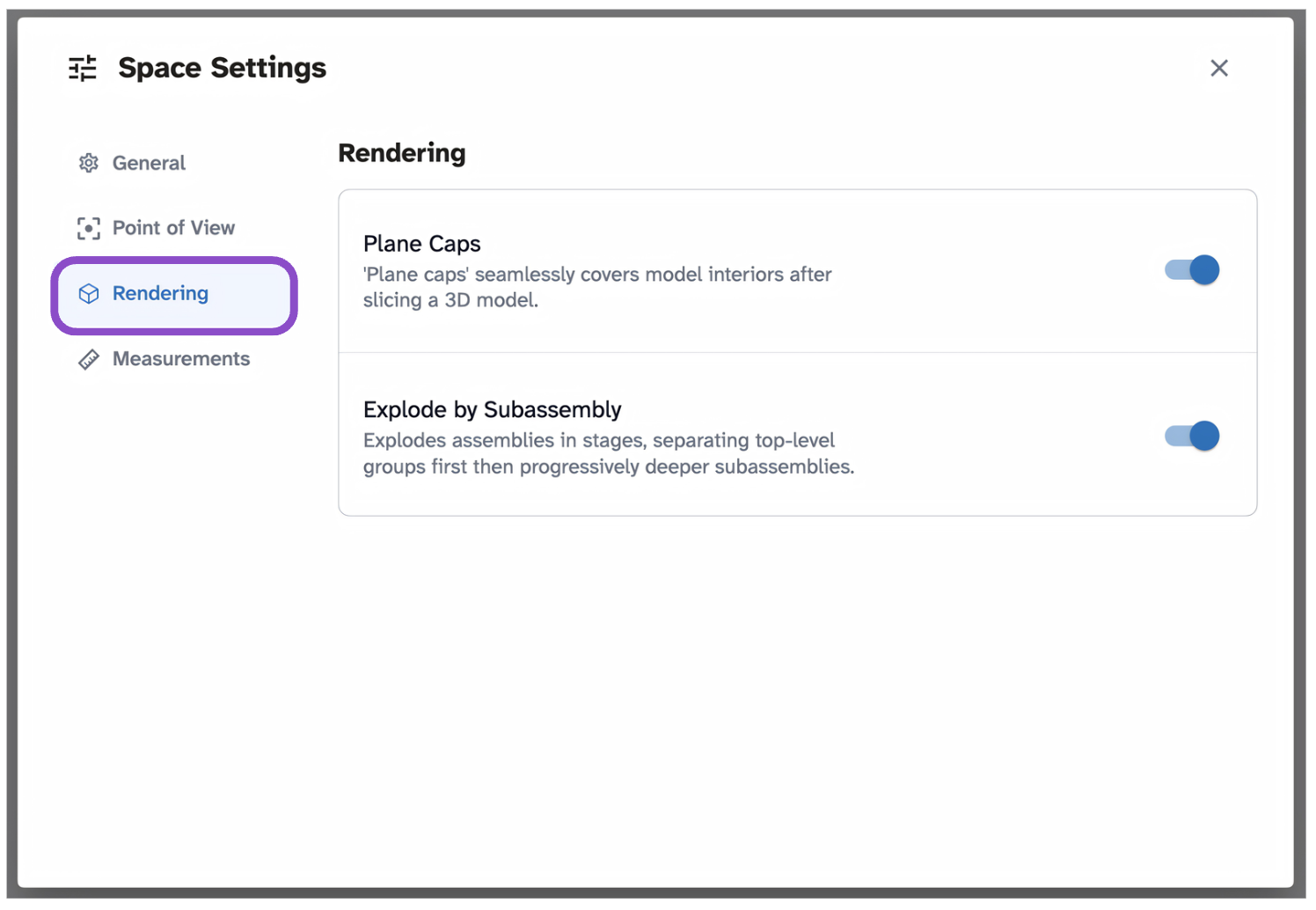
Rendering
Toggle Plane Caps on or off. When enabled, the Plane Cut viewing tool fills in the cut surface cleanly rather than leaving a hollow opening. See Use 3D viewer tools.
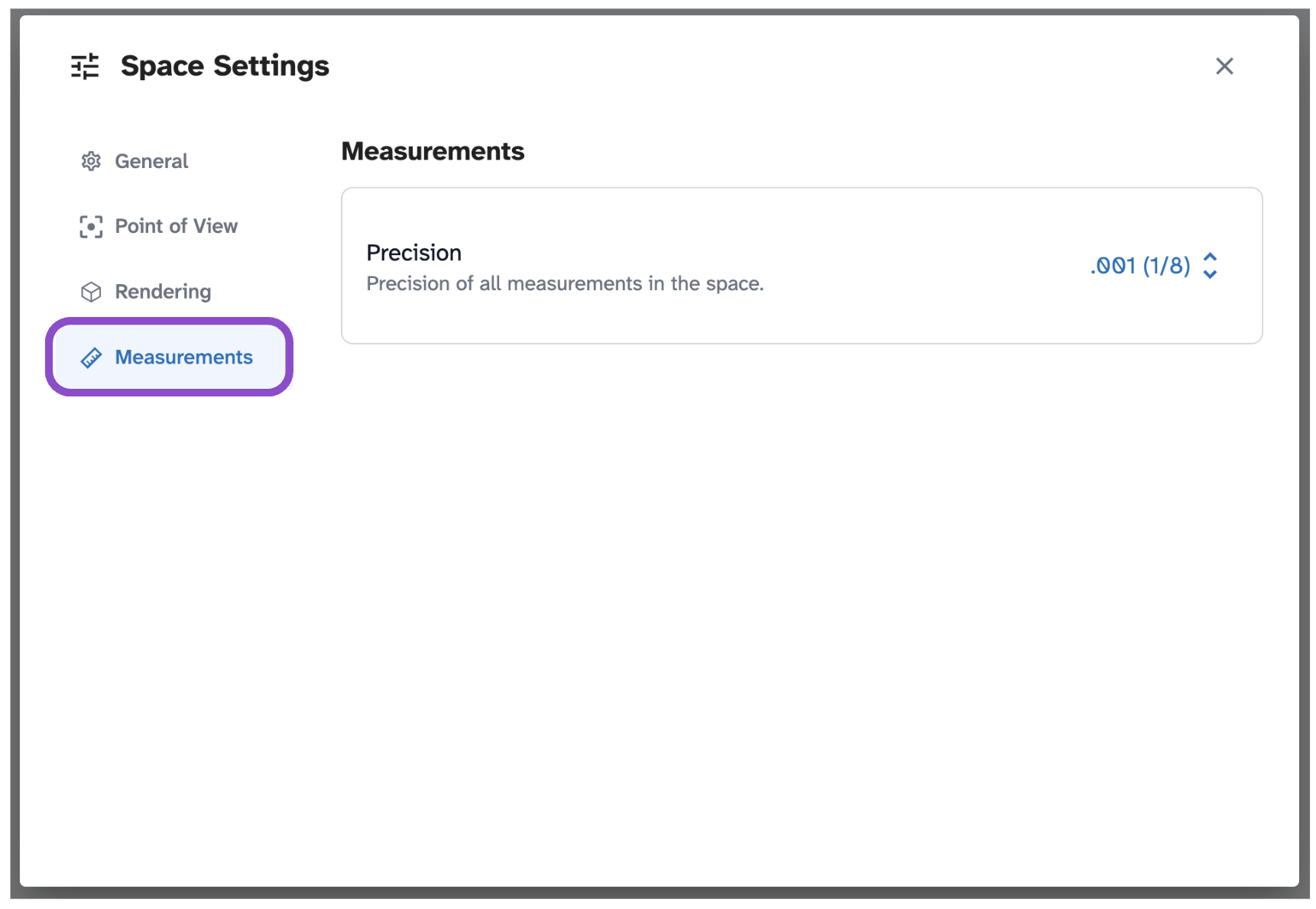
Measurements
Set the precision level for measurements in this space. This is a space-wide setting that applies to all collaborators. The default precision is .001. See Take measurements and change precision.
Tips and edge cases
- Space name changes are visible to all members immediately. If another collaborator doesn't see the update, ask them to refresh.
- Measurement precision applies to all collaborators, coordinate with your team before changing it.