
Manage organization profile
Update your organization's name, logo, and color from Organization Profile in admin settings.
Before you start
You must be an org admin to access Organization Settings. If you don't see it, contact your org admin.
Open Organization Profile
Do one of the following:
- Click into your organization, then click the ⚙ icon next to your organization name in the sidebar.
- Click your initials icon in the top right corner of any page.
In the settings panel, select your organization from the dropdown, then click Organization Profile under Organization Settings.
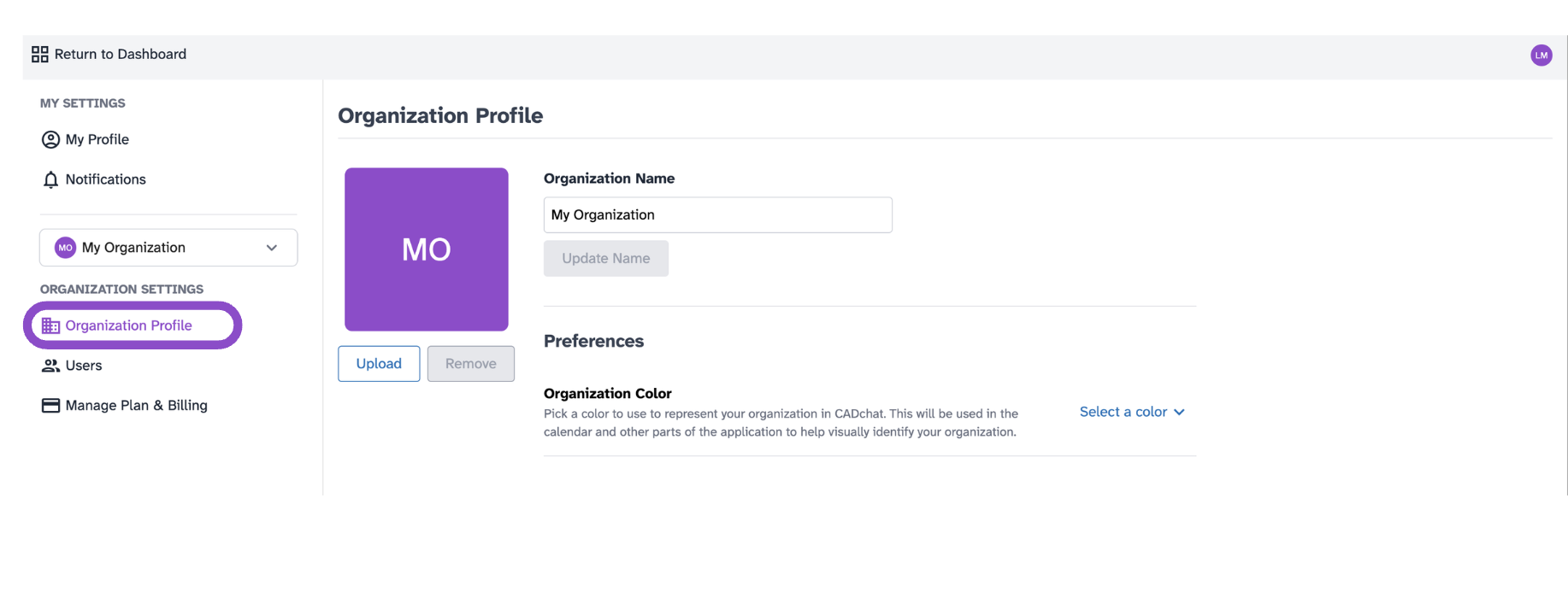
Update your organization profile
- To update the logo, click the current logo and use the Upload or Remove buttons.
- To rename the organization, edit the Organization Name field and click Update Name.
- Under Preferences, click Select a color next to Organization Color to set a color that represents your org in the calendar and app UI.
Tips and edge cases
- Logo and name changes take effect immediately for all members.
- Organization Color is used in the calendar and other parts of the app to visually identify your organization.
- If Update Name is greyed out, make sure you've typed a new name in the field first.
- If you don't see Organization Settings in the panel, you may not have admin access.