
Create a space
How to create a new space in CADchat.
Before you start
You need to belong to an organization. If you don't see an organization in the sidebar, contact your admin.
Create a space
- In the sidebar, click your organization name to open the organization page.
- Click the purple Create a Space card.
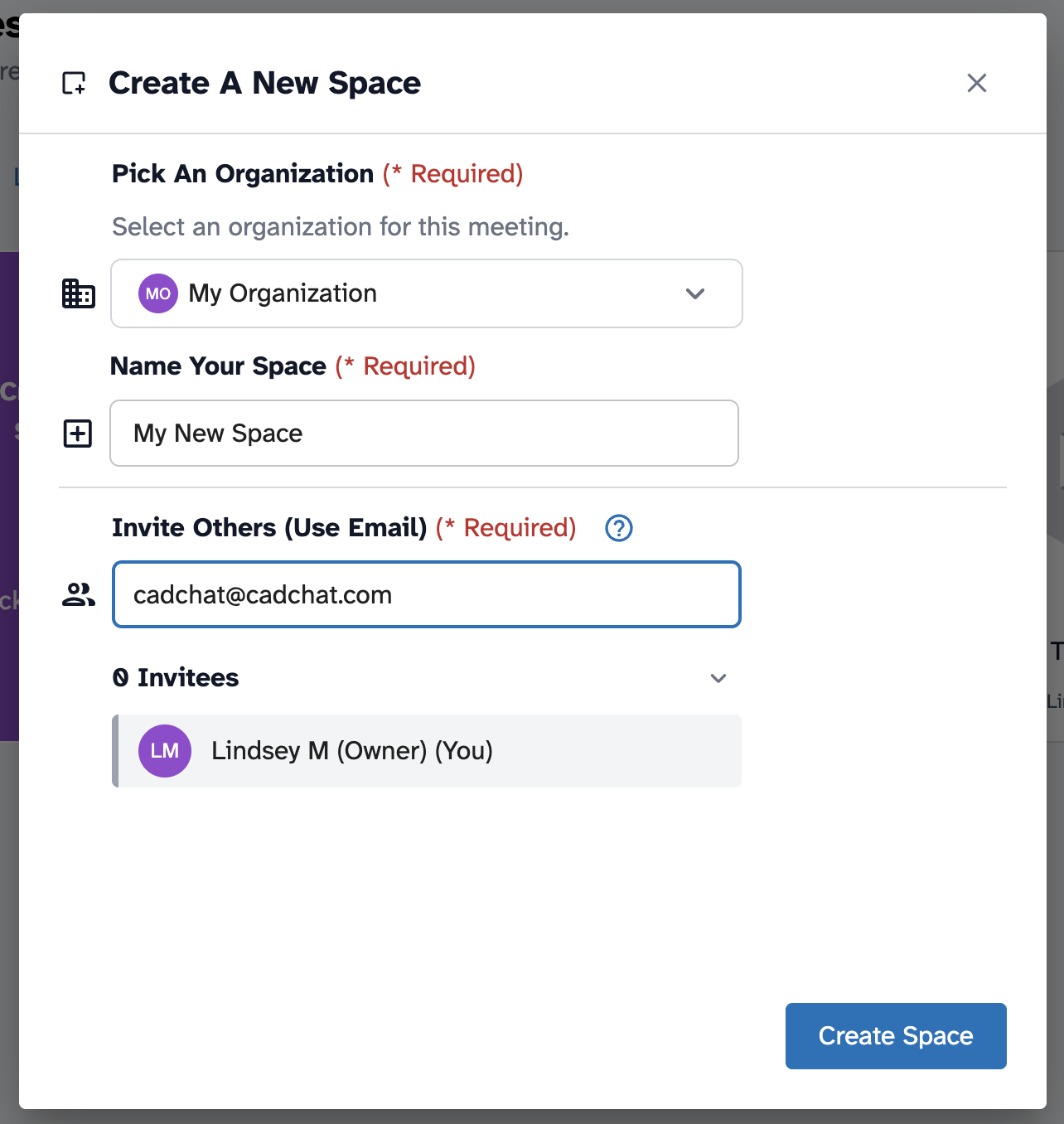
- In the Create a New Space modal, fill in the fields:
- Pick an Organization: Pre-filled with your current org. Change this if you belong to multiple organizations. (Required)
- Name Your Space: Give your new workspace a name. (Required)
- Invite Others: Add collaborators by email address. You are set as owner by default. You can always add collaborators later.
- Click Create Space. The space opens immediately.
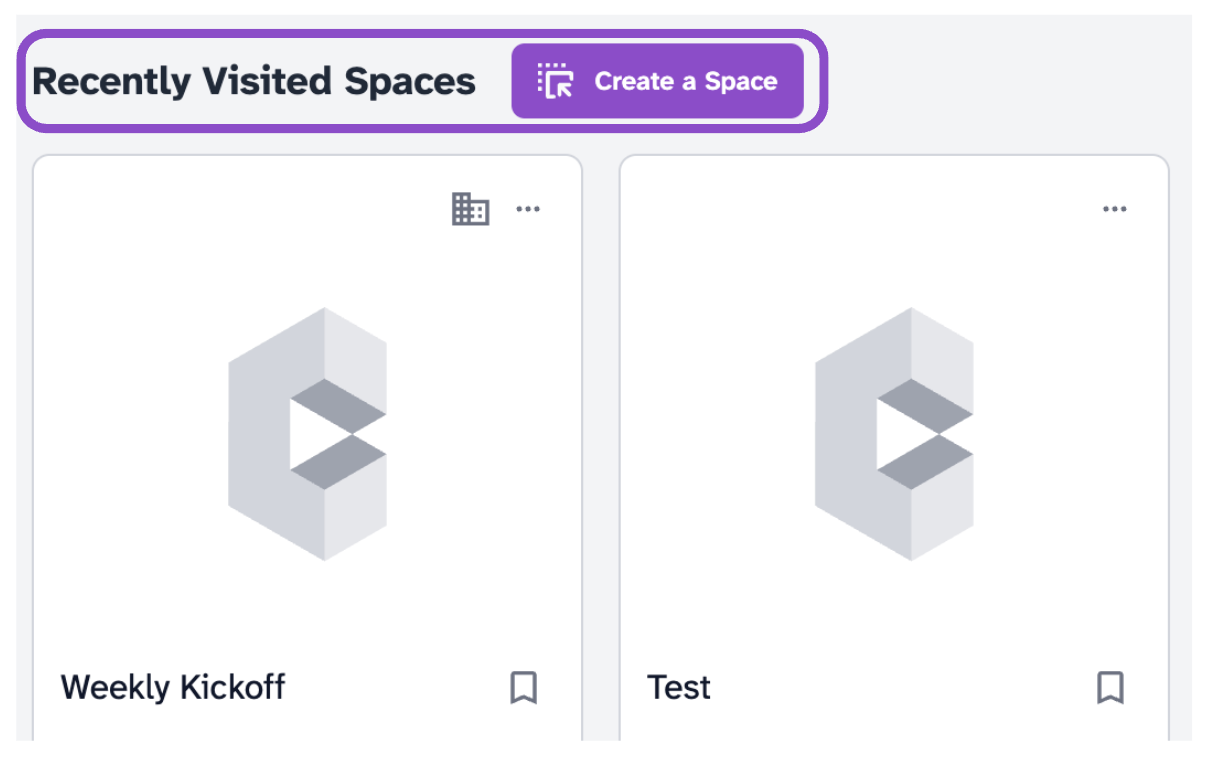
You can also create a space from the Dashboard by clicking Create a Space next to the Recently Visited Spaces heading.
Tips and edge cases
- New spaces are empty. No files or members are added automatically beyond those invited during creation.
- Spaces are private by default. Only people you invite can access them.
- You can rename a space after creation from the space card menu or from Space Settings.
- If the Create a Space card isn't visible, check that you have permission to create spaces in that organization.