
Restore a deleted space (Trash)
Recover a deleted space from Trash within 30 days. Only the person who deleted it can restore it.
Restore a space from Trash
Deleted spaces are held in Trash for 30 days before being permanently deleted.
- In the sidebar, click your organization name to go to the organization page.
- Click Trash under Folders.
- Find the space you want to restore.
- Click Restore.
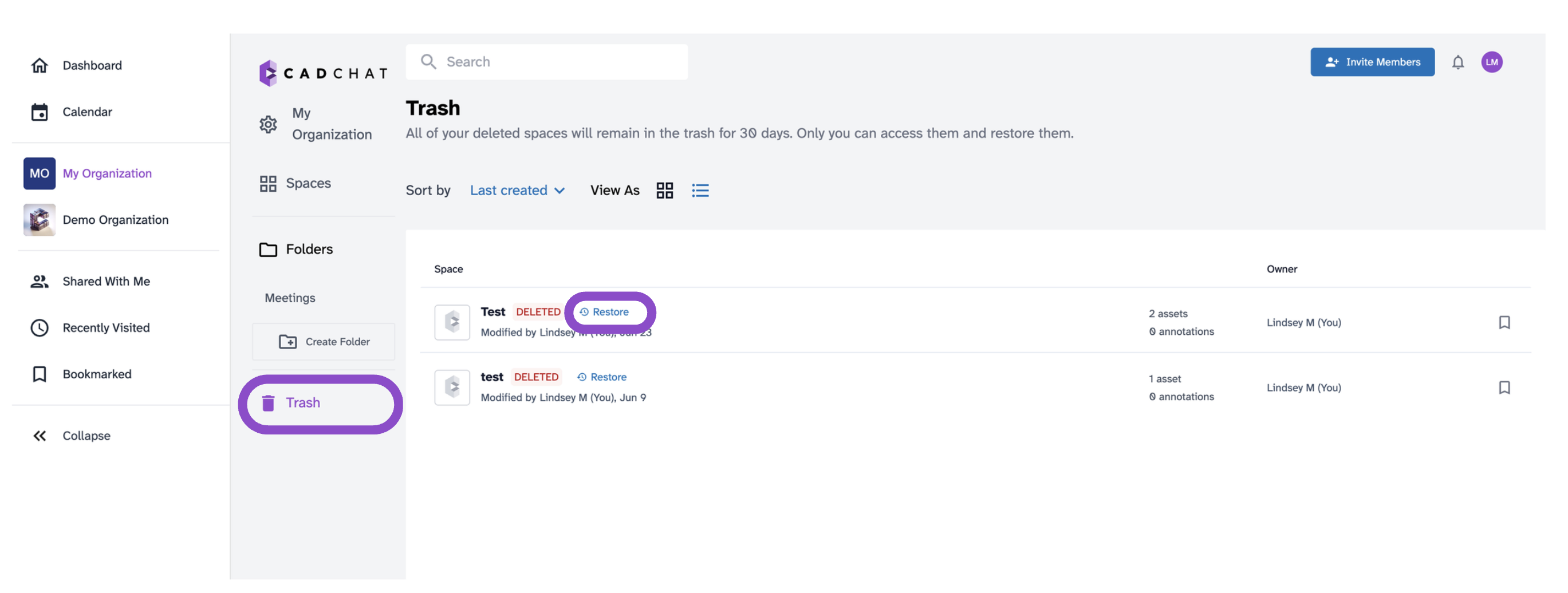
The space moves back to your organization at its original location.
Tips and edge cases
- Spaces in Trash are only visible to the person who deleted them, other admins and members cannot see or restore them.
- After 30 days, deleted spaces are permanently removed and cannot be recovered.
- If Trash isn't visible in the sidebar, make sure you're in the organization view, not the dashboard.
- If the space isn't in Trash, it may have already been permanently deleted.