
Shared With Me vs Organization Spaces
Learn the difference between spaces in your organization and spaces others have shared with you directly.
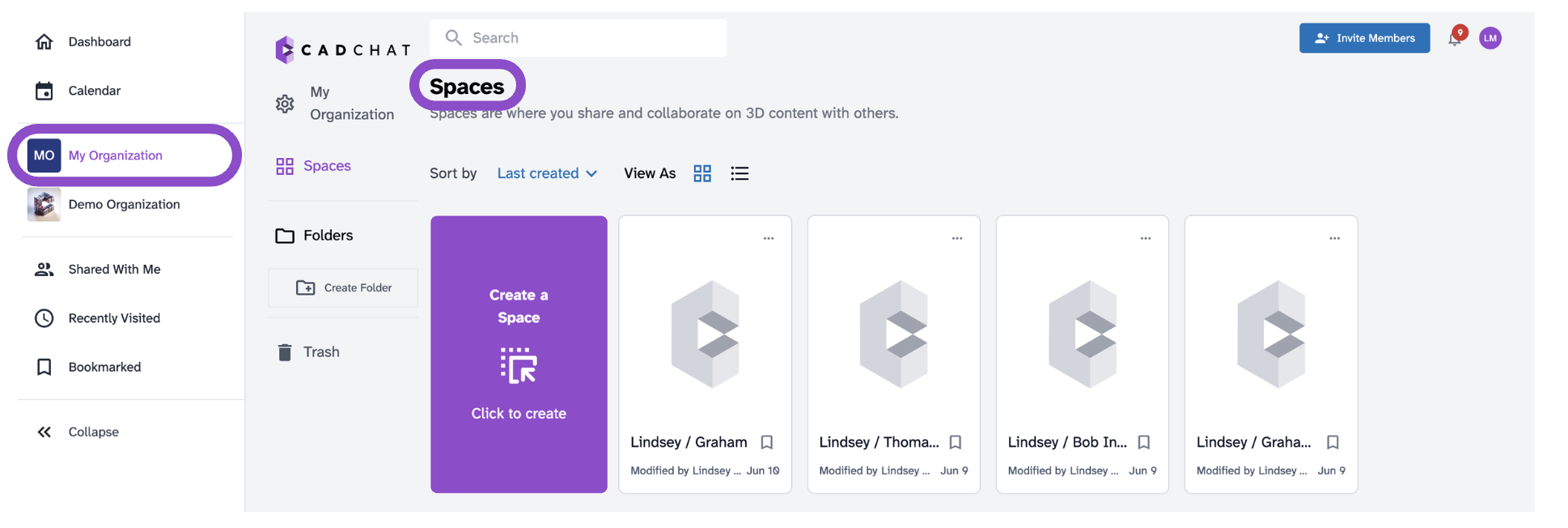
Organization Spaces
Organization spaces are spaces you own or belong to within your own organization. They appear under your organization name in the sidebar.
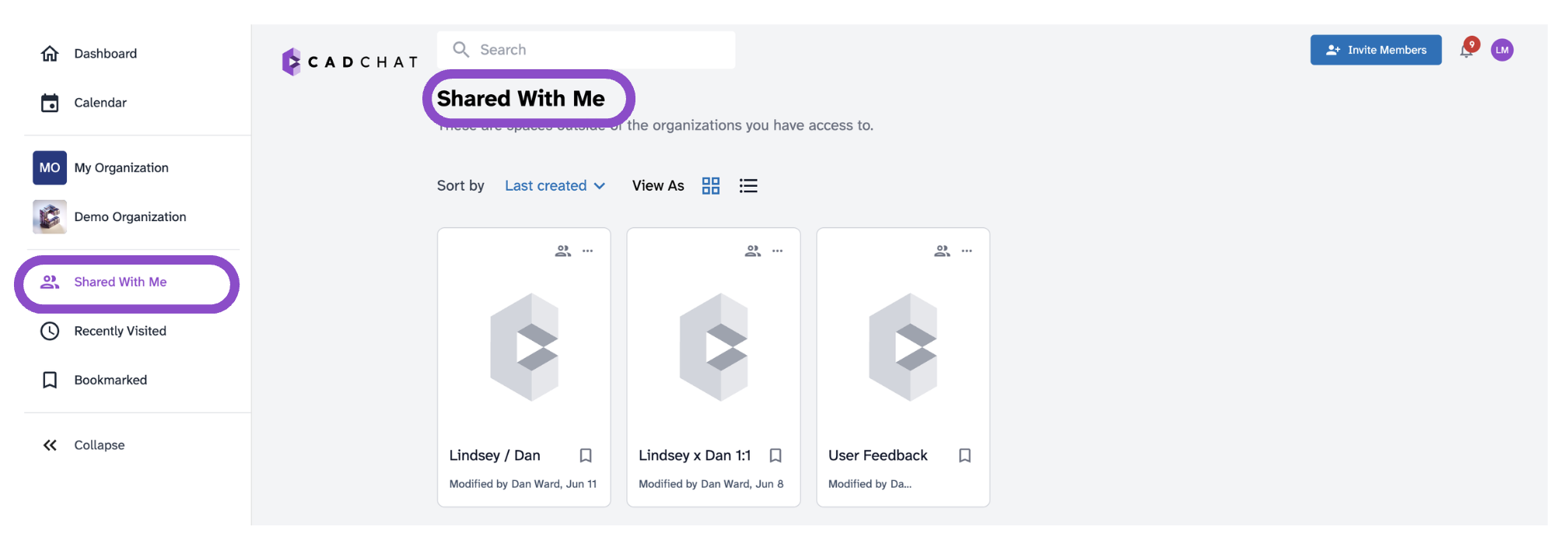
Shared With Me
Shared With Me contains spaces from organizations you are not a member of, shared with you via a direct invite or link. These are listed separately so they don't clutter your main organization view.
Your permissions in a shared space depend on how the owner configured them. See Permission levels in CADchat for details.
Tips and edge cases
- If a space you were invited to isn't visible, check both Shared With Me and your organization list.
- If your access level seems wrong, ask the space owner to check your permissions in the Invite Users panel.