
View assembly details
Explore the component hierarchy of an assembly file, search for parts, and control visibility from the Assembly Details panel.
Open Assembly Details
Assembly Details is only available for multi-part assembly files. Single-part files do not show this option.
- Open a space with an assembly file loaded in the 3D Canvas tab.
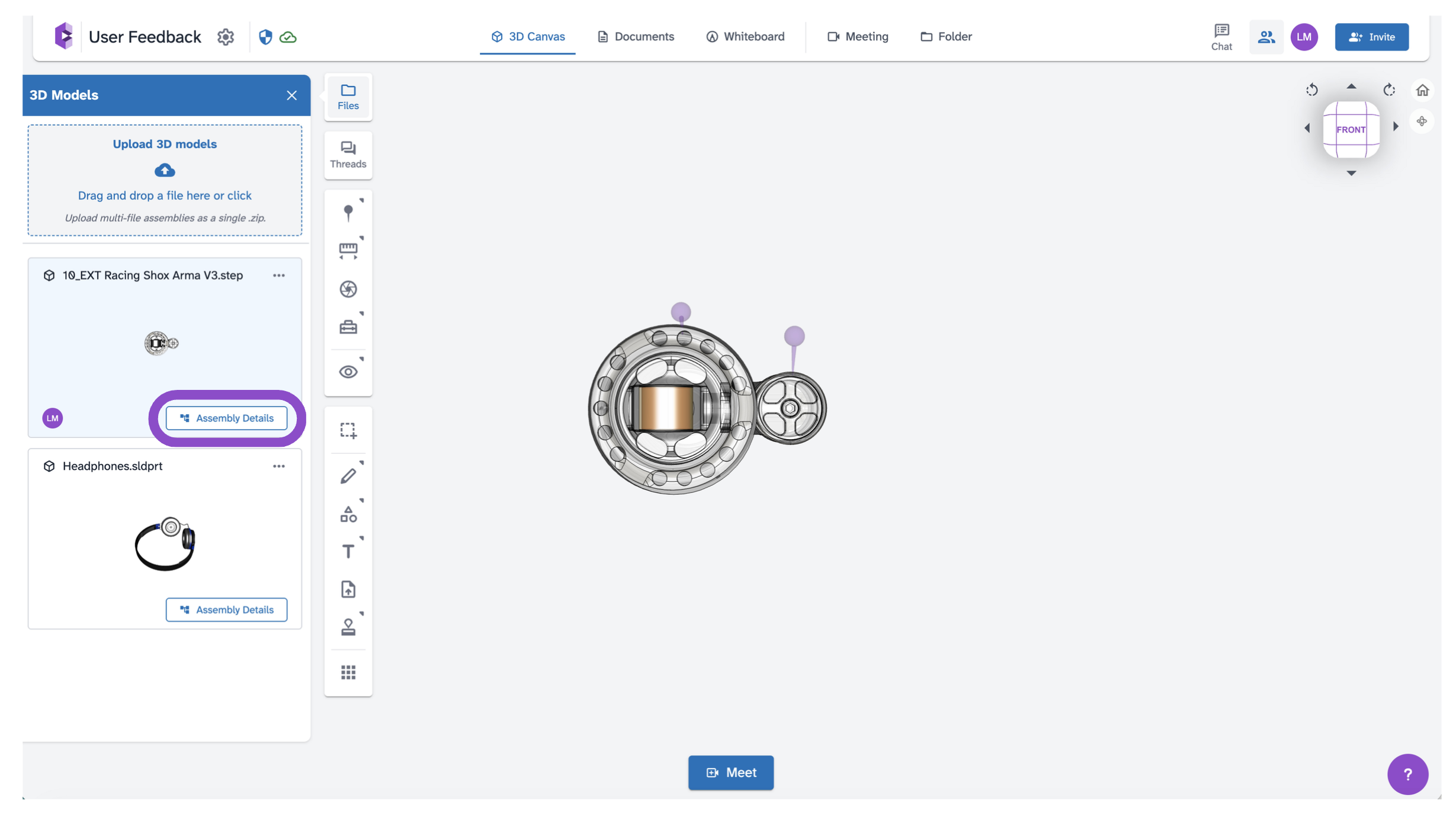
- In the Files panel, find the assembly file and click Assembly Details next to it.
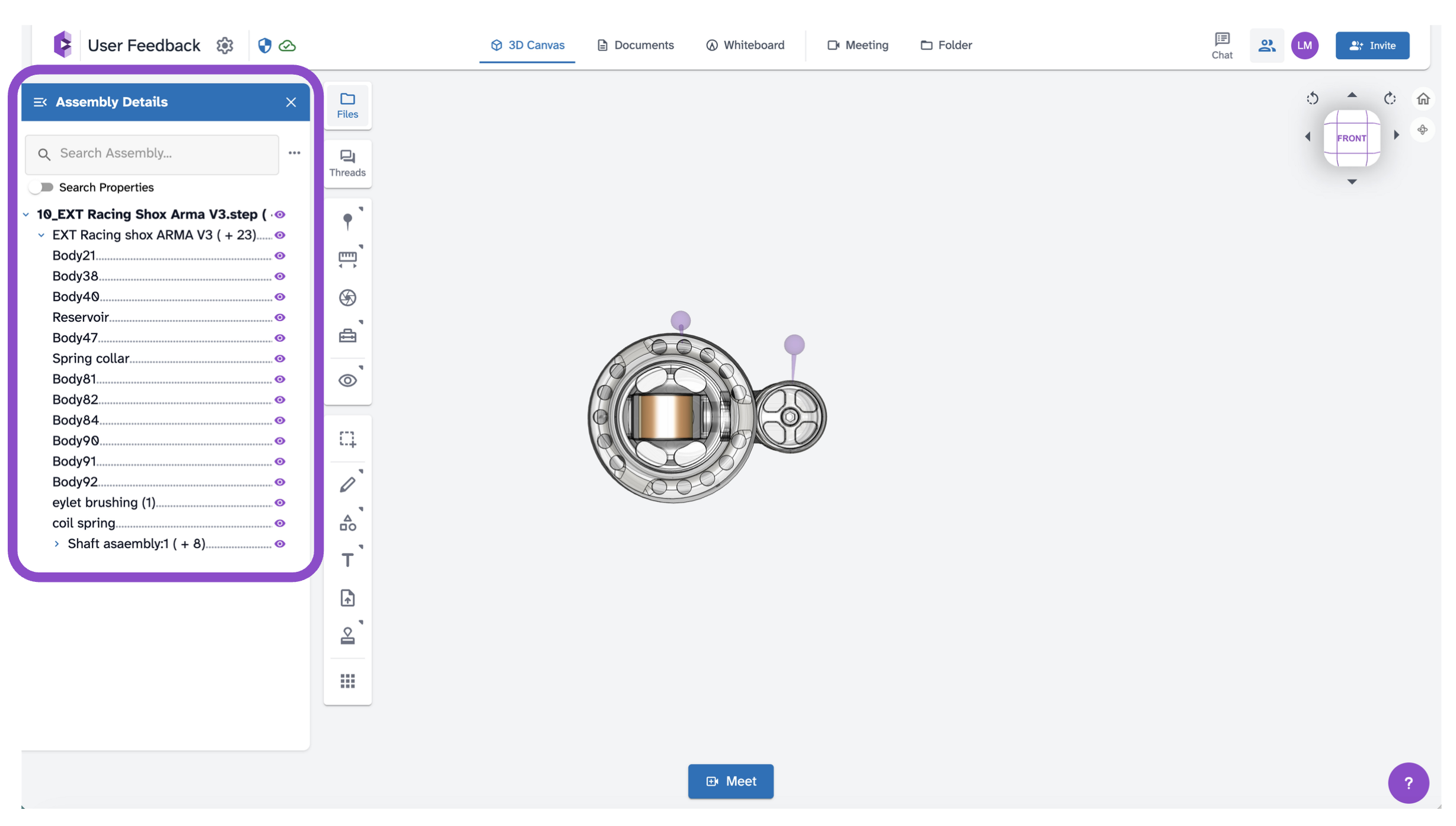
3. The Assembly Details panel opens showing the full component tree.
Navigate the component tree
- Expand nodes to drill into sub-assemblies and individual parts.
- Click a part name to select and highlight it in the canvas.
- Click the eye icon next to any part to toggle its visibility.
- Hover over a part row and click "..." for additional options.
Use the Search Assembly bar at the top to find parts by name. Toggle Search Properties to extend the search to part metadata.
Tips and edge cases
- The component hierarchy reflects the structure of the original CAD file.
- Hiding parts is non-destructive and only affects your current session.
- Use Assembly Details alongside the right-click part context menu for the full set of part-level controls. See Interact with 3D model parts.
- If the Assembly Details button is missing, the file may not be recognized as an assembly. Try re-uploading.
- If a part in the tree doesn't highlight in the canvas, refresh the space.