
Take measurements and change precision
Use the measurement tool to measure distances on a 3D model and set precision in Space Settings.
Take a measurement
Open a space and click the 3D Canvas tab. Make sure a model is loaded — see Upload a 3D model file to a space if needed.
1. In the left toolbar, click the Add Measurement icon (ruler icon, second from top).
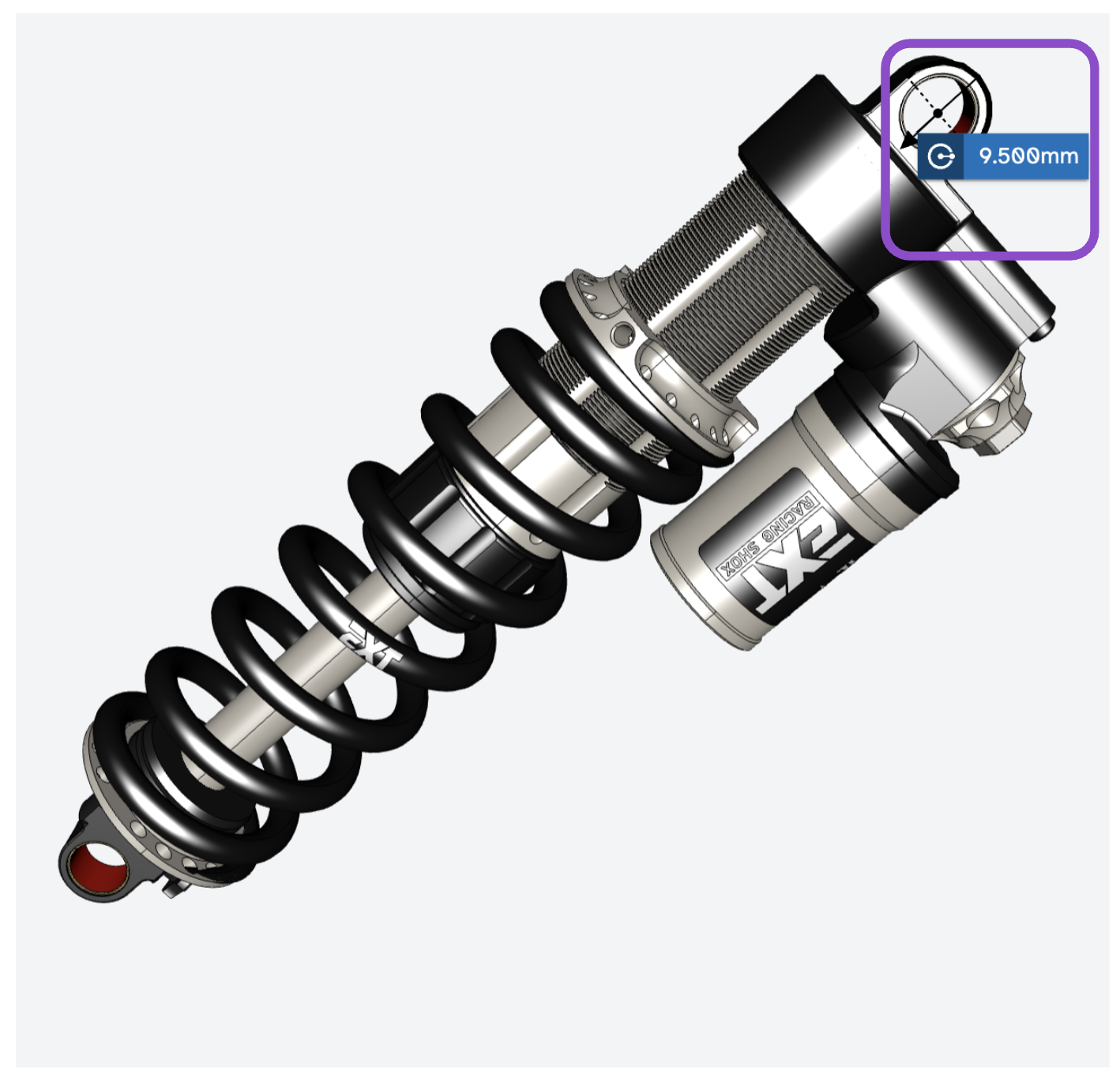
2. Click a point on the model, then click a second point to place a measurement line.
3. The measured distance displays on the canvas.
You can place multiple measurements on the same model. Measurements are visible to all collaborators in real time.
Change measurement precision
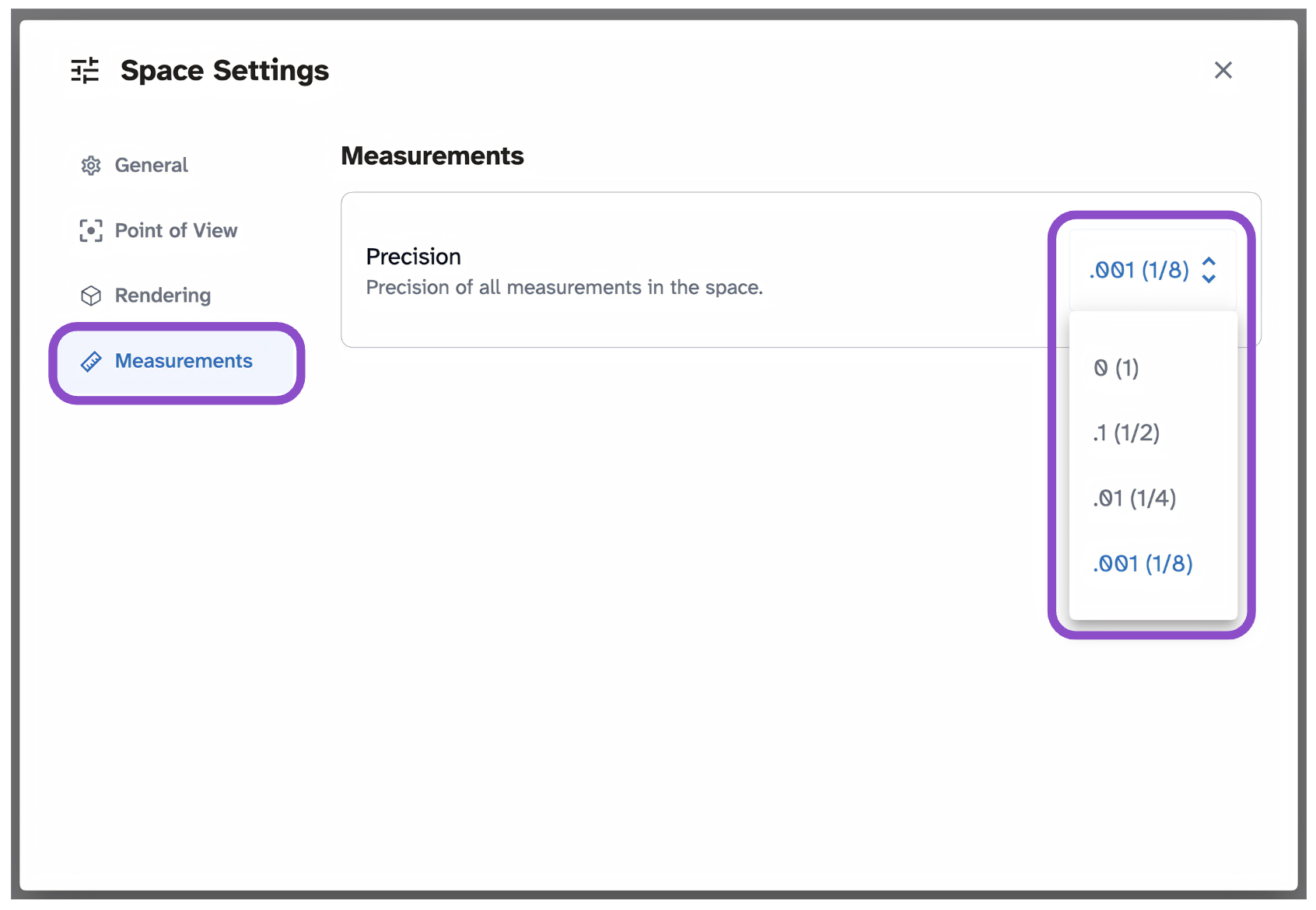
Precision is a space-wide setting that applies to all collaborators. The default is .001.
- Click the gear icon in the space header and select Space Settings.
- Click the Measurements tab.
- Adjust the Precision spinner to your preferred decimal precision.
Precision changes affect all existing and new measurements in the space. See Space settings overview for more on Space Settings.
Tips and edge cases
- If the measurement tool isn't responding, make sure a 3D model is loaded in the space.
- If measurement values look incorrect, check that the model was uploaded with the correct unit scale.
- Coordinate with your team before changing precision, it affects everyone in the space.