
Manage sharing and general link access
Before you start
You must be the space owner to modify sharing settings.
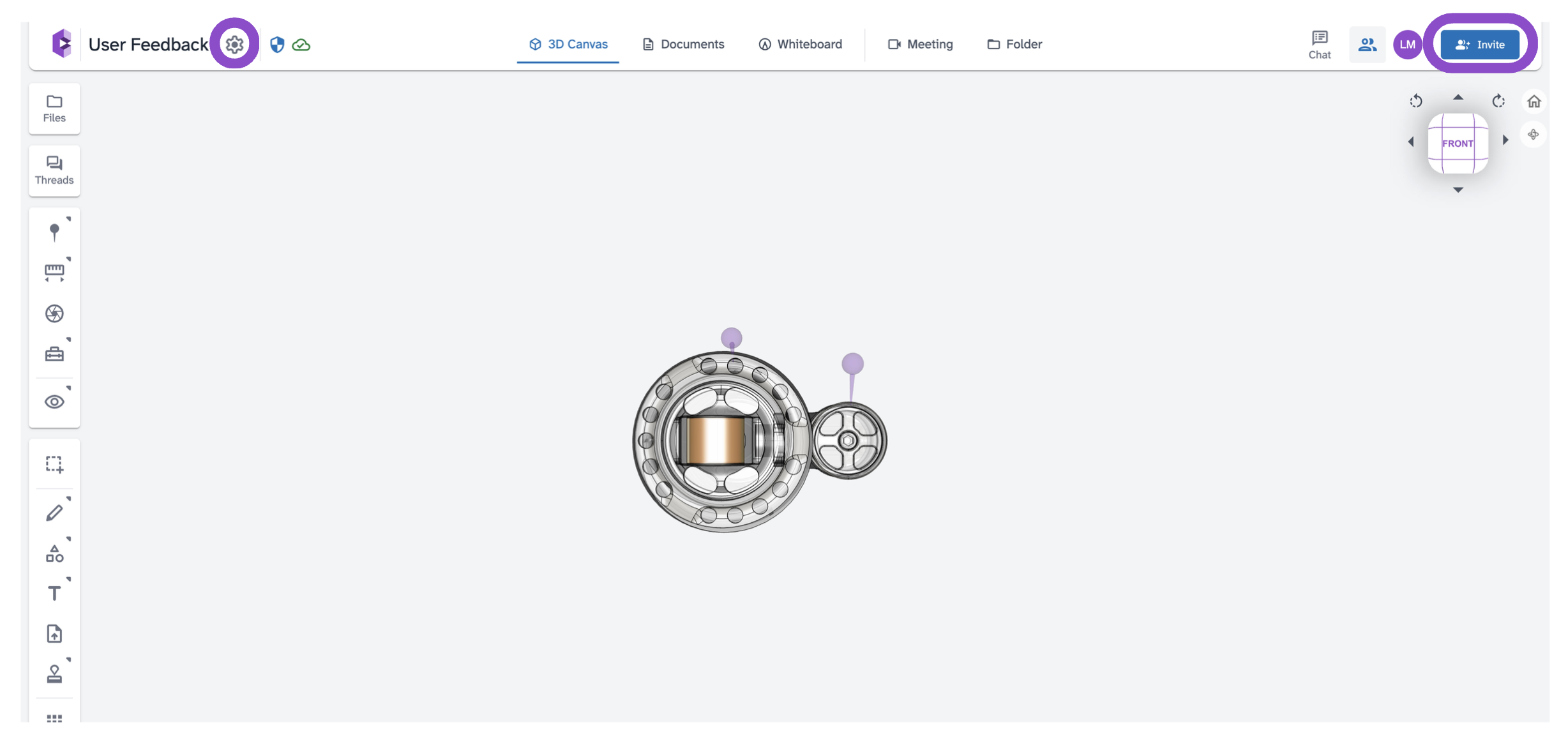
Open the Invite Users modal
Do one of the following:
- Click the ⚙ icon next to the space name and select Members.
- Click Invite in the top right of the space header.
Change a collaborator's permissions
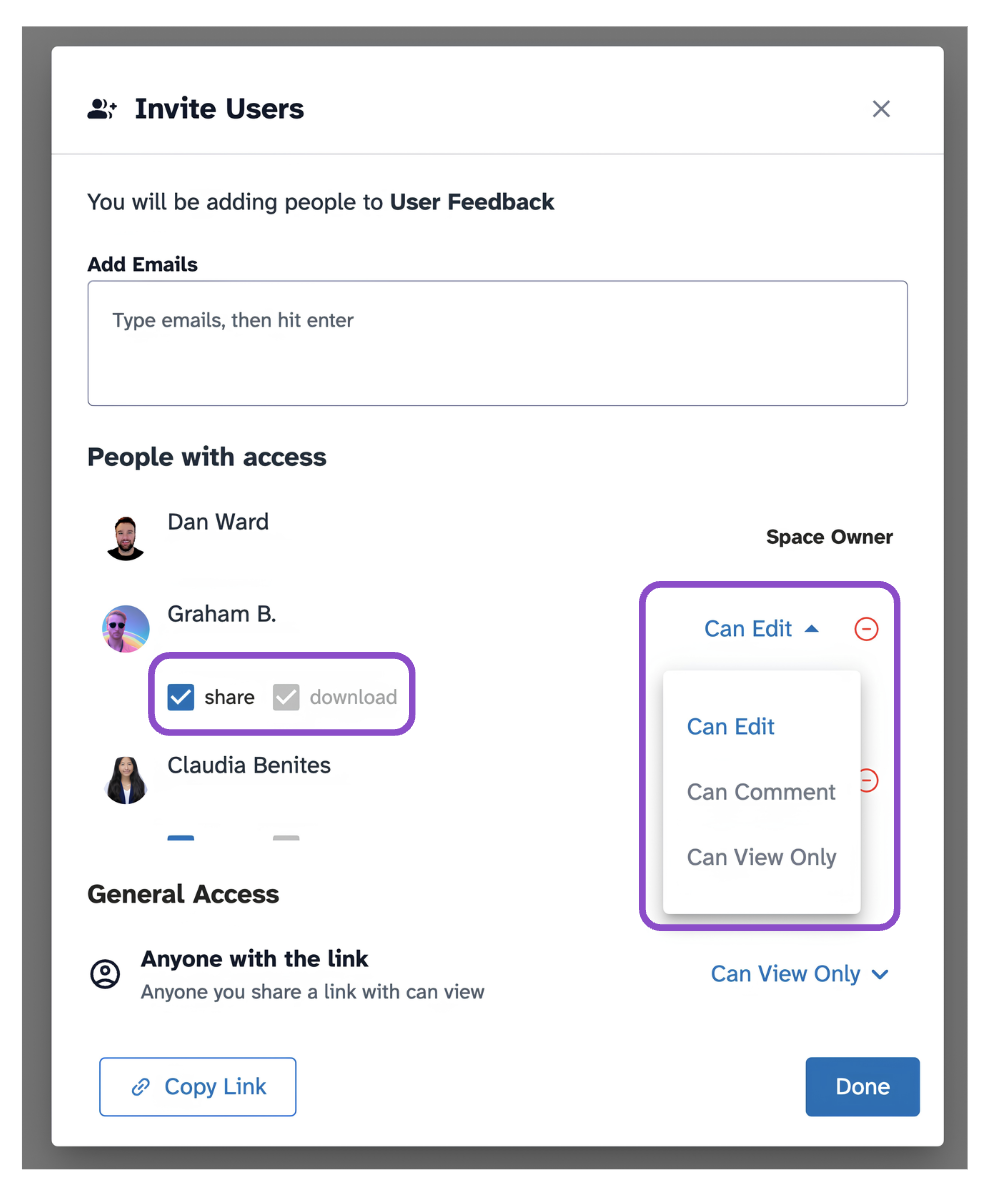
In the People with access section:
- Click the role dropdown next to a collaborator's name and select Can Edit, Can Comment, or Can View Only.
- Check or uncheck share (lets them share the space with others) or download (lets them download files).
- To remove someone, click the red – icon next to their name.
- Click Done when finished.
Change general link access
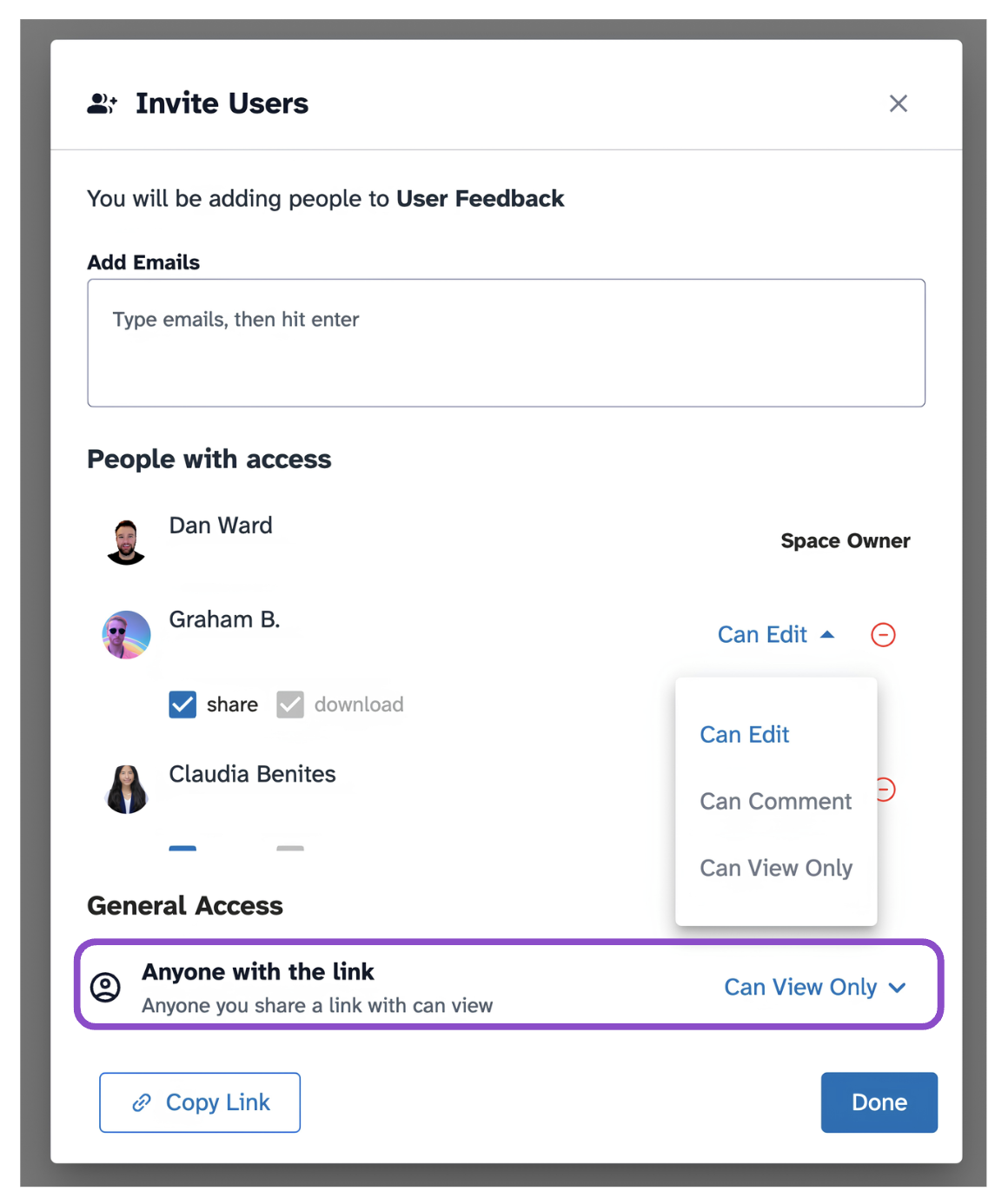
In the General Access section, click the dropdown next to Anyone with the link and select a permission level. The default is Can View Only.
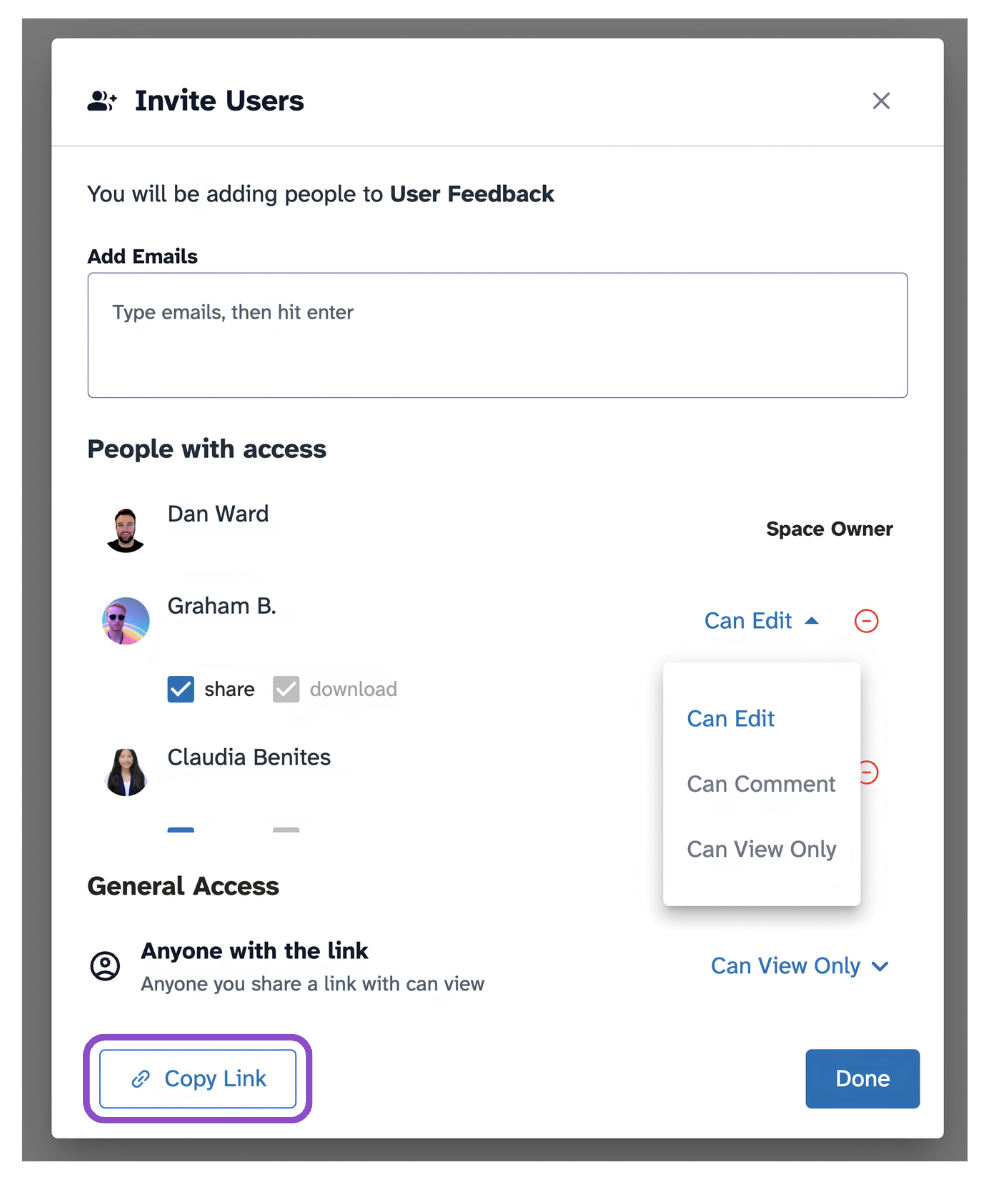
To copy the link, click Copy Link at the bottom of the modal.
Tips and edge cases
- To add new collaborators, see Invite people to a space.
- For a description of each permission level, see Permission levels in CADchat levels.
- If a removed collaborator still has access, they may be rejoining via the general link. Restrict the General Access setting to prevent this.
- The share toggle controls whether that person can reshare the space, it does not affect their ability to view or edit content.