
Use the Whiteboard tab
Sketch, annotate, and brainstorm on a freeform canvas in the Whiteboard tab, with support for multiple boards per space.
Whiteboard tools
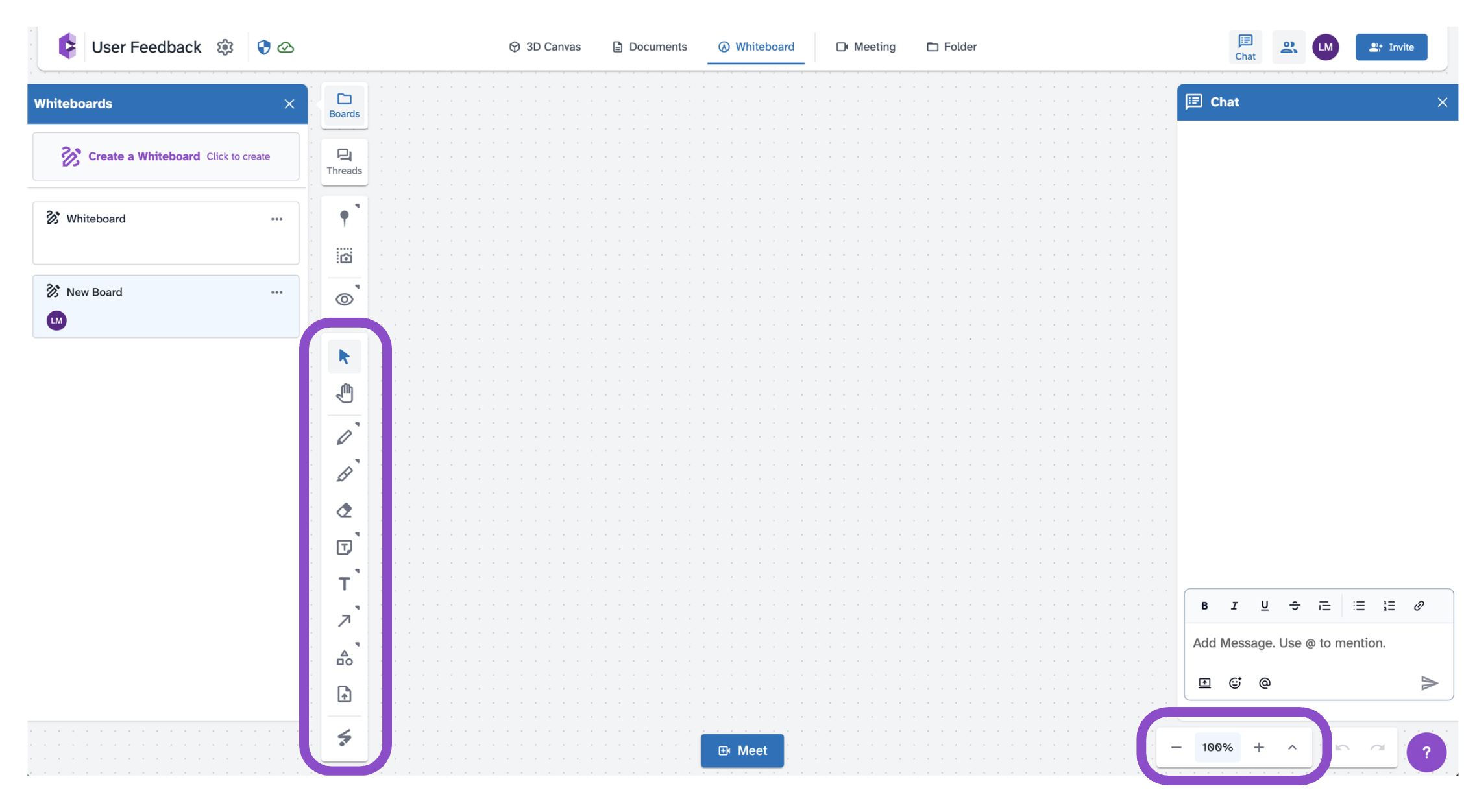
Open a space and click the Whiteboard tab. The left toolbar has the following tools:
- Select: Select and move elements.
- Hand: Click and drag to pan the canvas.
- Draw: Freehand drawing.
- Highlighter: Draw translucent highlight strokes.
- Eraser: Erase elements.
- Sticky Note: Place a colored sticky note with text.
- Text: Add a text label.
- Arrow: Draw an arrow between two points.
- Geo: Insert shapes such as rectangles and circles.
- Upload Asset: Upload an image to the canvas.
- Laser: Temporarily draw on the board. Laser point on the board.
Use the zoom controls at the bottom to zoom in or out. Use undo/redo buttons to step through changes.
Multiple boards
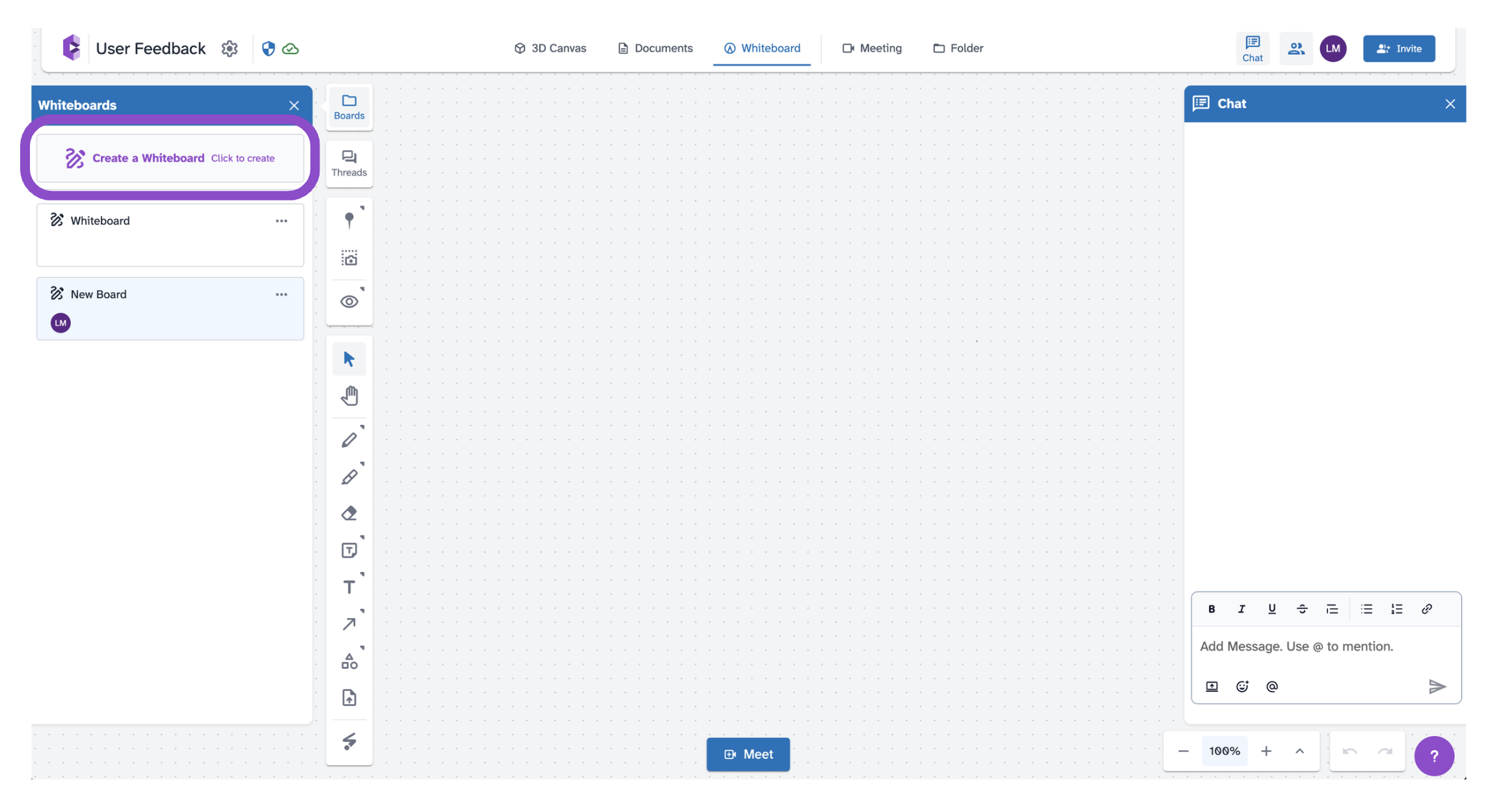
Click Boards in the left panel to switch between boards or create a new one. Each board is a separate canvas within the same space.
Tips and edge cases
- Whiteboard content is visible to all collaborators in real time.
- Threads placed on the whiteboard work the same as on the 3D Canvas and Documents tab. See Threads overview.
- If drawn elements disappear, check that you're on the correct board in the Boards panel.
- If the canvas feels sluggish, try zooming out.