
Schedule a meeting
Schedule a CADchat meeting from the Calendar or from within a space, with invites sent via Google Calendar or Outlook.
Meetings in CADchat are tied to a space, so all participants can view the same 3D models and documents during the call. To schedule a call:
1. Launch the meeting scheduler. There are several ways to open the meeting scheduler:
- From the Dashboard: click Schedule in the upcoming meetings section.

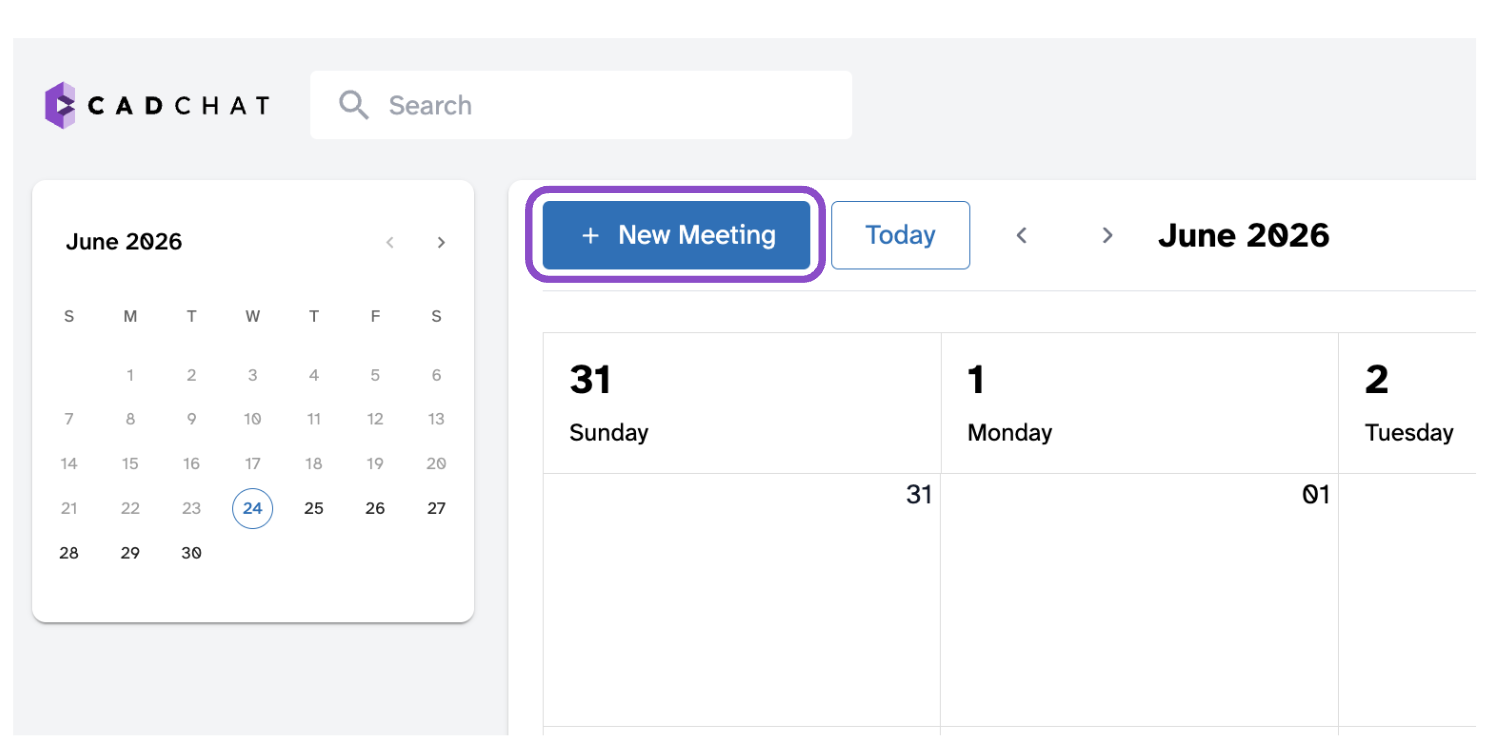
- From the Calendar: click + New Meeting in the top left.
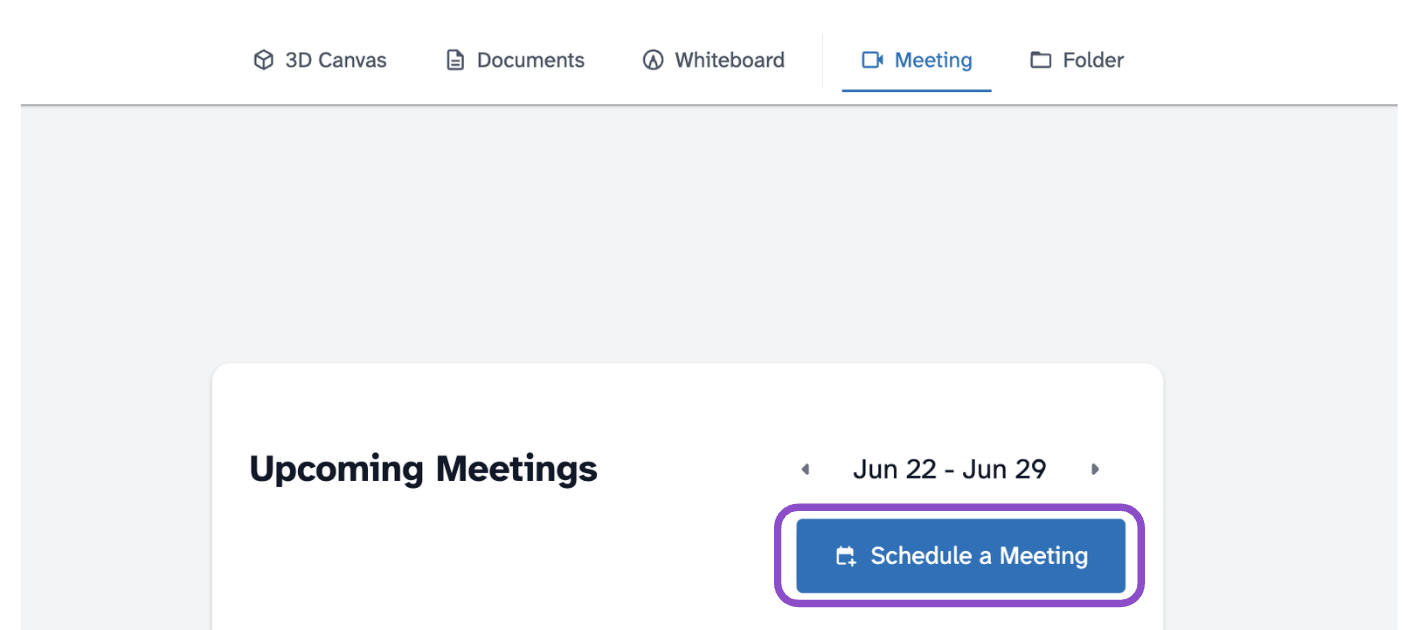
- From within a space: open the Meeting tab and click Schedule a Meeting
2. In the Schedule Meeting modal, choose New Space or Existing Space.
- New Space: select an organization, enter a space name, and add invitee emails.
- Existing Space: select a space from the dropdown, then add invitee emails.
3. Set the date and time.
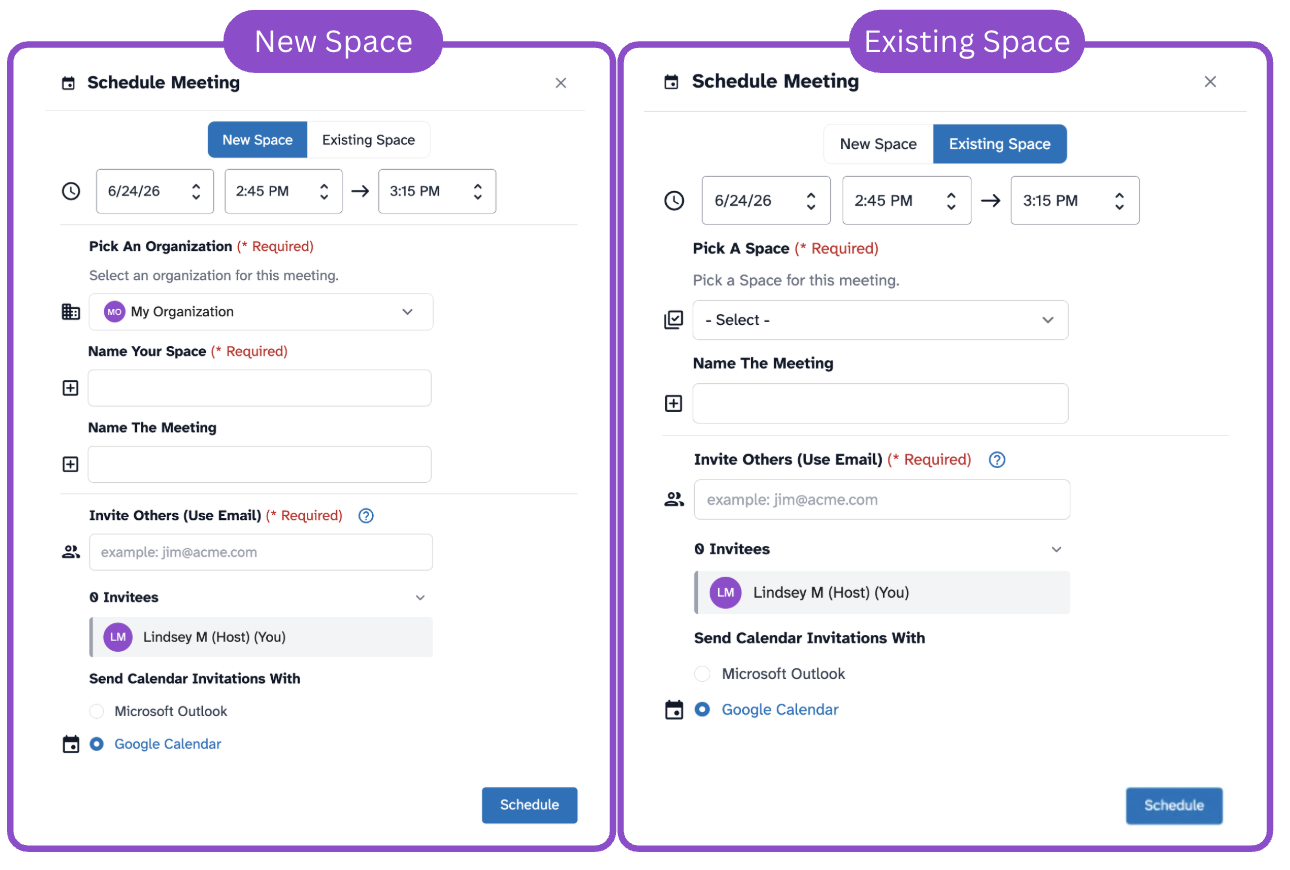
4. Under Send Calendar Invitations With, select Microsoft Outlook or Google Calendar. Invitees receive a calendar invitation with a direct link to join.
5. Click Schedule.
Tips and edge cases
- In New Space mode, all three fields are required: organization, space name, and at least one invitee email.
- The host is added as the first invitee automatically.
- If Schedule is greyed out, check that all required fields are filled in.
- If invitees don't receive their calendar invite, verify their email addresses and ask them to check spam.
- If Google Calendar or Outlook isn't opening, check your browser's popup blocker settings.