
Manage document files
View, rename, download, and delete documents from the Files panel in the Documents tab.
Before you start
You need Can Edit access to rename or delete files. See Permission levels in CADchat.
Manage a document file
- Open a space and click the Documents tab.
- Click Files to open the Files panel.
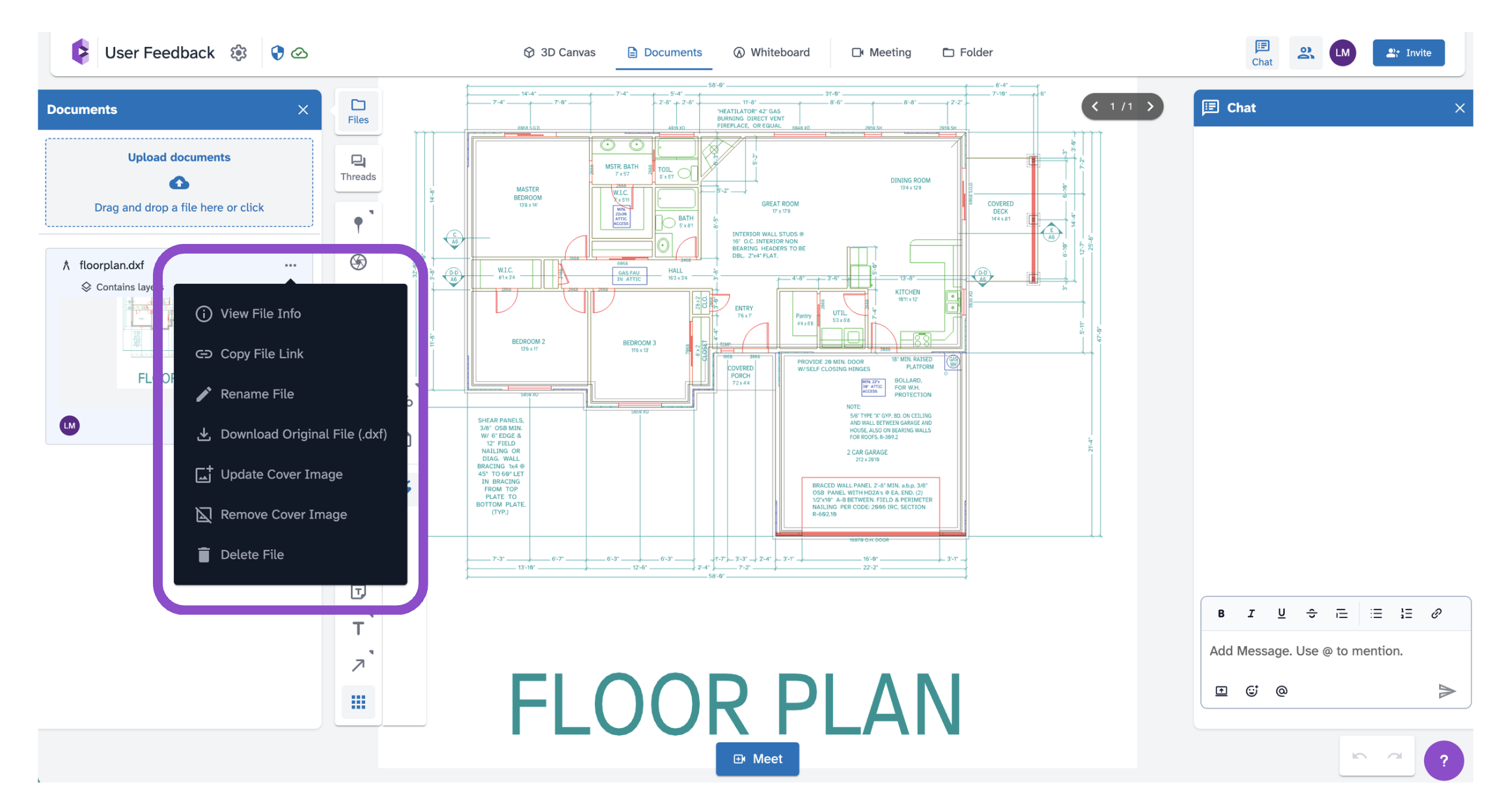
- Hover over a file and click "..." to open its options:
- View File Info: See metadata including file size, upload date, and uploader.
- Rename File: Change the file's display name in the space.
- Download Original File: Download in the original uploaded format.
- Update Cover Image: Set a custom thumbnail.
- Remove Cover Image: Revert to the default thumbnail.
- Delete File: Permanently remove the file from the space.
Tips and edge cases
- Deleting a file also removes any markups and threads anchored to it. This cannot be undone.
- Renaming a file only changes its display name. The original filename is preserved and available on download.
- If Delete File is greyed out, you may not have Can Edit access.
- If the "..." menu isn't appearing, try hovering directly over the file row.