
Change notification settings
Control which space activity events trigger in-app and email notifications from your account settings.
Update your notification settings
1. Click your Initials Icon in the top right corner of the screen.
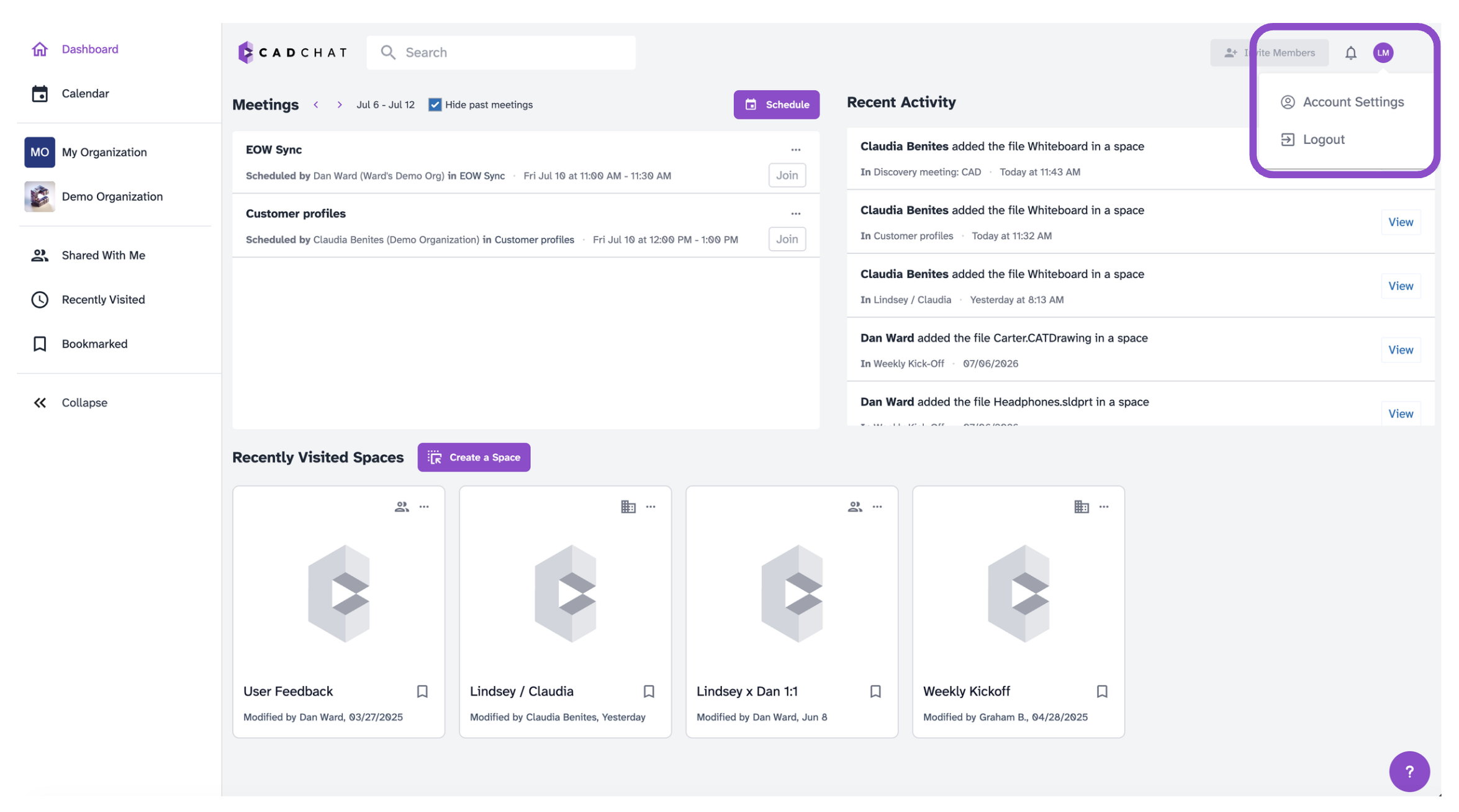
2. Click Account Settings
3. Navigate to Notifications on the left sidebar.
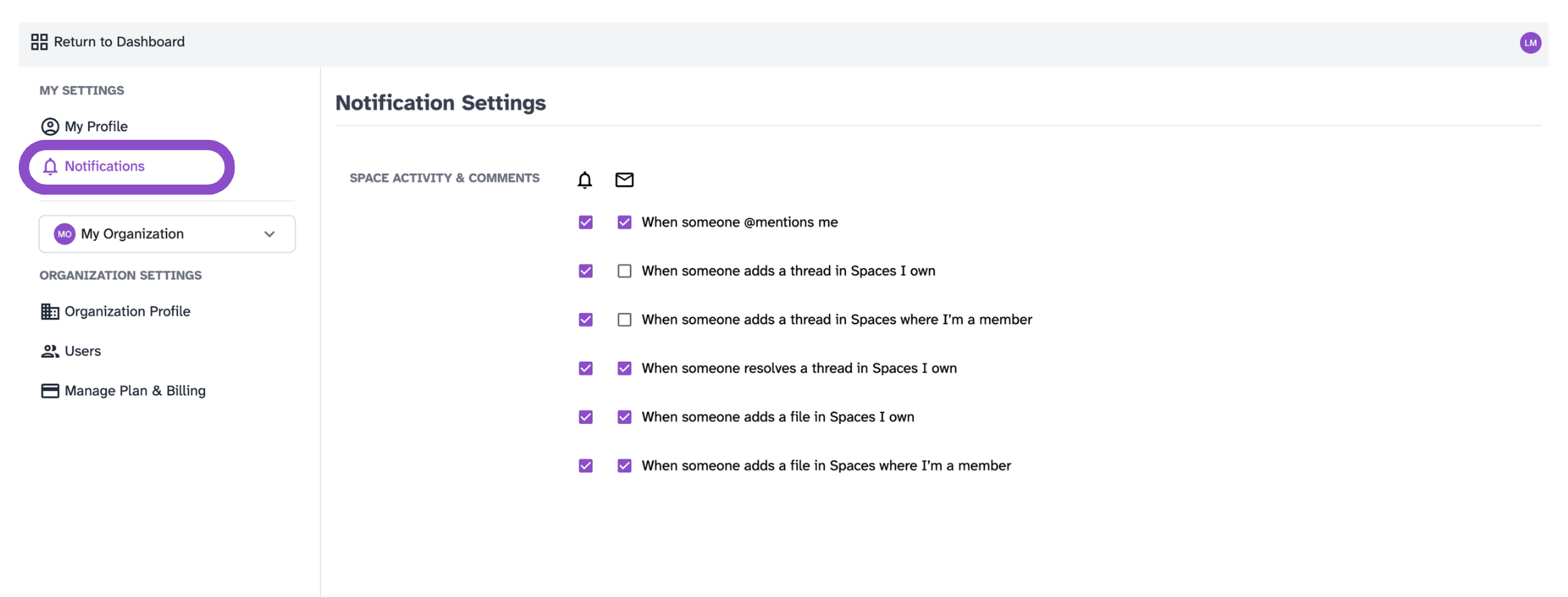
4. Under Space Activity & Comments, use the bell (in-app) and envelope (email) columns to check or uncheck each event:
- When someone @mentions me
- When someone adds a thread in spaces I own
- When someone adds a thread in spaces where I'm a member
- When someone resolves a thread in spaces I own
- When someone adds a file in spaces I own
- When someone adds a file in spaces where I'm a member
Changes save automatically.
Tips and edge cases
- Each event can be toggled independently for in-app vs. email notifications.
- If you're not receiving emails despite them being enabled, check your spam folder and confirm your email address is correct in My Profile.
- If in-app notifications aren't appearing, try refreshing the page.