
Find your way around
A quick guide to the CADchat sidebar, dashboard, calendar, and search so you can navigate the app with confidence.
The sidebar
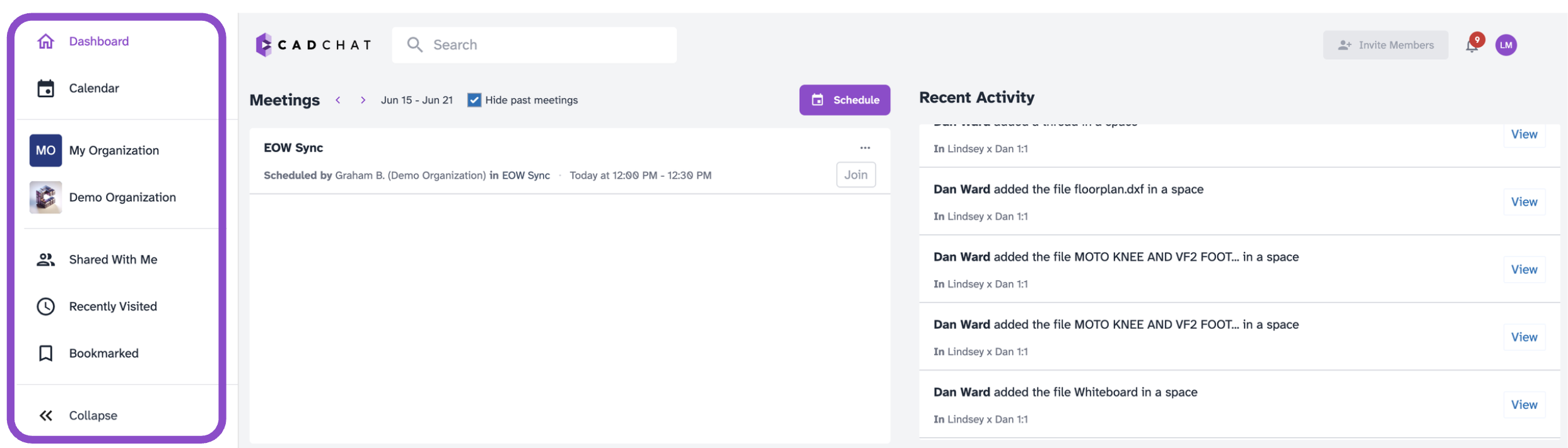
The sidebar runs along the left side of every page. It gives you access to everything in CADchat.
- Dashboard: Your home base. Shows recent activity and spaces.
- Calendar: View your scheduled meetings.
- Your organizations: Click an organization name to expand its list of spaces. You may belong to more than one. See Organizations and Spaces for more.
- Shared With Me: Spaces shared with you from outside your organization.
- Recently Visited: Automatically updated as you open spaces.
- Bookmarked: Spaces you've pinned for quick access.
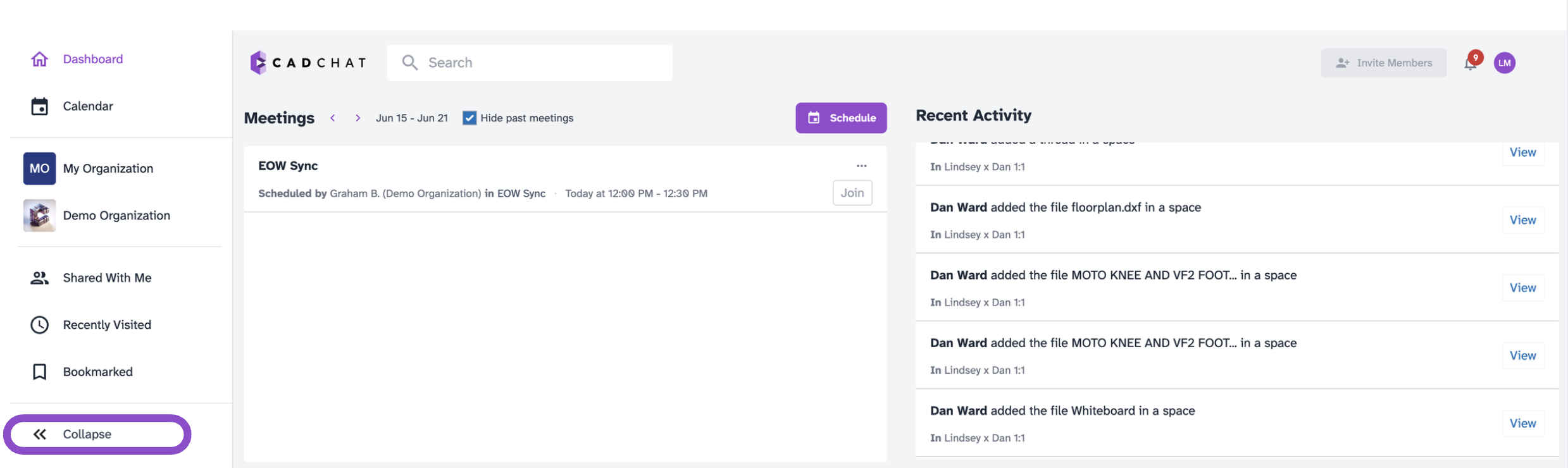
Collapsing the sidebar
Click Collapse at the bottom of the sidebar to switch to icon-only mode and give yourself more screen space. Click Expand to restore full labels.
Search
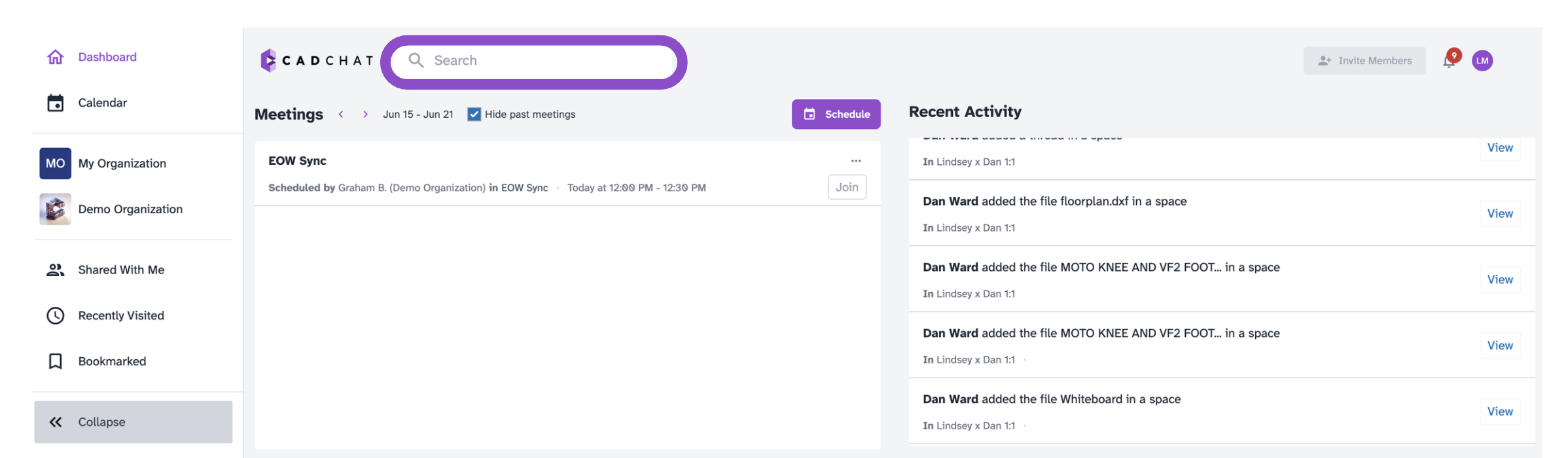
Use the Search bar at the top of the page to find spaces and files across your organizations.
Tips and edge cases
- If an organization is missing from the sidebar, sign out and sign back in to refresh your membership.
- If the sidebar is in icon-only mode and you can't identify sections, click Expand.
- Recently Visited is browser-specific. If you switch browsers or devices, the list may be empty.