
Start an ad hoc meeting with the Meet button
Start an instant unscheduled call from any space using the Meet button, without scheduling a meeting first.
Start a call
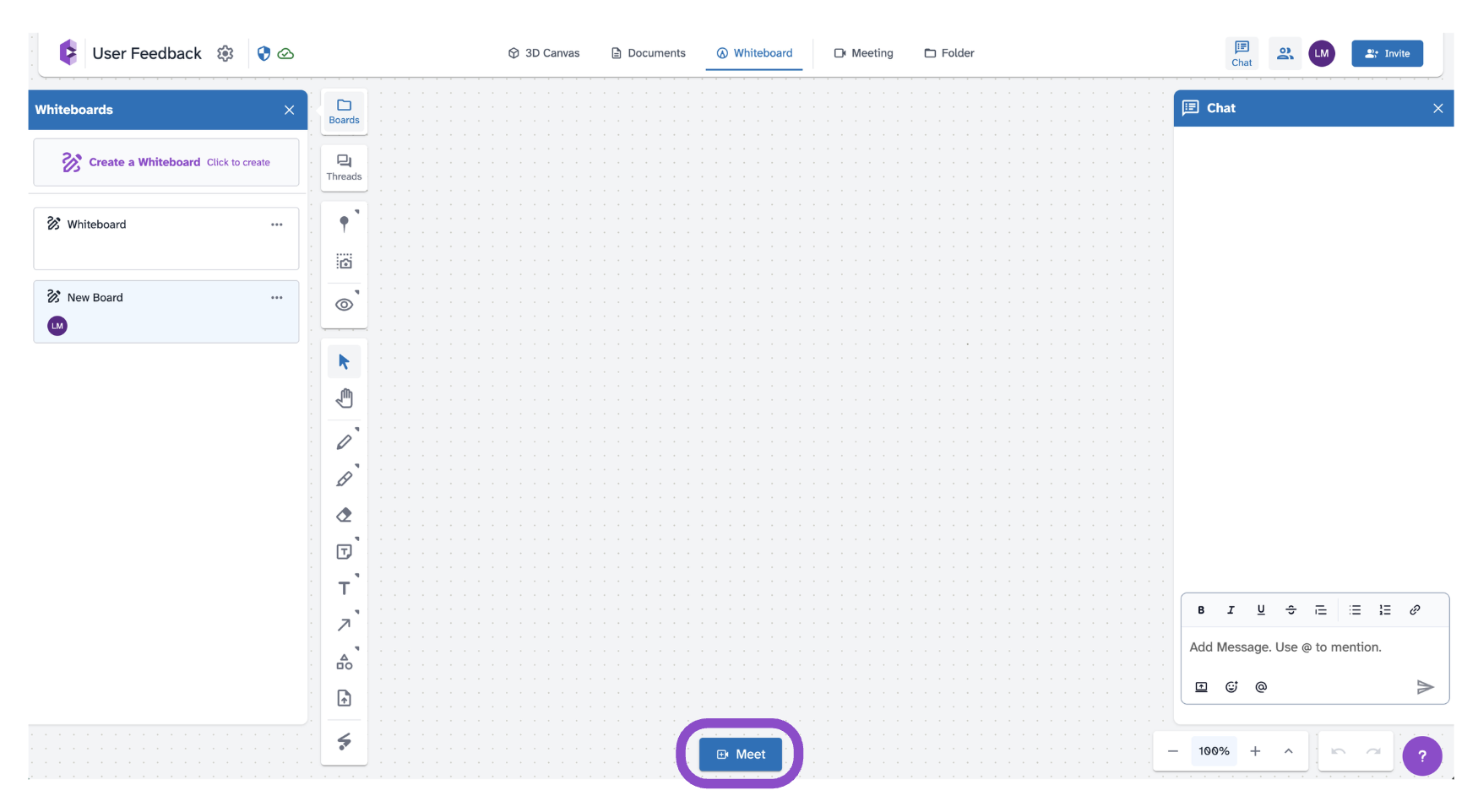
- Open any space and click Meet at the bottom center of the canvas.
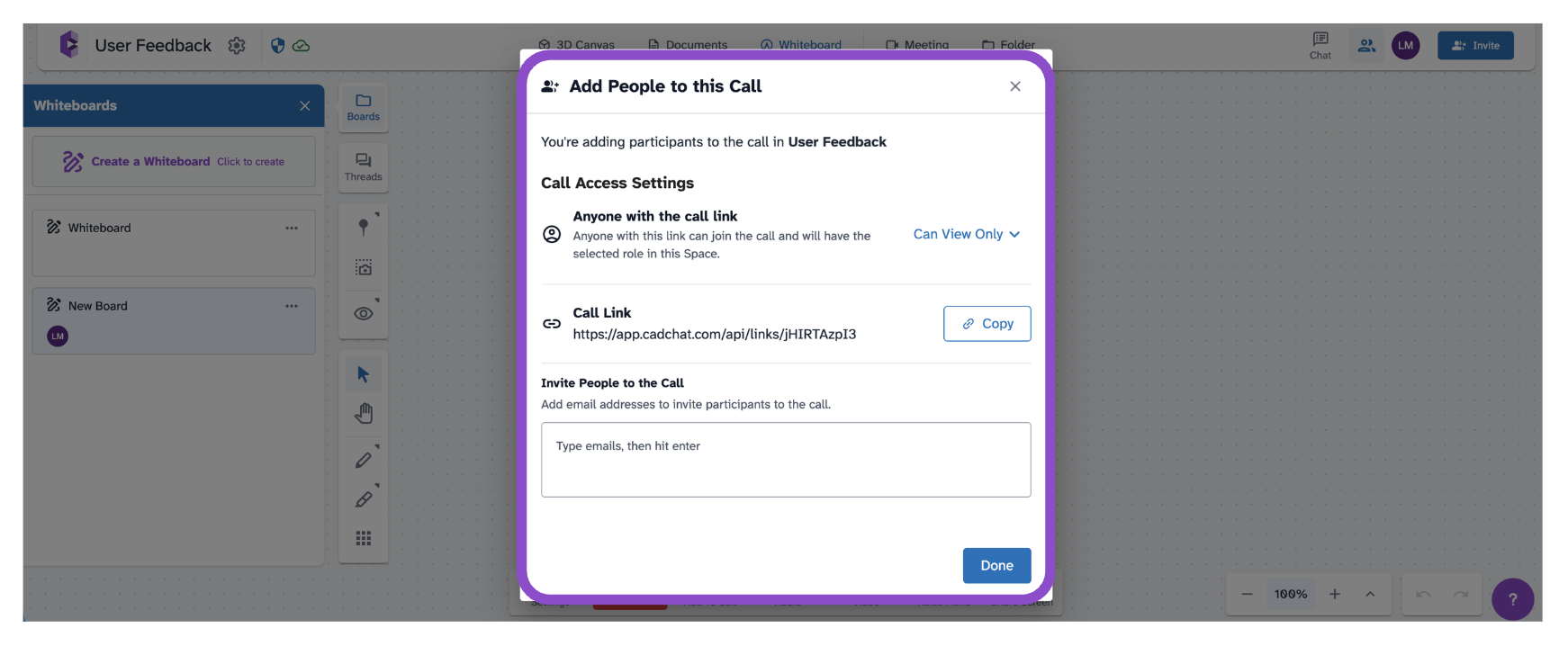
2. In the Add People to this Call modal, review or change Call Access Settings.
3. Copy the Call Link to share it, or enter email addresses to invite people directly.
4. Click Start to enter the meeting room.
In the meeting room
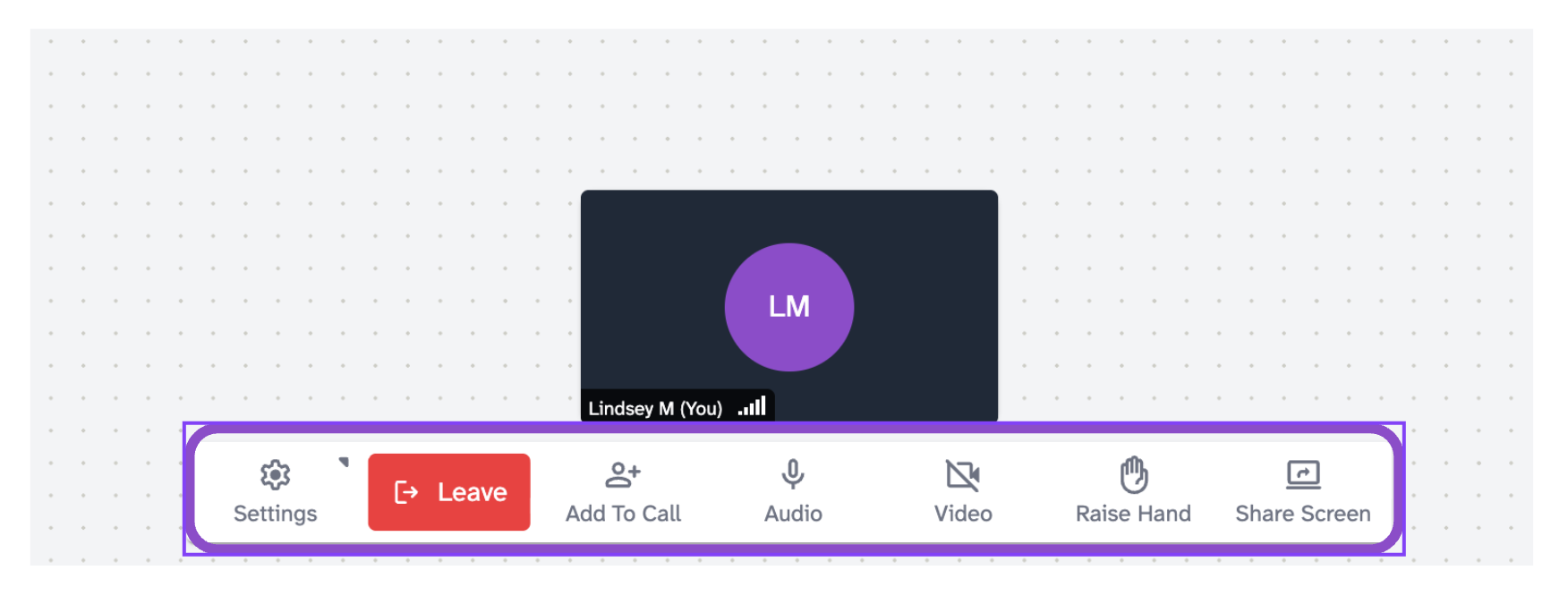
Use the controls bar at the bottom:
- Audio: Toggle your microphone. Click the chevron to select a different audio device.
- Video: Toggle your camera. Click the chevron to select a different camera.
- Raise Hand: Display a raised hand banner visible to all participants.
- Share Screen: Share your screen with all participants.
- Add To Call: Share the call link with additional participants.
- Settings: Access Device Settings, Hide Video Streams toggle, and closed captions.
- Leave:Exit the meeting room.
After leaving, choose to return to the space or go to the Dashboard, and optionally rate the call quality.
Tips and edge cases
- Ad hoc meetings are not added to the Calendar and do not send calendar invitations.
- If the Meet button isn't visible, try reducing your browser zoom level, it sits at the bottom center of the canvas.
- If participants can't join via the link, check the Call Access Settings in the modal.
- To schedule a meeting in advance, see Schedule a meeting.